13
Safety Information and
Table of Content
Product Introduction and
Setting the Player
Playback Functions and
Special Playback Features
System Set-up
Troubleshooting and
Specification
Important
Notice
Connections
Be sure to turn off the power and unplug all
units from the wall outlet before making any
connections.
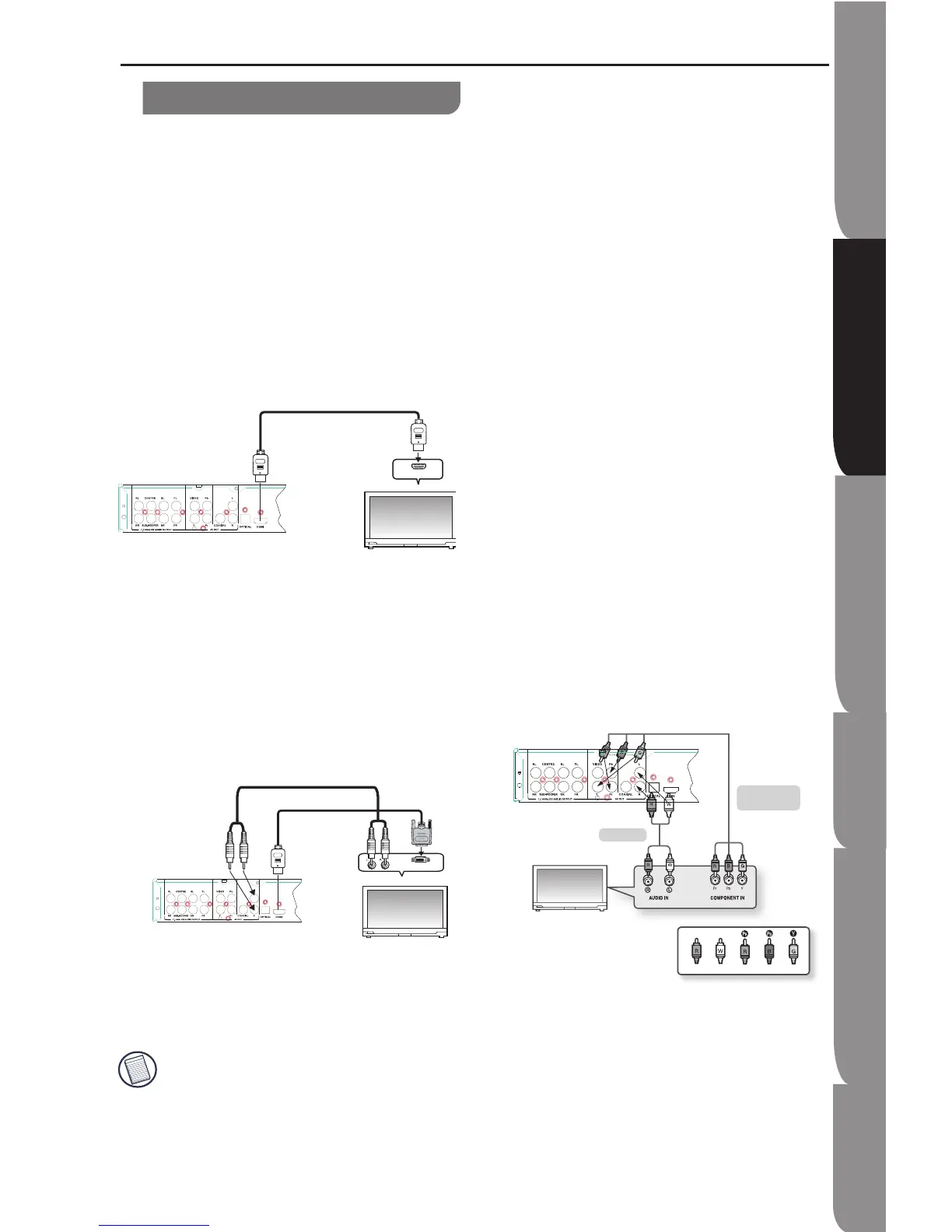
Connecting to HDTV with HDMI Cable
1. Using an HDMI-HDMI cable (not included)
connect the HDMI OUT terminal on the rear of
the Blu-ray Disc Player to the HDMI IN terminal
of your TV.
2. Press the input selector on your TV remote
control until the HDMI signal from the Blu-ray
Disc Player appears on your TV screen.
Connecting to HDTV with DVI Cable
1. Using the HDMI-DVI cable (not included),
connect the HDMI OUT terminal on the rear of
the Blu-ray Disc Player to the DVI IN terminal of
your TV.
2. Using the audio cables , connect the AUDIO
OUT (red and white) terminals on the rear of the
Blu-ray Disc Player to the AUDIO IN (red and
white) terminals of your TV.
3. Press the input selector on your TV remote
control until the DVI signal from the Blu-ray Disc
Player appears on your TV screen.
Depending on your TV, certain HDMI output
resolution may not work. Please refer to the
Instruction Manual of your TV.
When you connect the player to the TV
using the HDMI cable for the first time or to
a new TV, the HDMI output resolution will
•
•
•
be automatically set to the highest provided
by the TV.
Connecting to TV with Component Video Cable
Connecting to your TV using Component
Video Cables.
You will enjoy high quality images with
accurate colour reproduction. Component
video separates the picture element into
black and white (Y), blue (PB), and red (PR)
signals to present clear and clean images.
(Audio signals are delivered through the
audio output.)
1. Using Component Video Cables (not
included), connect the COMPONENT VIDEO
OUT terminals on the rear of the Blu-ray Disc
Player to the COMPONENT IN terminals of
your TV.
2. Using the audio cables, connect the AUDIO
OUT (red and white) terminals on the rear of the
Blu-ray Disc Player to the AUDIO IN (red and
white) terminals of your TV. Turn on the Blu-ray
Disc Player and TV.
3. Press the input selector on your TV remote
control until the Component signal from the
Blu-ray Disc Player appears on the TV screen.
•
•
Setting up the Blu-ray Disc Player


 To Next Page