Safety Information and
Table of Content
Product Introduction and
Setting the Player
Playback Functions and
Special Playback Features
System Set-up
Troubleshooting and
Specification
Important
Notice
21
System Set-up
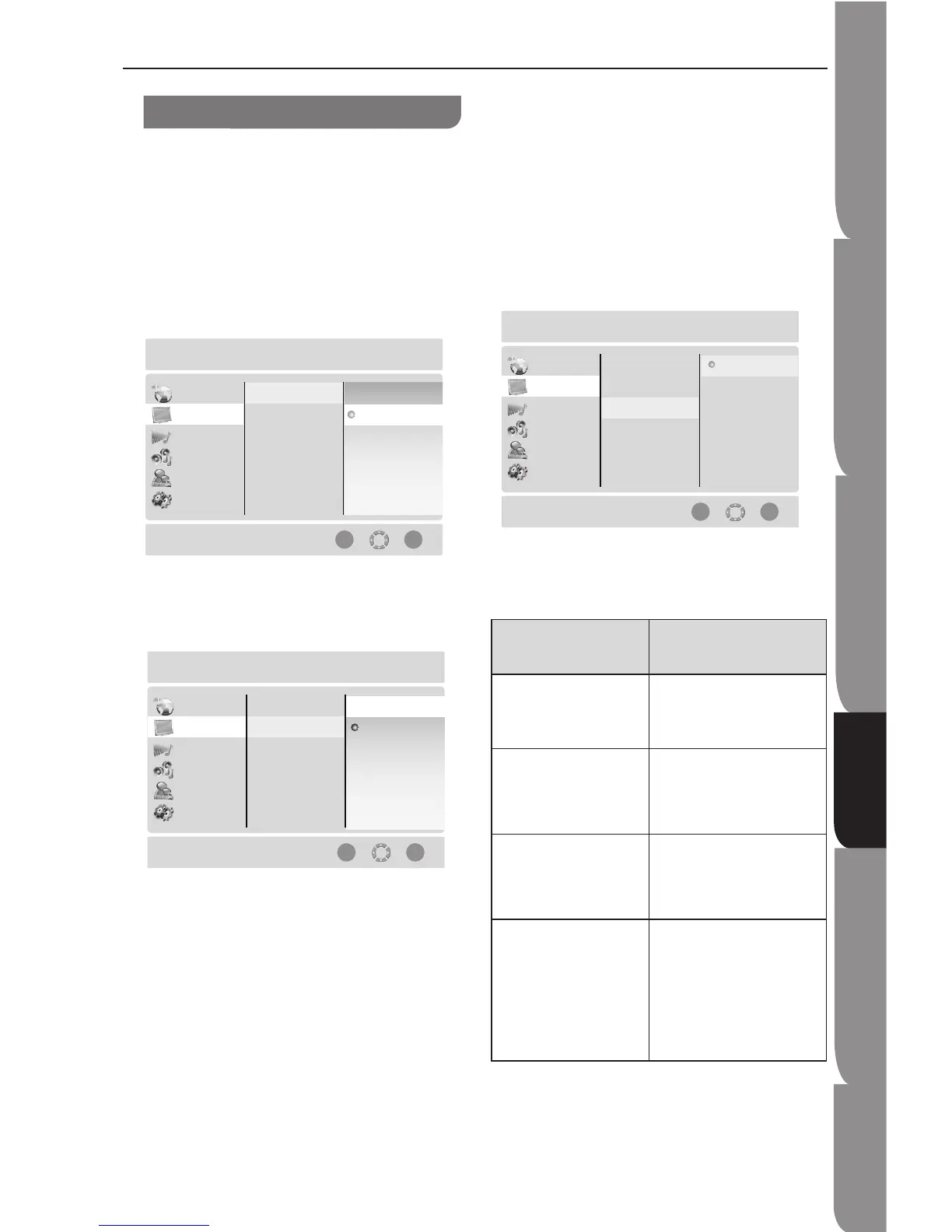
Display Setting
If your player is connected to the TV via HDMI, then
setting up the display would not be necessary. The
player and your TV will communicate to each other and
the display will set up accordingly.
This section is mainly intended for those who have
connected their TV via the Component Output, or for
advanced users with TVs with HDMI ports.
TV Type
This player supports different TV output, including
NTSC and PAL systems.
TV Aspect
Select the picture size according to the aspect ratio of
the connected TV. You can select:-
16:9 Wide
16:9 Pillarbox
4:3 Letterbox
4:3 Pan and Scan
16:9 Wide: You can view the full 16:9 picture
on your widescreen TV.
16:9 Pillarbox: Certain movies are in 4:3
source and will be display in 4:3 Pillarbox
(black bars on sides of pictures) if 16:9 Pillar is
selected.
4:3 Letterbox: Select this when you want to
see the total 16:9 ratio screen Blu-ray Disc/DVD
•
•
•
supplies despite you have a TV with a 4:3 ratio
screen. Black bars will appear at the top and
bottom of the screen.
4:3 Pan and Scan: Select this option when you
want to see the 16:9 video supplied by the Blu-
ray Disc/DVD without the black bars on top and
bottom despite the fact that you have a 4:3 ratio
screen (Extreme left and right portion of the
movie picture will be cut off).
Resolution
Select the output resolution based on the type of TV
connected to the player as in the table below.
TV TYPE Correct Resolution
Setting
If you TV is an
enhanced-definition TV
(EDTV)
480p/576p
If your TV is a
high-definition TV
(HDTV) capable of
720p only
720p
If your TV is a
high-definition TV
(HDTV) capable of
1080i only
1080i
If your TV is HDMI
equipped, and if your
TV is a high-definition
TV (HDTV) capable of
1080p [any frame rate],
and you are connected
to you TV via HDMI.
1080p
•
Display Setting


 To Next Page