2. CONFIGURATION
2.1 Web Interface Presentation
Launch your favorite web browser and type the IP address of your
LumiNode. Press enter to validate.
NODE PAGE
C
A
D E F
G
H
JIB
K
L
(A) Identify: Clicking on the Luminex logo will identify your
LumiNode in the network. The LCD display will turn GREEN and the
Mode LED will flash GREEN for 5sec. In the web-UI you get the text
“Identified” under the Logo and the LCD area will change colour.
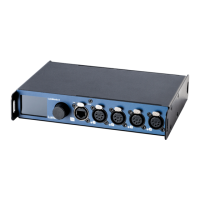
(B) Image of your LumiNode: Depending on the model you are
using; the image might differ from the one displayed above. This
product image shows the configuration of each DMX port. The
centre icon within each DMX port represents an input or an out-
put. On the top of each port, you can see the mode of the process
engine linked to that port.
(C) Navigation menu
(D) Input: According to the mode set on the process engine, the
input block will display all relevant information, such as the type of
incoming protocol, the universe number, the source IP address, or
the DMX input port.
(E) Process engine: By default, the LumiNode comes with For-
ward mode activated on as many process engines as DMX port(s).
The block displays the mode currently set on the process engine;
you can change the name. On the left and on the right-hand side
of the process engine, are respectively the patch and master /
limiter icons. The colour of the icon will change if any parameters
of these menus are modified. For more details about the process
engines and how to configure them please see chapter 6 of this
manual.
(F) Output: The output block will display all relevant information,
such as the type of outgoing protocol, the universe number, the
destination IP address, or the DMX output port.
(G) Increment / Decrement: Use these shortcuts to quickly in-
crease or decrease the value of a universe. Select the Process en-
gine first, after which the increment / decrement tool becomes
available.
(H) Reset tool and padlock: Use this tool to reset one or several
process engines. First select the process engine(s) by clicking on
the top left corner of the input block followed by the trash can
icon. The padlock allows you to lock the LumiNode configuration
page to prevent unsolicited action on the web page only. This is an
ideal tool for show time.
(I) Clear Warnings: Clear all stream loss indications.
(J) Active Prole: In this area the current active profile of the
LumiNode is being displayed.
(K) Theme and language: Select here if you want to use the dark
theme or light theme. Interface supported languages are English
and Japanese for now.
(L) Help: In case you need help, here you find an onboard helpfile.
9


 To Next Page