SETUP
Creating Actions:
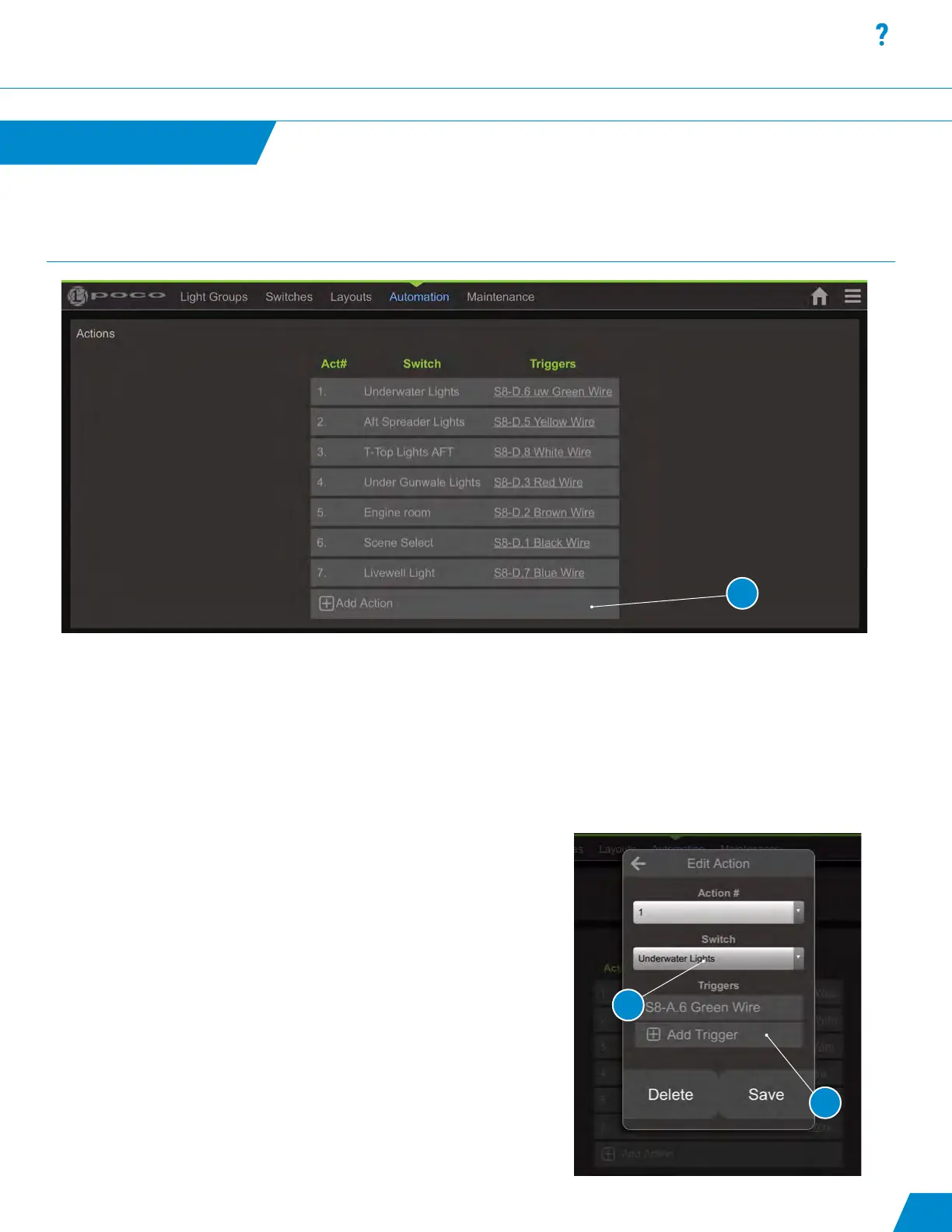
An “Action” assigns one or more of the wires that are connected to physical switches to an exsisting Poco virtual switch. An
Action can also select the single Blue Wire on poco if no Pico S8 modules are used.
1. To add an “Action” go to the Actions section of the Automation tab and select “Add Action”. This will open the
“Edit Action” dialog box.
2. Select an existing switch from the “Switch” dropdown menu
to assign an action. Note: The Action number is determined by the
Poco External-Switch API and can’t be modied (for reference only).
3. Select “Add Trigger” to assign one or more Pico S8 colored wires
to this action. Select a wire in the pop-up list. When using a
latching mechanical switch with illumination, two triggers will be
required to be assigned to each action (one for input-only and
one for output-only).
Your physical switch will now activate the Poco Virtual Switch, and the
illumination state will be synchronized with the on-screen switch.
Automation
continued...
26
1
3
2
Setup continued...


 To Next Page