44
SELECTING VEHICLE
WARNING
Before performing any diagnostic functions, refer to the Safety Precautions and the warnings provided by the vehicle
manufacturer. In addition, follow any warnings and instructions provided on the handset.
Note: Select Demo to generate simulated data for demonstration purposes.
Search Google for ...
OBD-II
Select Vehicle
CHECK
CHECK
101001
1001
0101
2:59
Read DTCs Data Stream Special Tests
Diagnostic
Information
SettingsBrowserMaintenance Tests
All System DTC
Scan
Automated System
Test Veiw Saved Tests
View Data Stream
Recordings
No Vehicle Selected
Active
Tue, 10 May 2016
System Wiring
Diagrams
ss02432
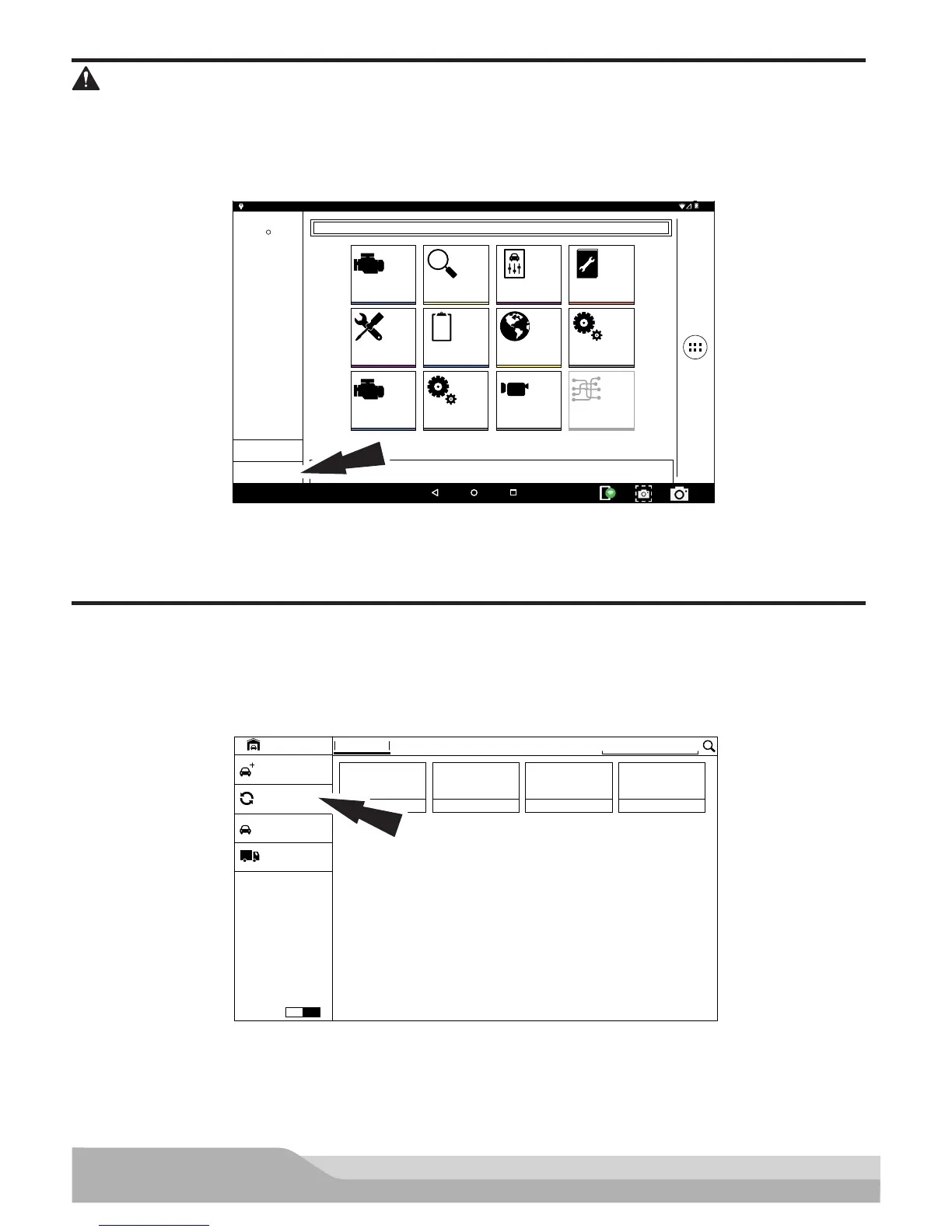
1. Select, Select Vehicle to manually choose the vehicle, AutoID to automatically identify the vehicle or enter
the VIN.
2. Select the vehicle specification options on each screen until the complete vehicle information is entered.
Auto ID
Auto ID uses the vehicle’s Mode 9 VIN information, when available. Most vehicles from 2004 and newer sup-
port Auto ID, but some other older vehicles may support Mode 9 too.
Auto ID Operation:
1. Handset must be on and and paired with the VCI which is connected to a vehicle.
VEHICLE BAY
SEARCH BY VIN
Enter New Vehicle
Start AutoID
RECENT FAVORITES
OBD-II
Demo Mode
?
Heavy Duty
ON
ENGINE
2008 Chrysler
Limited 3.2
Crossfire
TRANSMISSION
2015 Acura
Base 2.0
ILX
PCM
1999 Chevrolet
LS 5.7
C2500 2WD
ENGINE
2003 Cadillac
Luxury Sport 3.2
CTS
ss02433
2. Select Start Auto ID
3. Once selected the handset will begin communicating with the vehicle.


 To Next Page