Cast Members and Cast Windows 145
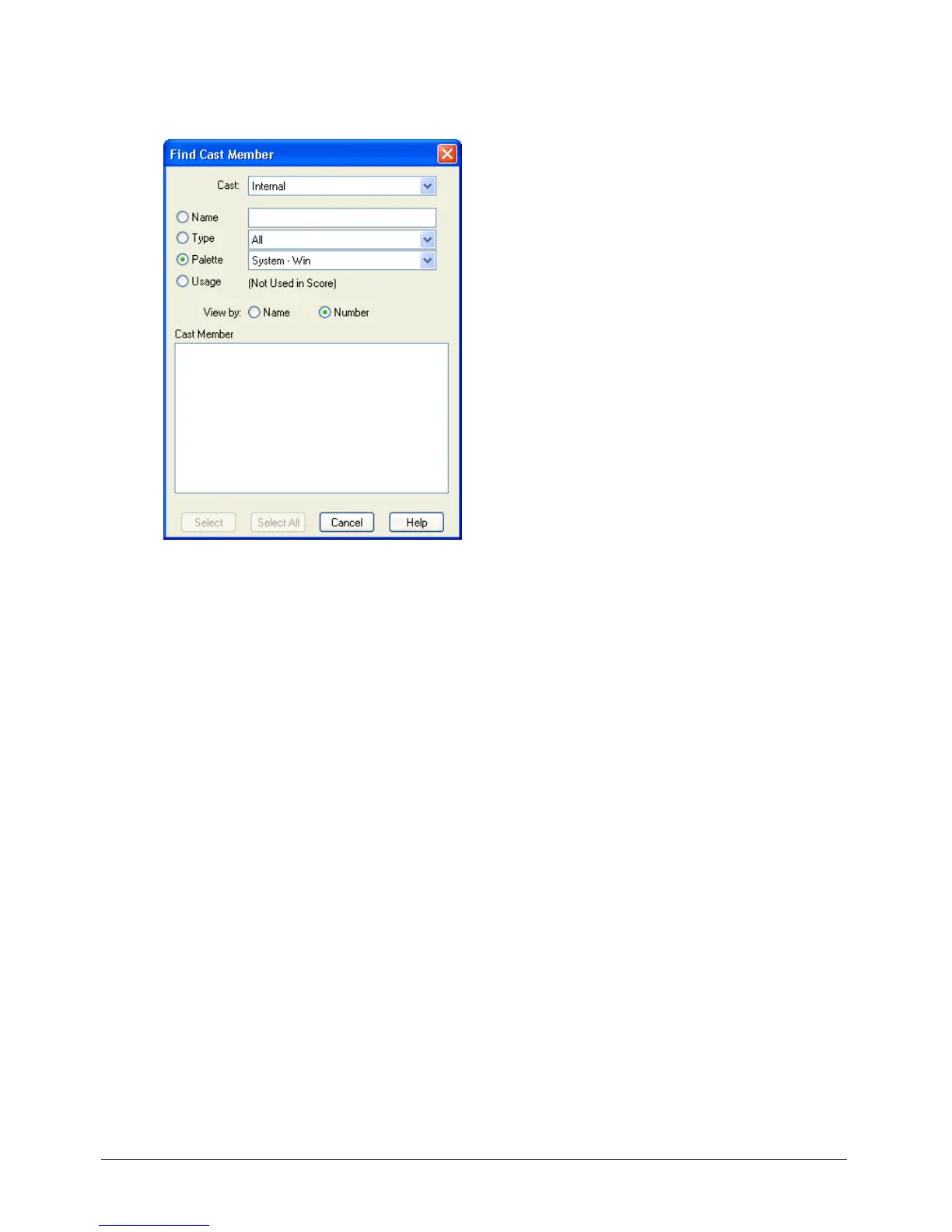
To find cast members:
1 Select Edit > Find > Cast Member.
2 In the Find Cast Member dialog box, select a Cast window to search from the Cast
pop-up menu.
To search every cast in the movie, select All Casts.
3 Select a search option:
• Select Name, and enter search text in the text box. For example, to search for a group of related
cast members that share a common element in their names, you might enter the word
Bird to
search for cast members named Bird 1, Bird 2, and Bird 3.
• Select Type, and select an option from the pop-up menu to search for cast members by
media type.
• Select Palette, and select an option from the pop-up menu. You can use this option to search
for and resolve palette conflicts.
• Select Usage to locate all cast members that aren’t used in the Score. Cast members that you
find with this option might be used in the movie by a Lingo script.
Director displays the specified cast member.
4 Do one of the following:
• Select a cast member on the list, and click Select to close the dialog box and select the cast
member in the Cast window.
• Click Select All to close the dialog box and select all listed cast members in the Cast window.



 To Next Page