Sprites 161
Layering sprites
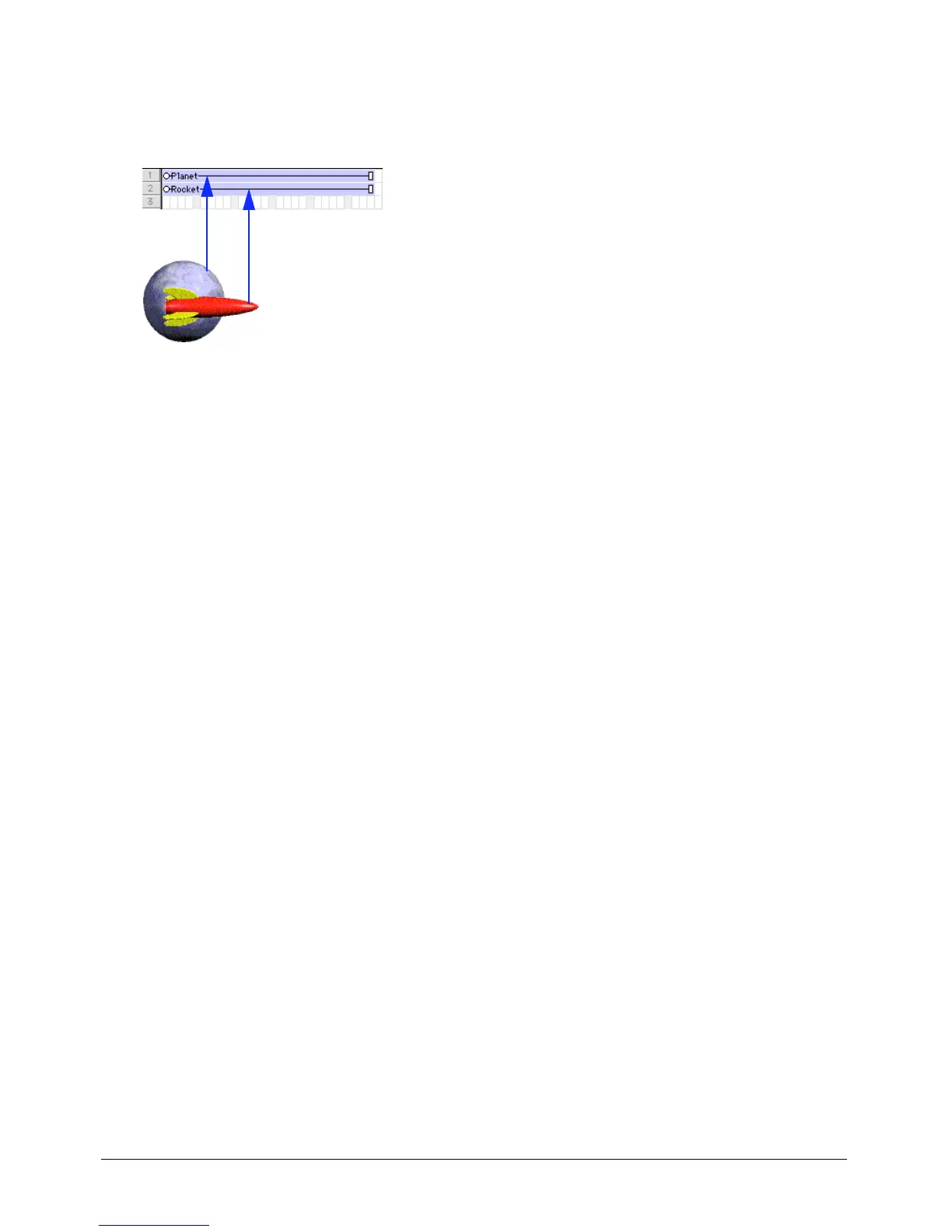
A sprite appears in front of other sprites on the Stage according to its channel. Sprites in higher-
numbered channels appear in front of sprites in lower-numbered channels.
The rocket in channel 2 appears in front of the planet in channel 1.
To change a sprite’s layer on the Stage:
1 Select the sprite. To select the contents of an entire channel, click the channel number at the
left side of the Score.
2 Do one of the following:
• Select Modify > Arrange, and select a command from the submenu to change the order
of sprites.
• Drag the sprite in the Score from one channel to another.
• If you selected a channel, drag its contents to another channel.
Displaying and editing sprite properties
As you work with sprites in your movie, you’ll want to monitor and possibly modify
sprite properties. Director offers several methods of accomplishing this using one or more of
the following:
• The Property inspector
• The Sprite toolbar, which includes a subset of Sprite fields found in the Property inspector
• The Sprite Overlay, which displays, directly on the Stage, the most commonly used properties
for selected sprites
• Sprite labels, which appear within the sprite bars in the Score and let you view important
sprite properties
• Lingo



 To Next Page