Director MX Basics Tutorial 77
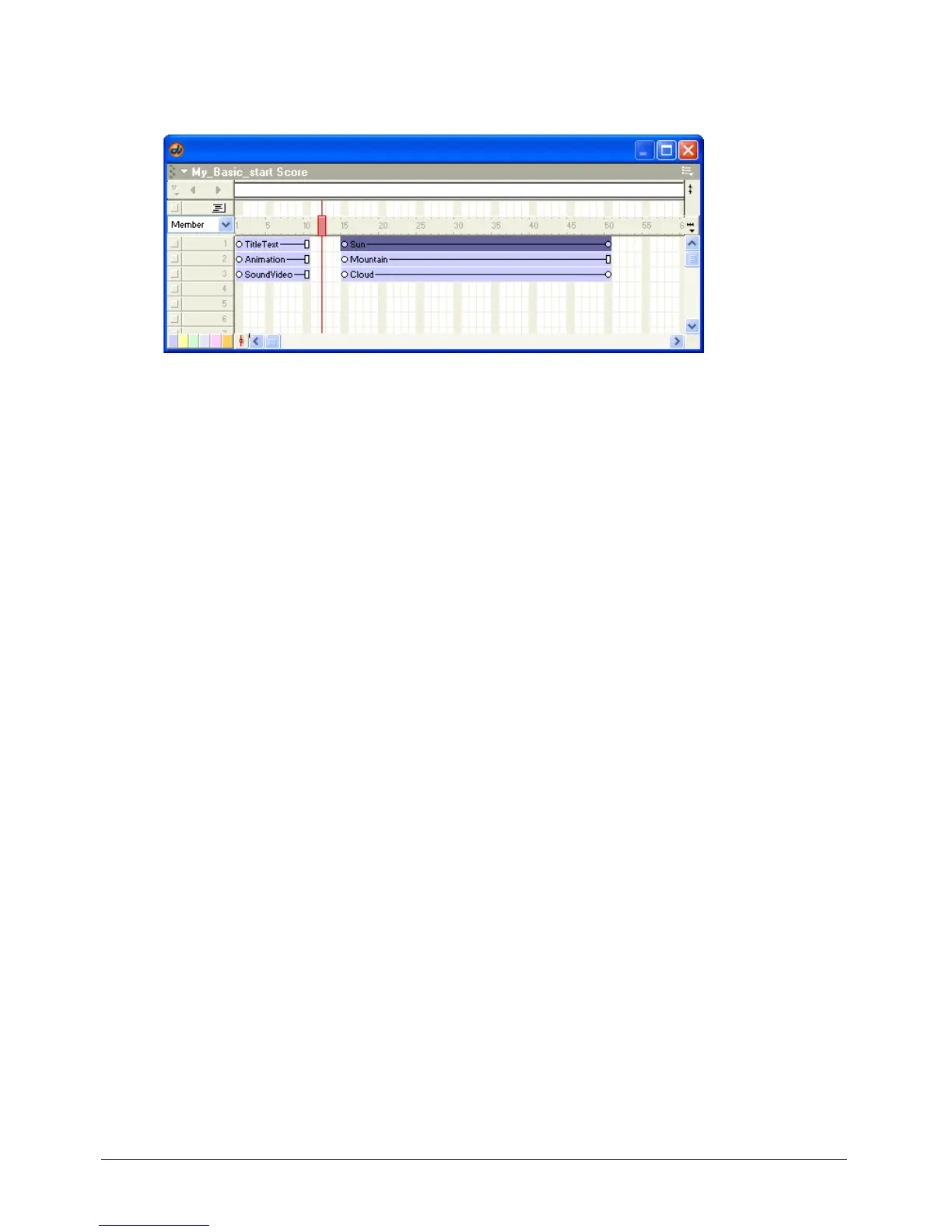
4 Click and drag the Sun sprite from channel 4 to channel 1, but make sure it remains in frames
15 through 50.
5 Scrub or drag the playhead from frame 15 to 50 to see the modified animation.
The Sun sprite now appears behind the mountains and cloud.
Add navigation buttons to the animation scene
You’ve successfully completed your first animation. To complete the animation scene, you’ll add
navigation buttons. You’ll use the Go to Sound and Video button created earlier and create a
new button that returns users to the first scene. Later you’ll add Lingo to these buttons to make
them function.
Add an existing button
First, you add the Go to Sound and Video button that you created earlier for scene 1.
1 Click frame 15 in the frame number bar in the Score.
2 Drag the SoundVideo button cast member from the Cast window to the lower right side of the
Stage window. A new sprite appears in the Score beginning in channel 4, frame 15.
3 In the Score, click and drag the end of the new SoundVideo sprite from frame 24 to frame 50.
4 Click the SoundVideo button on the Stage. On the Sprite tab in the Property inspector, type
258 in the X text box and 298 in the Y text box, and press Enter (Windows) or Return
(Macintosh) to place the button precisely.



 To Next Page