Bitmaps 215
• To copy and stretch the selection (Marquee tool only), Control-Alt-drag (Windows) or
Command
-Option-drag (Macintosh) the selection.
• To constrain the movement of the selection to horizontal or vertical, Shift-drag the selection.
• To move the selection one pixel at a time, use the arrow keys.
Flipping, rotating, and applying effects to bitmaps
The toolbar at the top of the Paint window contains buttons to apply effects to bitmaps. Before
using any of these options, you must select part of the bitmap with the Lasso or Marquee tool.
Effects that change the shape of the selection work only when the selection is made with the
Marquee tool. Effects that change colors within the selection work with the Marquee and the
Lasso tools.
Lingo flips and rotates bitmaps by flipping and rotating bitmap sprites. See “Rotating and
skewing sprites” on page 176 and “Flipping sprites” on page 178.
Note: To repeat any of these effects after using them, press Control+Y (Windows) or Command+Y (Macintosh).
To flip, rotate, skew, or apply effects to part of a bitmap:
1 Select part of a bitmap in the Paint window with the Marquee tool.
2 Use any of the following effects:
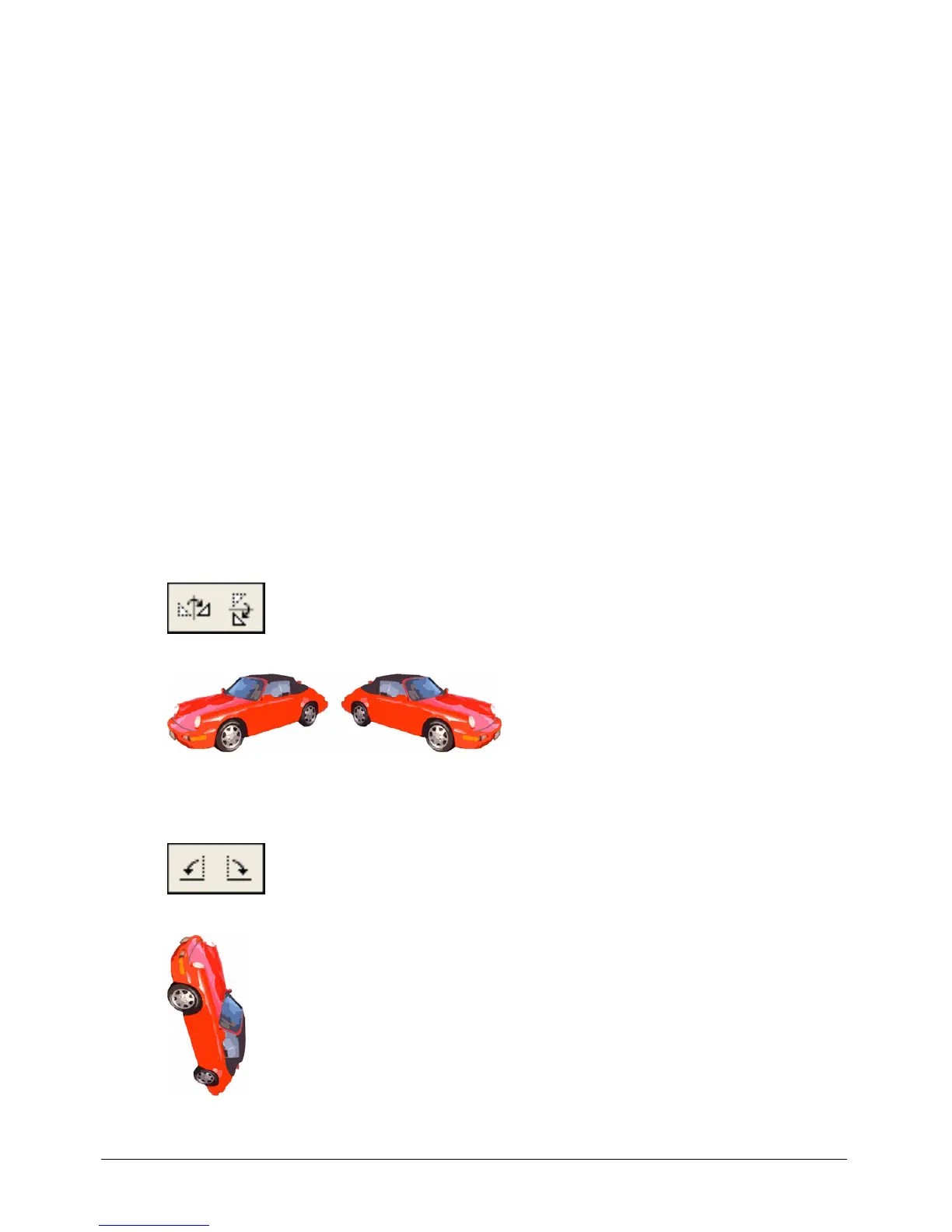
• To flip the selection, click the Flip Horizontal button to flip right to left, or click the Flip
Vertical button to flip top to bottom.
• To rotate the selection 90º counterclockwise or 90º clockwise, click the Rotate Left or Rotate
Right buttons, respectively.



 To Next Page