Director Basics 43
To enter marker comments:
1 Move the playback head to a marker, and select Window > Markers.
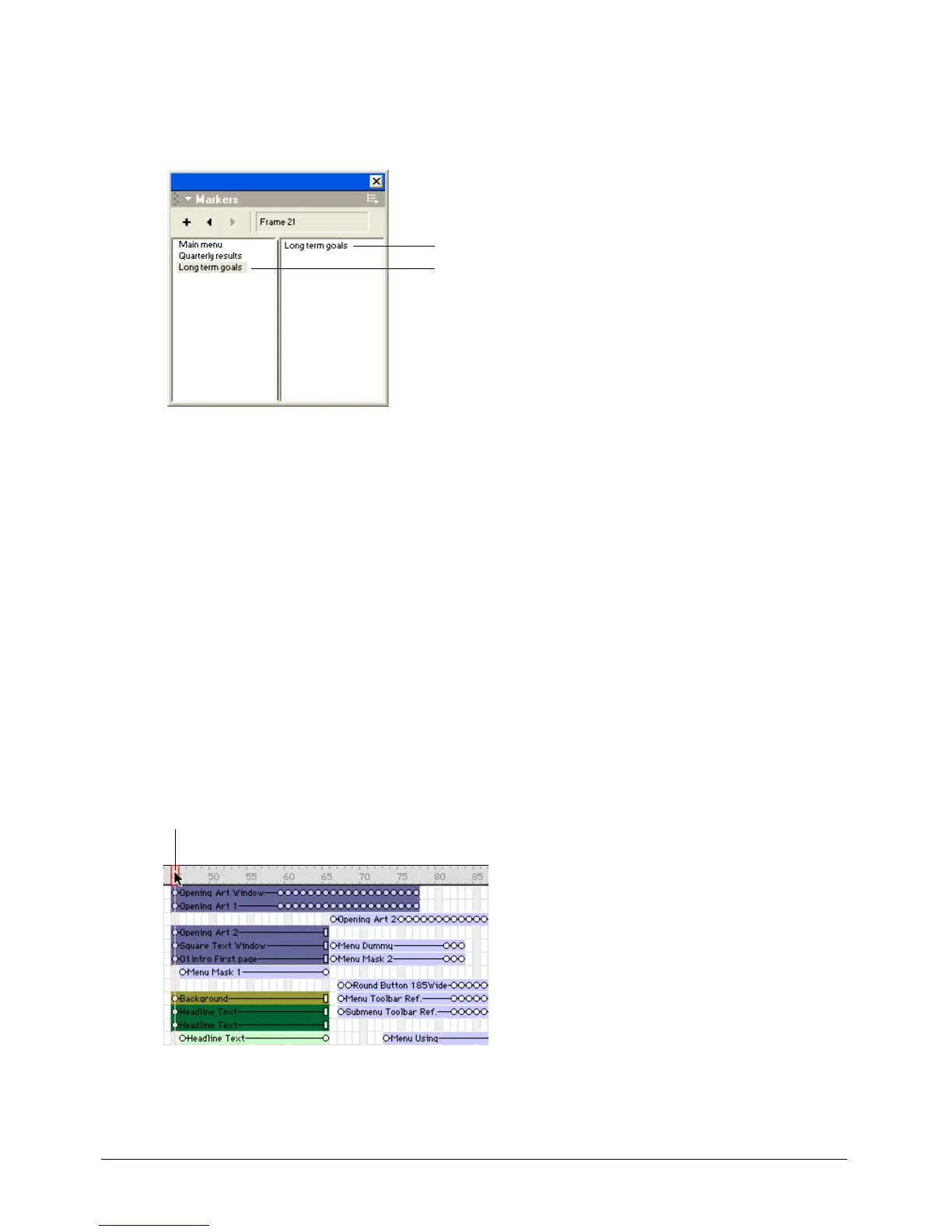
The Markers window opens and displays comments associated with that frame.
Comments associated with markers appear in the right column. By default, the marker name
appears as the first line of text in the comments column and should not be removed.
Note: Use Control+Left Arrow or Control+Right Arrow (Windows) or Command+Left Arrow or
Command+Right Arrow (Macintosh) to move to the previous or next marker.
2
To enter comments, click to the right of the marker name that appears in the comments
column. When the insertion point appears, click again to deselect the marker name, and press
Control-Enter (Windows) or Control-Return (Macintosh) to start a new line. Then, start
typing your comments.
Selecting and editing frames in the Score
You can select a range of frames in the Score and then copy, delete, or paste all the contents of the
selected frames.
To move, copy, or delete all the contents of a range of frames:
1 Double-click in the frame channel to select frames.
2 If you want to move or copy frames, select Edit > Cut Sprites or Edit > Copy Sprites.
Marker names
Comments
Double-click here to select all sprites in a frame, including markers, special
effects, and sounds. Double-click and drag to select a range of frames.



 To Next Page