Text 283
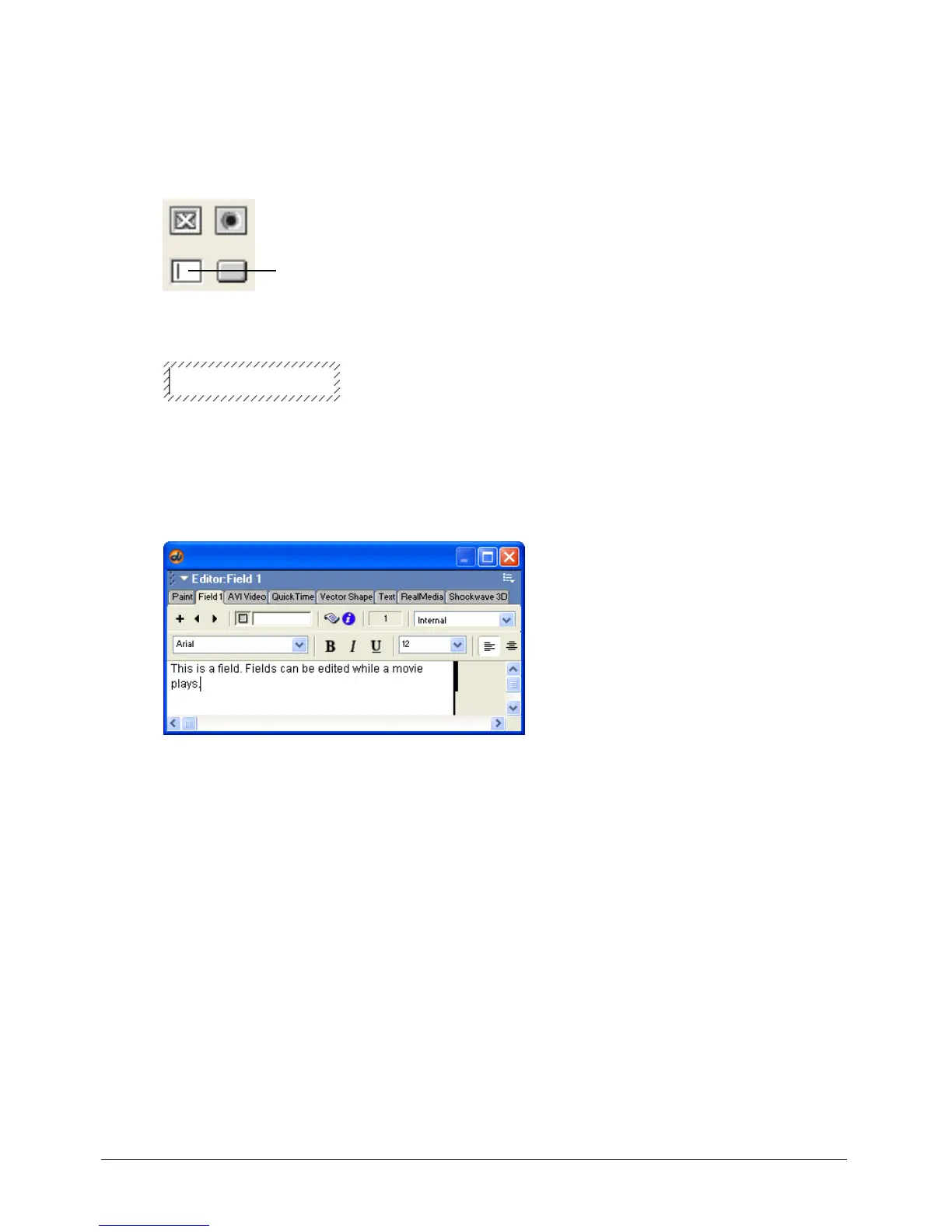
To create a field cast member:
1 Perform one of the following actions:
• Select Insert > Control > Field.
• Click the Field tool in the Tool palette, and drag on the Stage to define the area of the field.
The field is created, and an insertion point is placed at the beginning of the field.
2 Enter the text for the field. When you finish, click outside the field to exit the field.
To specify field settings:
• Select Window > Field, or double-click a field cast member in the Cast window.
If necessary, use the Previous Cast Member and Next Cast Member buttons to navigate to the
field you want to edit. See “Setting text or field cast member properties” on page 285.
Using editable text
Editable text lets users enter text on a web page, customize a game, and so on. When text is
editable, editing the text changes the text cast member and all the text in the sprites where the cast
member appears.
You can make text editable and let users tab between editable sprites from Lingo or the Property
inspector (see “Setting text or field cast member properties” on page 285).
You can make a text sprite editable in only a certain range of frames in the Score.
Field tool



 To Next Page