Chapter 5164
Using the Sprite Overlay
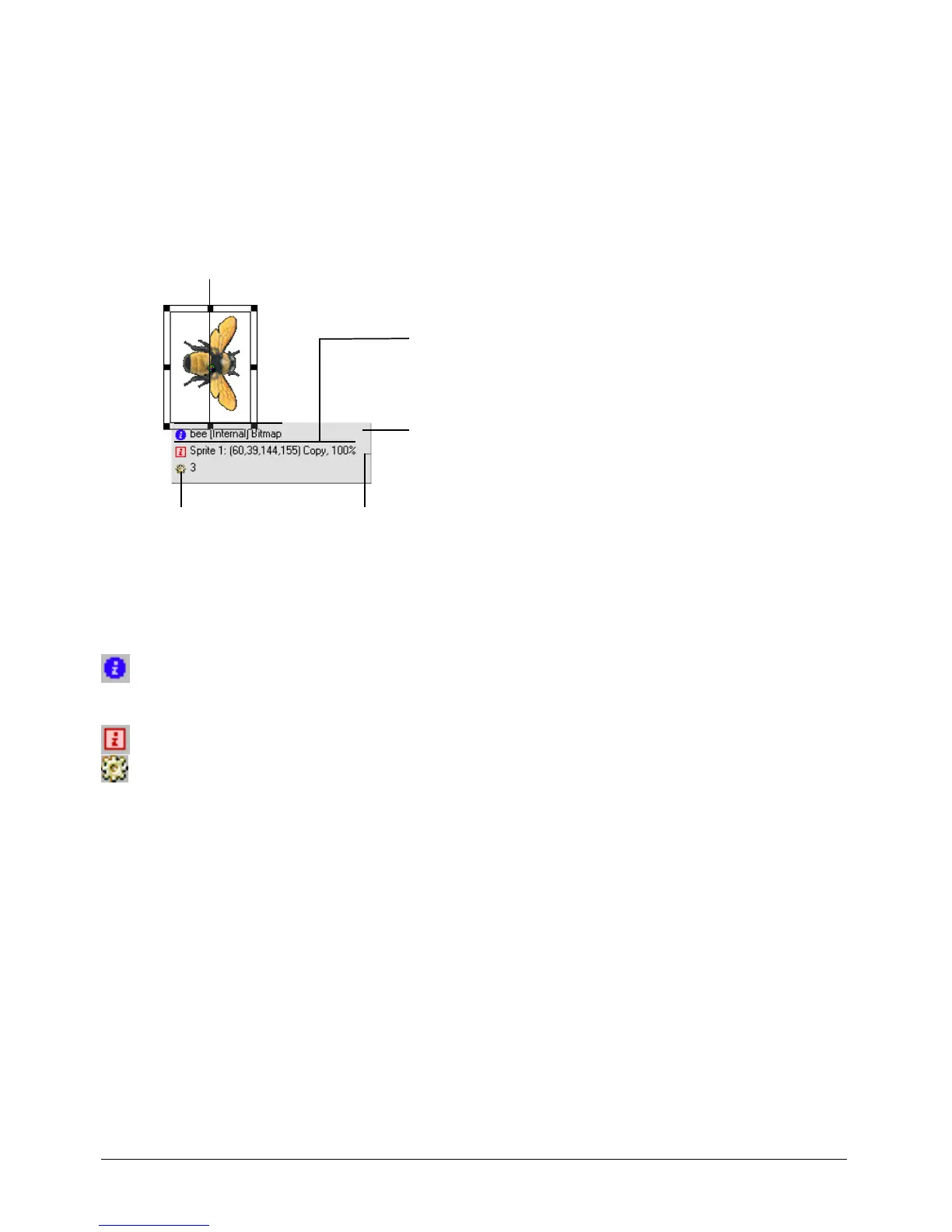
The Sprite Overlay displays important sprite properties directly on the Stage. You can open
editors, inspectors, and dialog boxes to change sprite properties by clicking the corresponding
icons in the Sprite Overlay.
To display the Sprite Overlay when a sprite is selected:
• Select View > Sprite Overlay > Show Info.
To use Sprite Overlay options to change how the overlay appears:
1 Click the Sprite on the Stage to select it.
2 In the Sprite Overlay, click the icon that represents the data you want to edit:
• To edit the Sprite’s cast member, click this icon to open the tab in the Property inspector that
applies to this type of sprite. For example, clicking this icon displays the Vector tab for a vector
sprite, the Text tab for a text sprite, and so on.
• To open the Sprite tab in the Property inspector, click this icon.
• To open the Behavior tab in the Property inspector, click this icon. See Chapter 14,
“Behaviors,” on page 357.
To change the Sprite Overlay’s appearance to suit your preferences:
1 Select View > Sprite Overlay > Settings.
2 Select a Display option to determine when sprite properties are visible and active:
Roll Over displays sprite properties only when the pointer is over a single sprite.
Selection displays sprite properties when you select a sprite.
All Sprites displays sprite properties for all sprites on the Stage.
3 Use the Text Color box to select the color for text that appears in the Sprite Overlay.
Name, cast, and media type of sprite’s
cast member
Channel number; left, top,
right, and bottom coordinates;
ink; and blend settings
Attached behavior(s)
Overlay opacity control
Sprite Overlay



 To Next Page