EasyManua.ls Logo

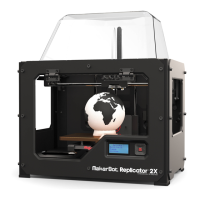
MakerBot Replicator 2X - User Manual

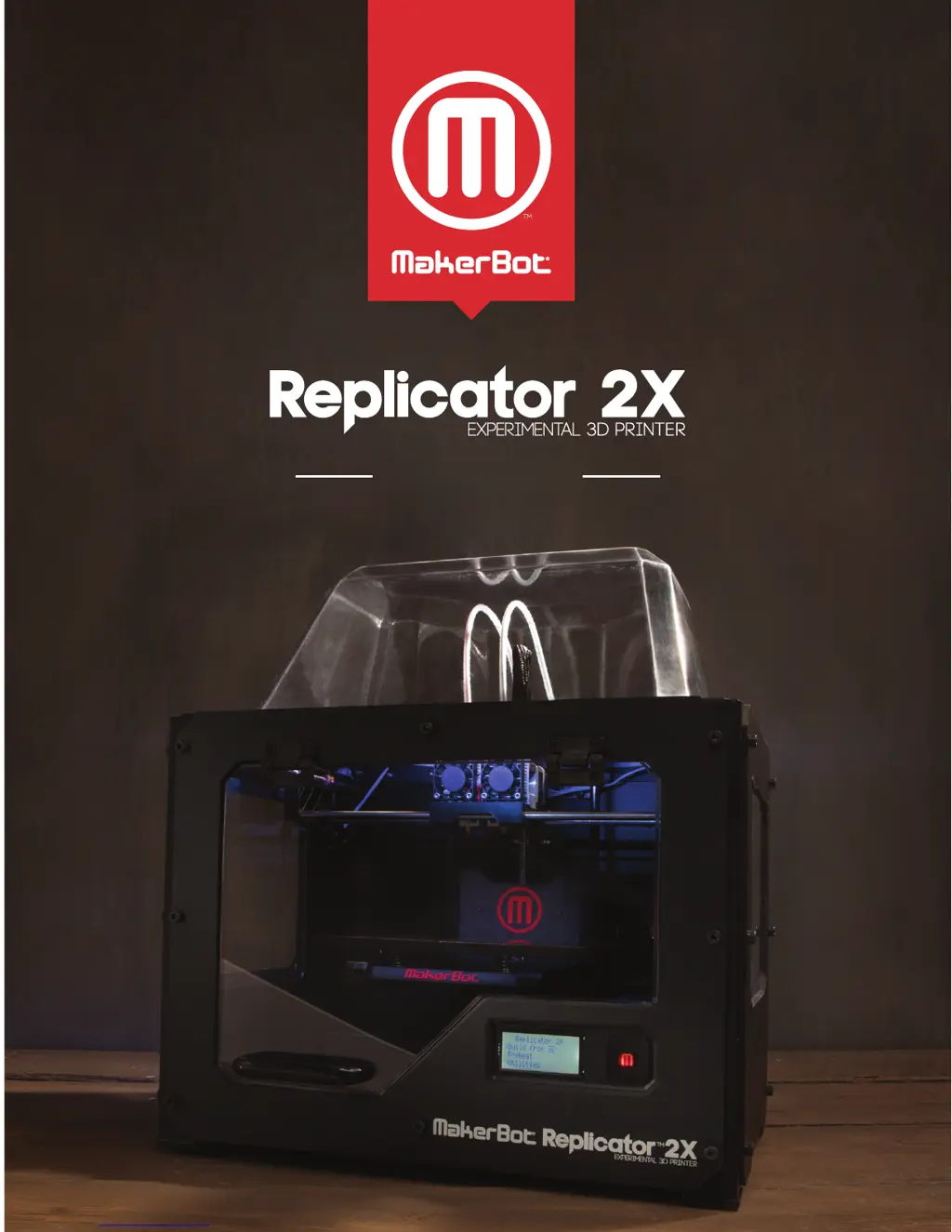
MakerBot Replicator 2X
116 pages
Print Icon
To Next Page IconTo Next Page
Loading...
®
USER MANUAL

Table of Contents

Other manuals for MakerBot Replicator 2X

Questions and Answers

  • M
    Michelle ContrerasSep 2, 2025
    What to do if filament gets stuck in MakerBot 3D Printers?
    • X
      xbrownSep 2, 2025
      If the filament gets stuck, try these steps: Go to the LCD panel and select Utilities > Filament Options > Unload. Set the extruder arm to the open position. Push about half an inch of filament through the extruder to clear the blockage.
  • V
    Valerie GomezAug 31, 2025
    What to do if objects are difficult to remove from the build plate of MakerBot Replicator 2X 3D Printers?
    • S
      Sharon RoblesAug 31, 2025
      If objects are hard to remove from the build plate, first wait for it to cool down. If it's still stuck, use a metal craft spatula and carefully work the blade under the edge of the object.
  • M
    Michael WilliamsAug 29, 2025
    Why is my MakerBot 3D Printer extrusion stopping?
    • L
      Lori PettyAug 29, 2025
      If the extrusion stops, check the following: See if your extruder motor is rotating and ensure the spool is spinning smoothly on the mount. Also, adjust the build plate distance from the extruder. Finally, check for nozzle clogs by going to the LCD menu on your MakerBot Replicator 2X and navigating to Utilities > Change Filament > Load right or Load left.
  • Z
    zdaviesAug 27, 2025
    What to do if objects do not stick to the build plate on MakerBot Replicator 2X?
    • D
      Douglas MccoyAug 27, 2025
      If objects aren't sticking to the build plate, try these steps: Re-level the build plate via the LCD menu under Utilities > Level Build Plate to correct inconsistent plate height. Ensure the plate is clean of bubbles, scratches, dust, and oil. You can also increase the build plate temperature by five degrees or loosen the plate-leveling knobs about a quarter of a turn to bring the plate closer to the nozzles.
  • R
    Richard HillAug 26, 2025
    What to do if filament is stuck in my MakerBot 3D Printer?
    • H
      Henry JohnsonAug 26, 2025
      If the filament is stuck, it may have swollen inside the extruder. Push about half an inch of filament through the extruder to clear the blockage.
  • S
    Steven PhillipsAug 25, 2025
    What to do if filament is not loading in my MakerBot 3D Printer?
    • K
      Kristin MooreAug 25, 2025
      If the filament is not loading, it may be due to several reasons: * The filament has bends, so make a fresh cut at the end of the filament. * The filament is not being pushed through properly, so push the filament in until you start to see plastic come out of the nozzle. * The filament is bent or jamming inside the extruder. Remove the filament from the top of the extruder and check for a bend.
  • J
    jesse06Aug 22, 2025
    What to do if my MakerBot 3D Printer stops extruding?
    • K
      Kathryn CopelandAug 22, 2025
      If your MakerBot 3D Printer stops extruding, consider these possible causes and solutions: * The extruder motor might not be rotating. Use a marker to draw a line across the end of the motor shaft that is visible at the back of the motor. * The filament might be tangled. Check that the spool is spinning smoothly on the mount. * The build plate might be too close to the extruder. In this case you should adjust build plate distance from the extruder. * The nozzle might be clogged, so run the Load script from the Load option under Utilities.

Summary

Welcome and Introduction

Safety and Compliance Information

Discusses safety guidelines, FCC compliance, and warnings for operating the 3D printer.

Printer Setup Guide

Unpacking Your MakerBot Replicator 2 X

Step-by-step guide on how to safely remove the printer and its accessories from the packaging.

Setting Up Your MakerBot Replicator 2 X

Guides users through connecting and installing essential parts like the enclosure door handle and filament guides.

Printer Startup Procedures

Leveling the Build Plate

Details the importance and process of calibrating the build plate for optimal print adhesion.

Loading MakerBot Filament

Provides instructions on how to properly feed and load filament into the printer's extruders.

Startup Troubleshooting

Offers solutions for common issues encountered during the initial setup and startup process.

LCD Menu Navigation

Active Build Menu Options

Describes the controls available during an active print, such as Pause, Cancel, and Change Filament.

Printing from SD Card

SD Card Printing Troubleshooting

Addresses issues like the printer not recognizing the SD card or files.

Using MakerWare Software

Downloading and Installing MakerWare

Provides instructions for downloading and setting up the essential MakerWare software.

Preparing Models for Printing

Saving and Printing Files

Covers saving model configurations and exporting them for printing on the MakerBot Replicator 2X.

Basic Printing Techniques

Intermediate Printing Options

Print Quality Settings

Explains how to adjust print quality profiles (Low, Standard, High) and their impact.

Intermediate Printing Troubleshooting

Provides solutions for issues related to raft and support removal during printing.

Advanced Printing Options

Advanced Print Quality Settings

Explains detailed settings for print quality, including infill, shells, and layer height.

Temperature Settings

Covers adjusting extruder and build plate temperatures for optimal printing with different materials.

Speed Settings

Details how to configure print speeds for extruding and traveling to optimize print time and quality.

Filament Information

Updating Printer Firmware

MakerBot Replicator 2X Specifications

General IconGeneral
Print technologyFused Filament Fabrication (FFF)
Printing materialABS, Polylactic acid (PLA)
Layer thickness (min)- mm
Number of printing colors-
Maximum build size (WxDxH)152 x 246 x 155 mm
USB portYes
Ethernet LANNo
Compatible memory cardsSD
Storage temperature (T-T)0 - 32 °C
Operating temperature (T-T)15 - 32 °C
Input current4 A
AC input voltage100-240 V
AC input frequency50 - 60 Hz
Product colorBlack
Housing materialAluminium, Polyvinyl chloride (PVC), Steel
Weight and Dimensions IconWeight and Dimensions
Depth420 mm
Width490 mm
Height531 mm
Weight12600 g

Related product manuals