PROCEDURE AFTER REPLACING THE MICROPROCESSOR, ETC.
The procedure after replacing the u-COM (microprocessor), ash ROM, etc. is as follows.
PCB Name Ref. No. Description
Proce-
dure after
Replace-
ment
Remark
HDMI U1018
R5F56108VNFP 32BIT
B
SOFTWARE: Main
HDMI U1020
R5F5210ABDFP
B
SOFTWARE: Sub
HDMI U1025
MX25L1606EM2I-12G 16M
B
SOFTWARE: DSP ROM
HDMI U1027
MX25L12835FMI-10G 128M
B
SOFTWARE: GUI ROM
HDMI U1041
5M80ZT100C5N TQFP100
B
SOFTWARE: AUDIO PLD
HDMI U1045
5M80ZT100C5N TQFP100
B
SOFTWARE: VIDEO PLD
Procedure after Replacement
A : The software has been written. The software is not written at the time of replacement.
B : The software has been written. The software may need to be rewritten by version updates. Check the version.
C : The software has not been written. The software needs to be written after replacement.
See "Firmware Update Procedure" for information on writing the software.
D : The software has been written. Be sure to rewrite with the latest software for your service region.
See "Firmware Update Procedure" for information on writing the software.
FIRMWARE UPDATE PROCEDURE
1. Updating by USB
The latest rmware can be downloaded to a USB memory for updates.
1.1. Connecting to the USB Memory
(1) Preparation
• USB format: Prepare a USB memory formatted in FAT16 or FAT32.
• Do not run the USB memory through a hub.
• Do not connect a computer to the USB port of this unit using a USB cable.
• Do not use an extension cable when connecting the USB unit.
1.2. Unzip Download File
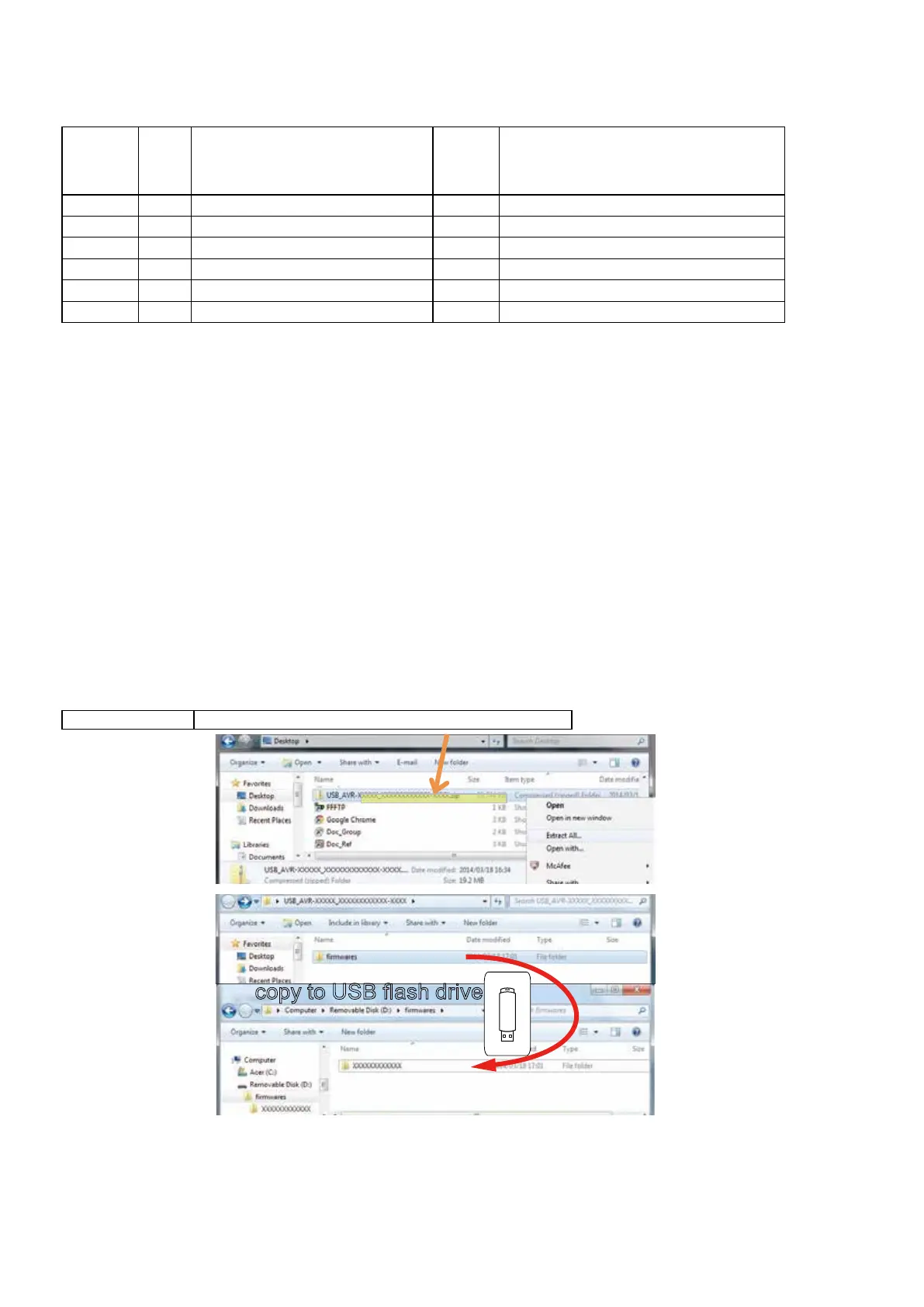
Unzip the downloaded le on your computer.
SRXXXXXXX USB_SRXXXXXXX_XXXXXXXXXXXX-XXXX.zip
You can nd "rmwares" folder after unzipped.
Copy that folder to USB ash drive.
You have to put "rmwares" folder on root directly on USB ash drive(memory).
copy to USB flash drive
56


 To Next Page