9.1 wxPropView 69
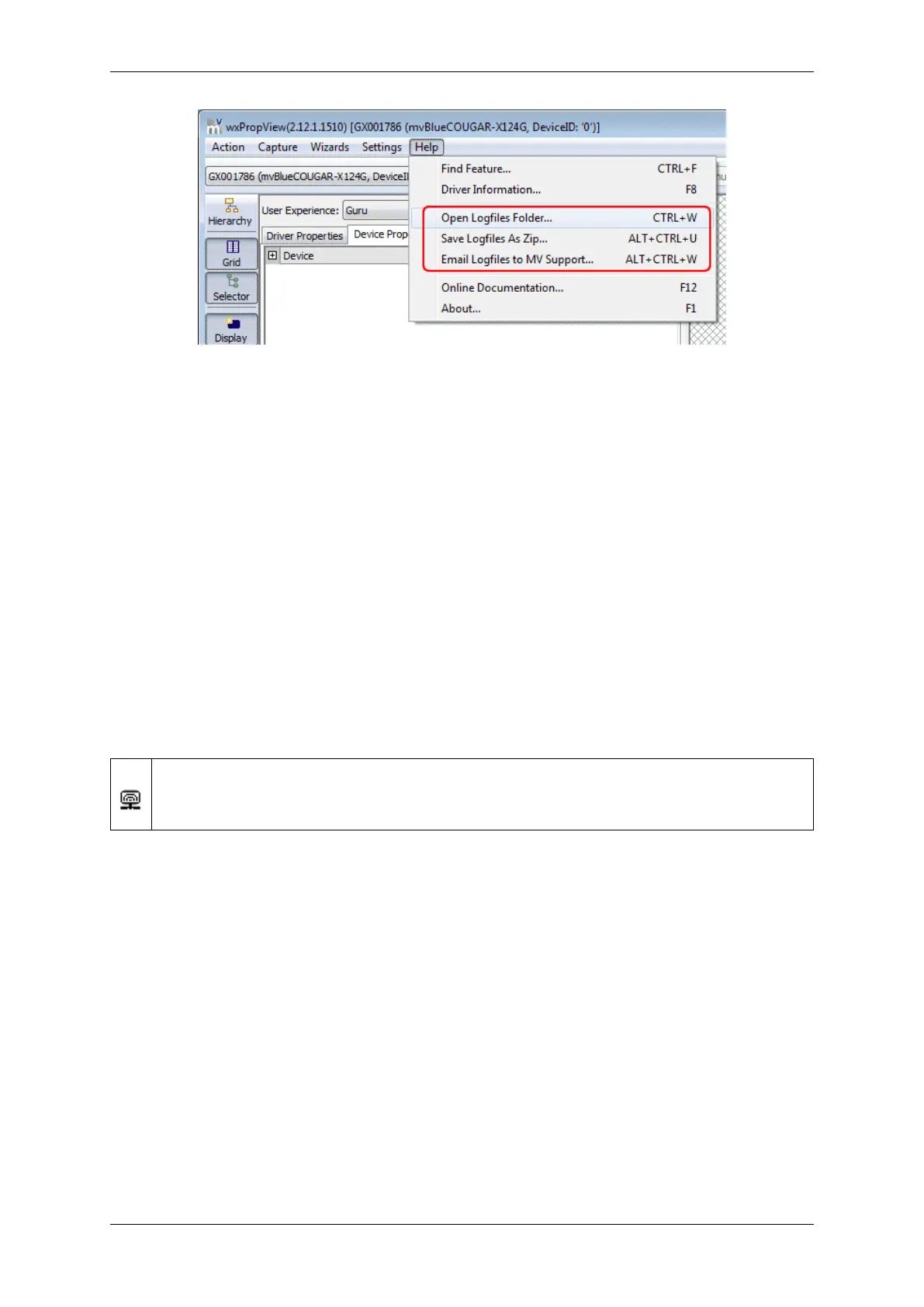
Figure 30: wxPropView - Help menu
The options are to
• directly open the logs folder, to
• create a zip file with all the logs, and to
• open the systems default email client to send an email to support@matrix-vision.com.
9.1.2 How to configure a device
As described above, after the device has been initialized successfully in the "Grid" area of the GUI the available
properties according to the chosen "interface layout" (e.g. GenICam) are displayed in a hierarchy tree.
wxPropView - Configuring a device:
https://www.matrix-vision.com/tl_files/mv11/trainings/wxPropView/wx←-
PropView_ConfiguringDevice/index.html
The next chapter will show how to set the interface layout and which interface you should use according to your
needs.
9.1.2.1 Different interface layouts
Devices belonging to this family only support the Device Specific interface layout which is the common interface
layout supported by most MATRIX VISION devices.
GenICam compliant devices can be operated in different interface layouts. Have a look at a GenICam compliant
device for additional information.
MATRIX VISION GmbH


 To Next Page