7
Attaching cables to the Sensor
Follow the steps outlined in this chapter to connect the cables to the various ports of your Sensor.
Contents
Connect the cable to the Console port
Connect the cable to the Response port
Connect the cable to the Management port
About connecting cables to the Monitoring ports
Turning the Sensor on and o
Managing licenses for NS9500 Sensors
Connect the cable to the Console port
The Console port on the NS-series Sensor is used for setup and conguration of the Sensor.
Task
1
For console connections, plug the DB9 Console cable supplied by McAfee into the Console port on the
Sensor.
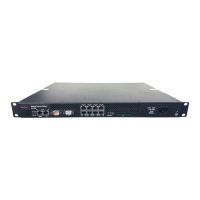
This port is labeled Console in the Sensor front panel.
2
Connect the other end of the Console port cable directly to a COM port of the computer or terminal server
you will use to congure the Sensor, for example, a computer running correctly congured Windows
HyperTerminal software.
You must connect directly to the console for initial conguration, you cannot congure the Sensor remotely.
Terminal servers are provided for console access. Required settings for HyperTerminal are:
Name Setting
Baud rate 115200
Number of bits 8
Parity None
Stop bits 1
Flow control None
3
Turn on the Sensor.
Connect the cable to the Response port
When operating in tap or SPAN mode, the Sensor uses its Response port to respond to attacks. When deployed
in tap mode, the Sensor does not inject response packets through the tap but uses the Response port.
7
McAfee Network Security Platform
29



 To Next Page