2--10
© 2015 Mobile Climate Control
T-367Rev05/2015
2.5.1 Starting the MCC Coolview Application
a. Connect USB end of USB to RS-485 converter
(MCC P/N 35-0735) to USB port of computer.
b. Connect RS-485 end of USB to RS-485 converter
to controller's RS-485 communication cable.
c. Connect RS-485 end of USB to RS-485 converter
to controller's RS-485 communication cable.
d. Open Eco NG Coolview software on comp uter.
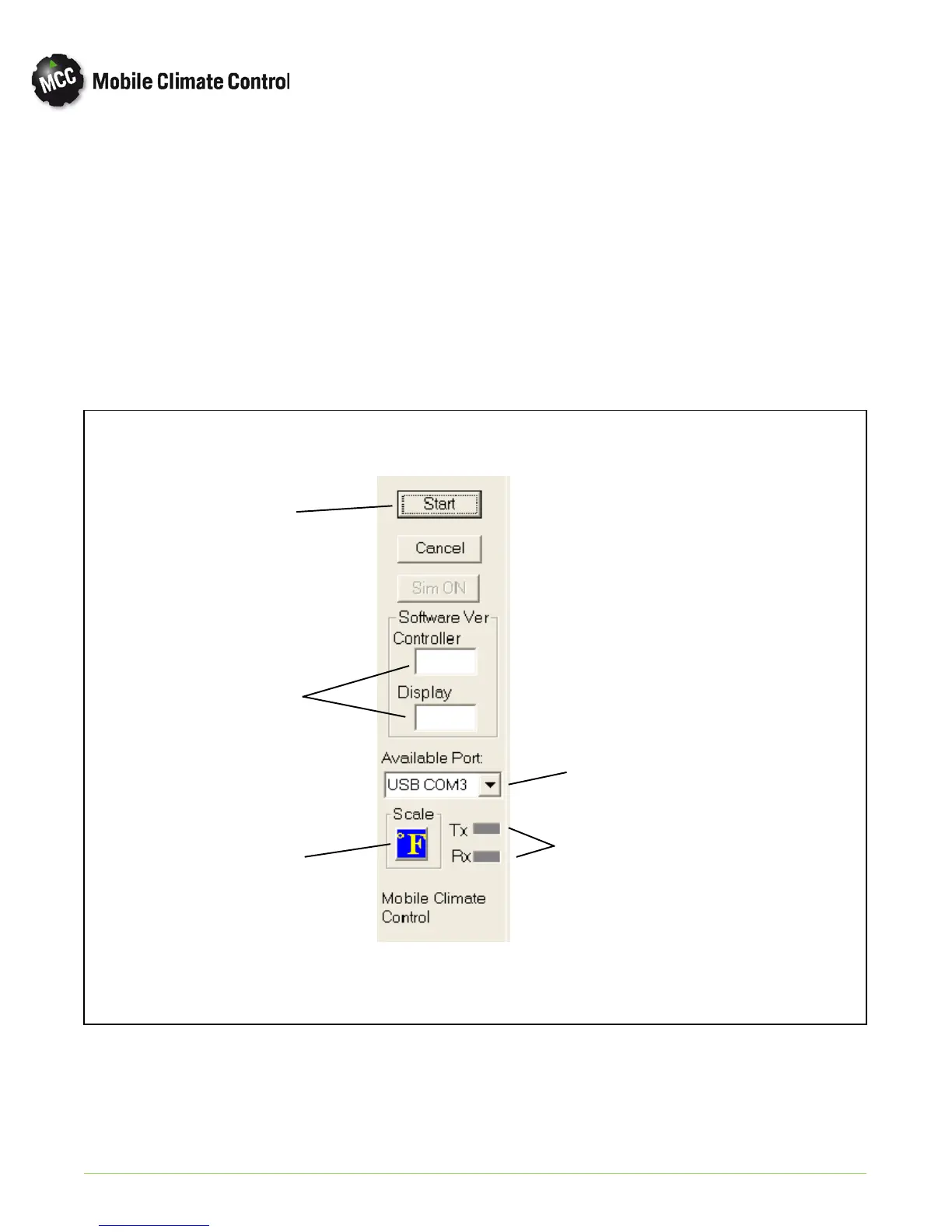
e. Choose communication port associated with
commu n ication cable b y selecting the drop do wn
list under “Available Port” section in Coolview
screen (See Figure 2-9).
f. Click “Start” button (See Figure 2-9) to begin
commun ication between contro ller and Eco NG
Coolview. In normal operation, the “Rx” commu
nication light on Eco NG coolview screen and
USB to RS-485 converter will flash to indicate
Commun ication has been established. If transmit
ting a command, such as “sim on” or re-setting er
rors, the “Tx” will flash to indicate such.
g. On ce co m m unication has b een established, soft
ware version of controller and display will be
shown on Eco NG Coolview screen (See
Figure 2-9).
Start/Stop
Button
Software
Versions
Temperature
Scale Selector
Communication
Port Selector
Communication
Indicator Lights
Figure 2-9 MCC Eco NG Coolview (VIEW Tab)


 To Next Page