WebDAQ 504 User's Guide Functional Details
14
External power connector
Connect the external AC adapter that shipped with the device to the connector labeled EXT PWR on the rear
panel. The power supply provides 9 VDC, 1.67 A power to the WebDAQ.
If using a different power supply than what was shipped with the hardware, ensure that the supply has a positive
center pin.
Power button
The button labeled POWER turns the WebDAQ device on and off.
Press briefly to turn the device on.
Press for approximately 1 second to begin shutting down the operating system and WebDAQ hardware;
release the button when the
POWER LED blinks yellow. The operating system automatically powers off
the WebDAQ device at the end of the shutdown procedure.
If the WebDAQ device stops responding for any reason, you may press the power button and hold it for
approximately 4 seconds to force the device to power off. Any unsaved changes may be lost when
powering down using this method.
Function button
The button labeled FUNC has two functions; it can be used to eject external media or to start/stop an acquisition.
Eject external media (default): Pressing the button unmounts all removable media so they can be safely
removed from the device.
Start or stop an acquisition (requires configuration with the web interface): When configured, pressing
this button starts an acquisition, or stops an acquisition that is currently running.
Use the web interface to safely unmount removable media, when present.
When removable media is plugged into the WebDAQ, the operating system opens it for writing. To safely
remove the media, you must unmount it first.
When a job is configured to log data to external media, pressing
FUNC while the job is running will not eject
the media.
The
MEDIA LED is steady green when all media is unmounted and safe to remove, and off when all media is
removed.
LED status indicators
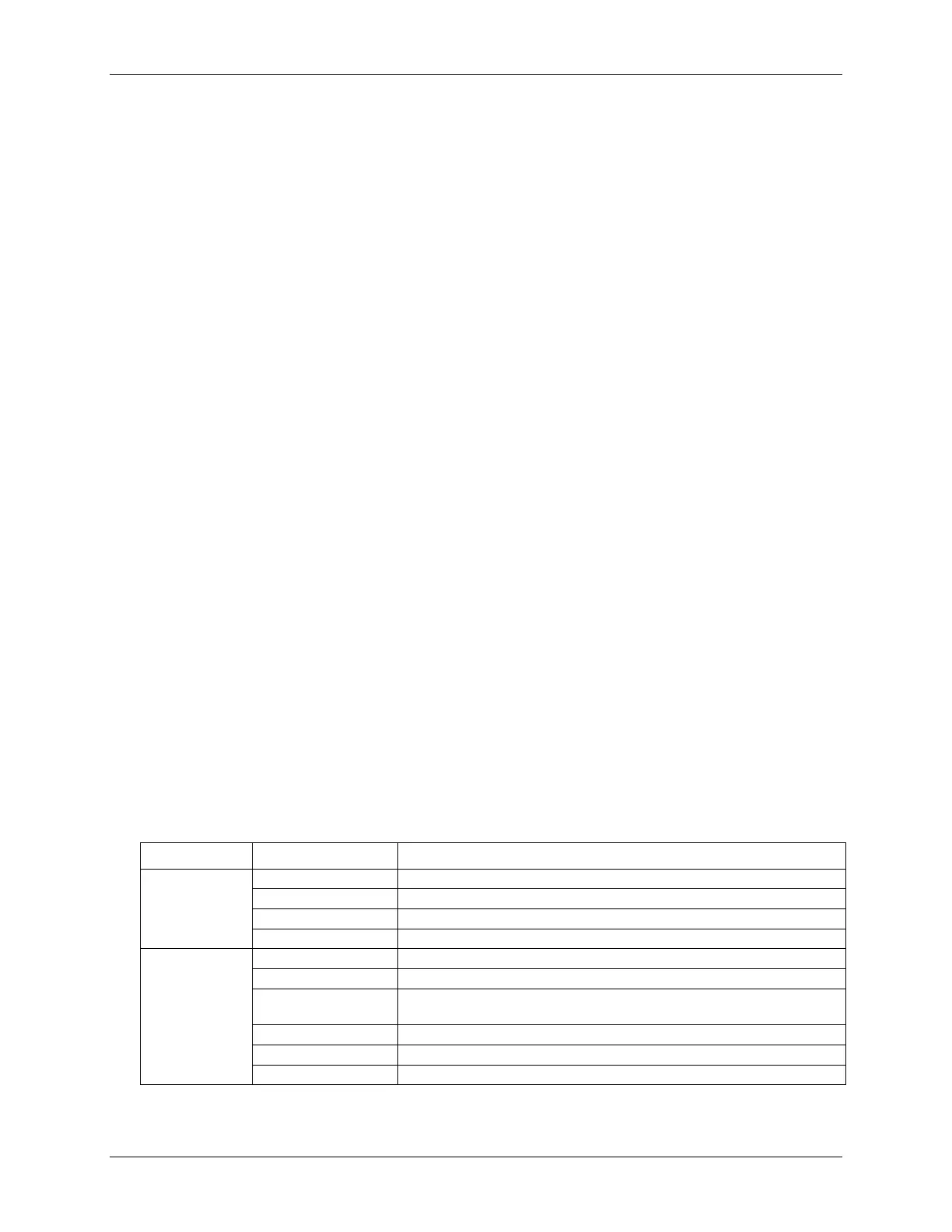
The WebDAQ has four LEDs on the rear panel that indicate the status of power and host communications. The
following table defines the LED states during normal operation.
LED states – normal operating mode
Label State Description
Device boot is successful
Device is configuring hardware
Hardware configuration is complete
Flashing green
100 ms on/2s off)
Waiting for a scheduled start condition to be met
Scheduled start condition is met; waiting for job start condition to be met.
Data is being acquired (job start condition is met)



 To Next Page