MediaTek Proprietary and Confidential. © 2022 MediaTek Inc. All rights reserved. Unauthorized reproduction or disclosure of this document, in whole or in part, is strictly prohibited.
Genio 1200 Evaluation Kit User Guide
7 Appendix
7.1 The Reason Why Camera Icon Disappears on Home Screen and How to
Resolve It
This is because the camera app detects the existence of camera sensor from Android 4.1.
If there's no camera sensor, it hides the camera icon.
The detection is made the very first boot up time the device flashed with a new SW. If it does not find the camera sensor,
the icon is hidden permanently even the camera sensor is plugged afterward.
Step:
1. Power off the Genio 1200 EVK
2. Install the camera DTB into one of the camera connectors and power on the Genio 1200 EVK
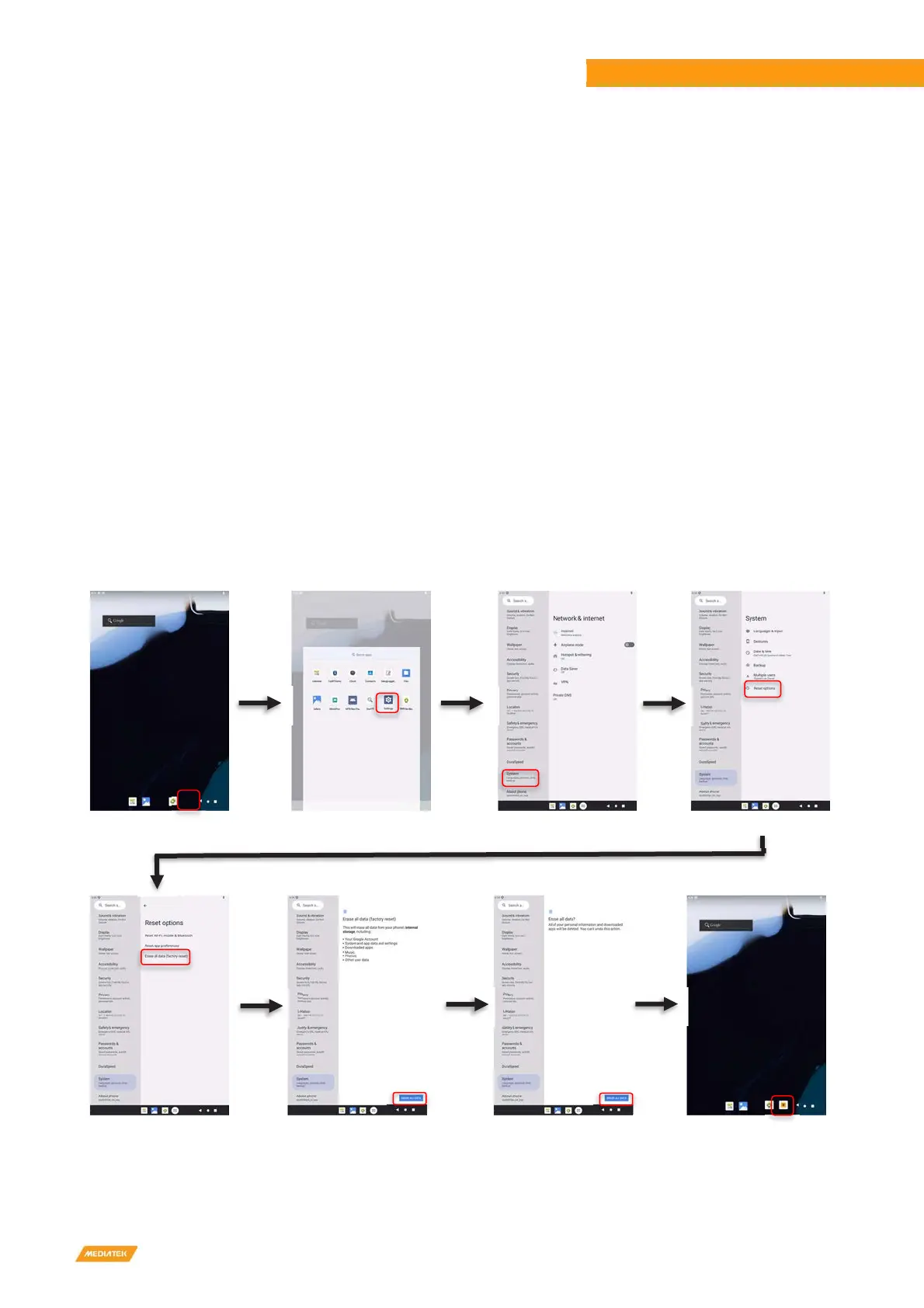
3. Execute Factory reset:
Settings -> System -> Reset options -> Erase all data (factory reset) -> ERASE ALL DATA -> ERASE ALL DATA
4. Genio 1200 EVK will auto power on
5. Check the camera function
Figure 7-1 Factory Reset
Setting
System
Erase all data (factory reset)
Check camera function after boot



 To Next Page