www.megger.com
25
TTR Screen
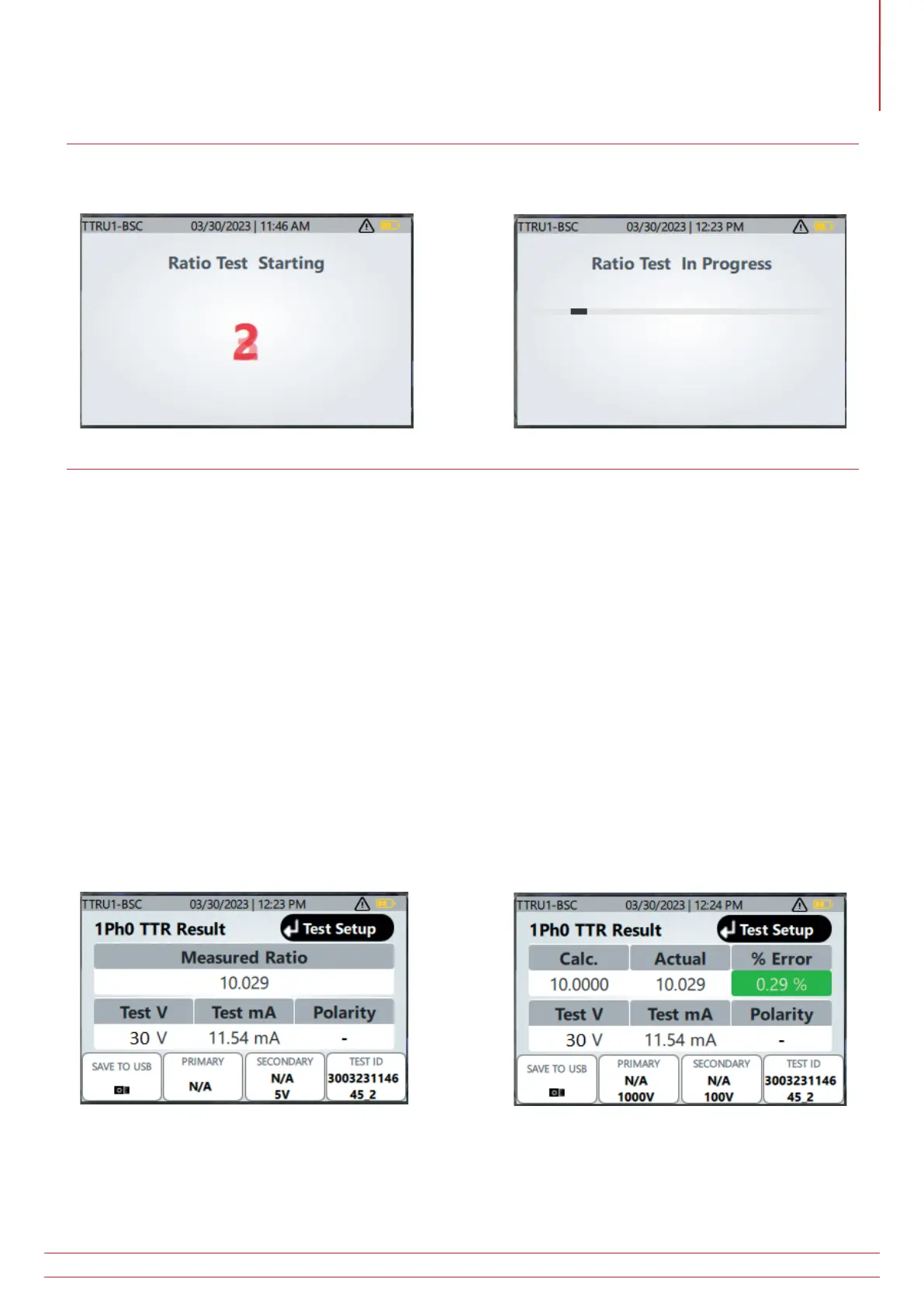
TTRU1 BASIC, ADV, PRO, and EXP TTR Test in Progress
With a TEST ID entered, clicking the play button will show a brief countdown, followed by a test in progress screen.
TTRU1 BASIC Test Complete
When the ratio test completes, the result will be automatically saved to the instrument. Results will also automatically
save to a USB thumb drive if inserted into the TTRU1.
The results screen will show the measured ratio, test voltage, test current, and polarity (subtractive – or additive +). If
primary and secondary voltage or current are entered, calculated ratio and % error will be displayed. If the polarity
measured does not match the test setup, the polarity will be highlighted in red.
Press the primary and secondary buttons to change the tap, voltage, connection, or winding values. The TEST ID
will be saved automatically when new primary or secondary information is entered. Changing the TEST ID will also
automatically save the test.
If a thumb drive was not present when the test completed, insert a USB thumb drive and select the SAVE TO USB
button to save the result.
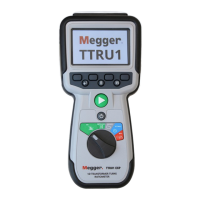
Connect the USB Printer to the TTRU1 and select the PRINT button to print the results.
Press the enter button to return to the TTR Test Setup screen. The TEST ID will automatically increment to facilitate
data grouping.


 To Next Page