28
MELBOURNE INSTRUMENTS – NINA V 1.3.0
29
MELBOURNE INSTRUMENTS – NINA V 1.3.0
MOD Mode
Nina has a quick and simple way to access the
Modulation Matrix using the motorized knobs to expose
the settings and see how a sound is created.
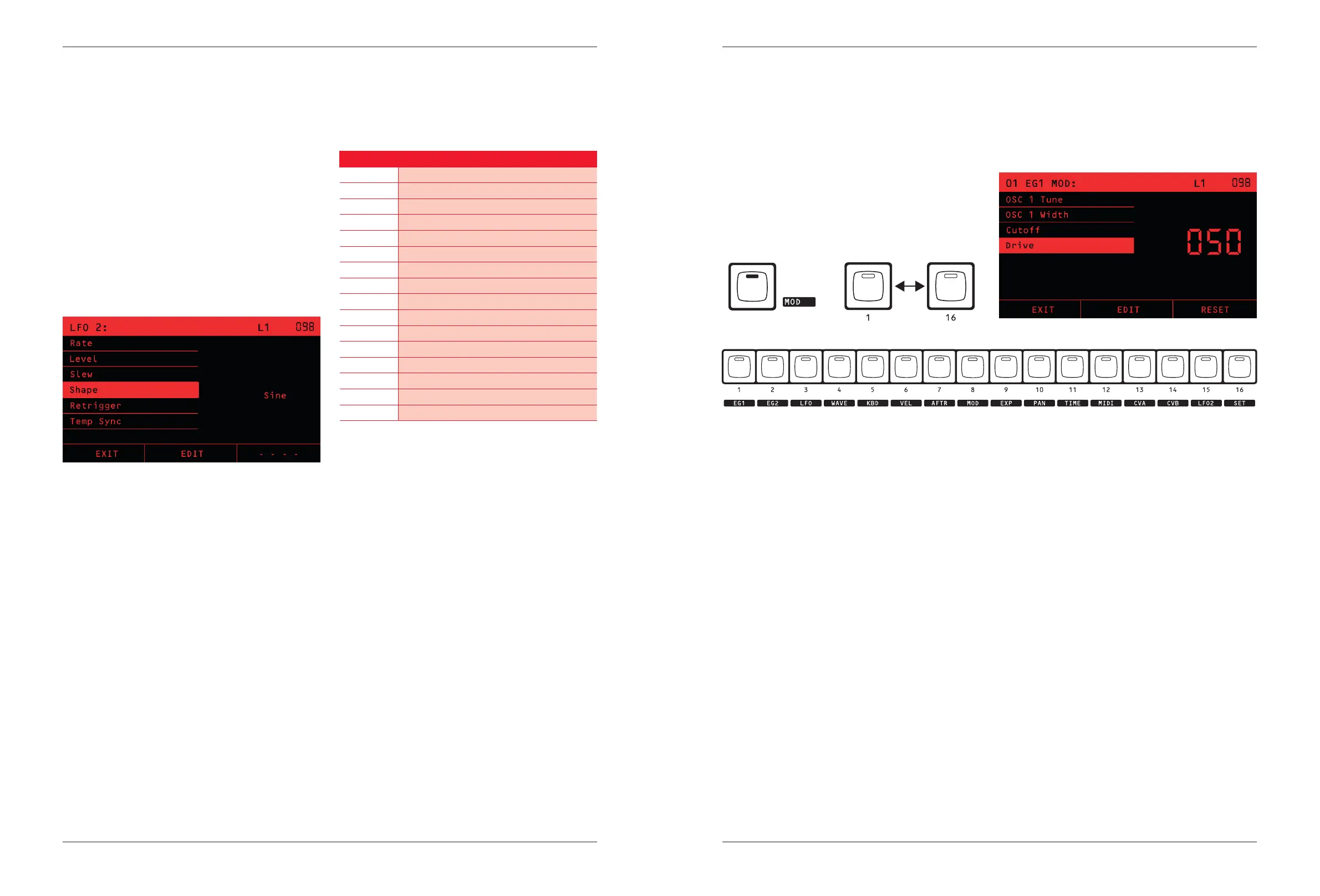
Press the MOD Key to enter modulation mode. In
modulation mode, all of the Knobs change their function.
The MOD LED will blink, as a reminder that the Knobs are
not doing their normal function.
In MOD mode, the 16 red keys along the bottom select
the Modulation Sources.
+
As you press these keys the corresponding Knobs will
move into position according to how much this source
aects the destination at each Knob.
For example if you press Key 1 (EG1), the CUTOFF Knob
will move to the amount that EG1 aects the Filter Cut-o
frequency. The CUTOFF knob has a center detent, at
zero, so allows a range of -100 through 0 to 100. The
negative range makes the EG1 envelope move the cut-o
frequency down, and positive makes it move up.
NOTE: When a modulation source is selected, it cannot
modulate itself as a destination, so the knobs at that
destination will control their usual settings in the patch.
For example, if LFO is selected as a source, then the
LFO1 RATE and LEVEL controls will aect LFO1. This
means you will not have to exit the MOD mode to
adjust LFO1 and hear the eect on the patch. Likewise
if EG1 is selected as the source, then the ATTACK,
DECAY, SUSTAIN and RELEASE controls for EG1 will
adjust the envelope as usual in patch editing.
The Title Bar shows which source has been selected and
the list shows each destination that is aected by this
source. Use the DATA Wheel and the EDIT soft-key to
adjust the value.
NOTE: The corresponding control panel knob is a
higher resolution than data wheel, and oers greater
control than setting the value in steps of 0 to 100.
The RESET soft-key is a quick way to zero the
modulation amount to the selected destination in the list.
TIP: A quick step through the Keys 1 to 16 in MOD Mode
is a great way to get an overview of how a Preset has
used the modulation matrix to create its sound.
The LFO Level knob sets the amplitude of the LFO from
0 to 100. Note that amplitude is set before the LFO is
sent into the Mod matrix, so it combines (multiplies) with
the amount set in the mod matrix. The LFO is bipolar,
so for an amplitude of 100, it will range from (100 to
+100). If you wish to make a unipolar LFO, or oset the
waveform, you can apply a SET to add a value to the
same destination. See SET in the Modulation Sources
below for more details.
The LFO SHAPE Key sets the LFO waveform shape.
The choices are Sine, Triangle, Square, Ramp Up, Ramp
Down or Random.
Adjusting any of the LFO settings will display all the LFO
settings on the LCD, including some which can only be
accessed using the Data Knob and EDIT.
If Retrigger is On, then the LFO waveform will restart with
each note played, if it is O then it will free-run, but each
voice will have its own LFO running independently. If it
is Global then this LFO will feed every voice at exactly
the same amplitude and waveform phase, so they will all
move together.
If Tempo Sync is O, the LFO will not be synchronous
to anything else in system, and the RATE Knob sets the
tempo.
If Tempo Sync is On then the LFO will follow the tempo
of incoming MIDI clock pulses the Arpeggiator and
Sequencer (or MIDI Clock if enabled). When this sync is
on, the LFO Rate knob chooses a multiple of the Tempo,
as shown in this table:
Sync Rate Tempo to LFO Frequency Multiplier
0.125 1/8 (0.125)
0.25 1/4 (0.25)
0.5 1/2 (0.5)
1d 2/3 (0.667)
1 1
2d 4/3 (1.333)
2 2
4d 8/3 (2.667)
4 4
4t 4x(4/3) = 16/3 (5.333)
8 8
8t 8x (4/3) = 32/3 (10.667)
16 16
16t 16x (4/3) = 64/3 (21.333)
32 32
32t 32x (4/3) = 128/3 (42.667)


 To Next Page