32
MELBOURNE INSTRUMENTS – NINA V 1.3.0
33
MELBOURNE INSTRUMENTS – NINA V 1.3.0
Layer Setups & Multi-timbral
Operation
Multi-timbral operation splits Nina into four independent
synthesizers, on four layers.
Each synthesizer has a Preset loaded into it, a number of
voices assigned to it, a start and end note of the keyboard
and a MIDI channel that it responds to, and some
other settings. When you change the current layer, the
motorized controls all move to the settings for the Patch
on that layer.
One examples of layer setups is to have the bottom half of
the keyboard assigned to Layer 1 with a mono bass sound,
and the top half of the keyboard to a polyphonic lead
synthesizer sound, for live performance. Another example
is to make a double-stack, where every note plays 2
dierent sounds together from 2 layers.
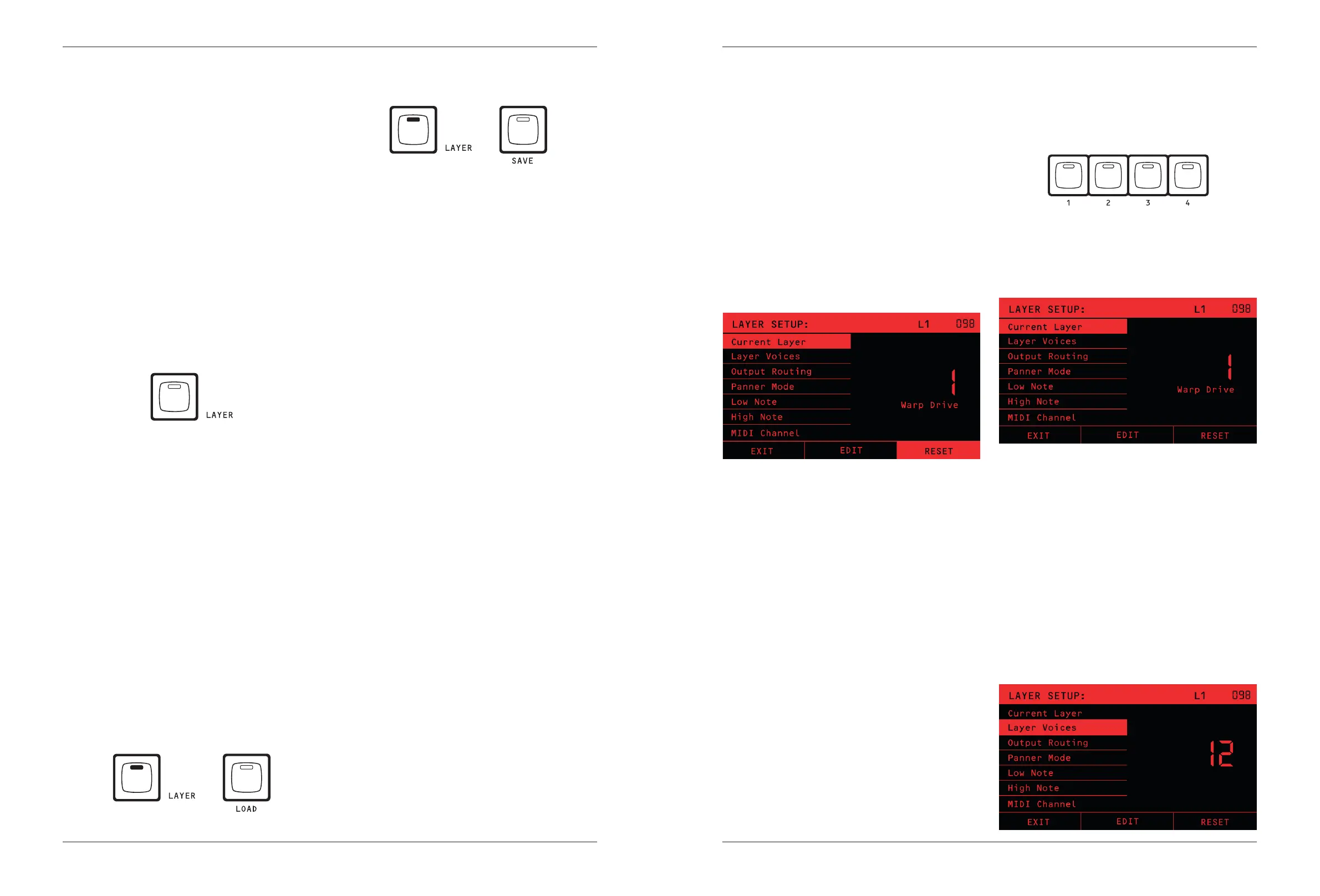
The LAYER menu is accessed by pressing the LAYER Key.
All operation in Nina is intrinsically multi-layer. Normal
operation with a single timbre is just the simple case of
Layer 1 having all 12 voices assigned to it, and layers 2, 3
and 4 turned o (0 voices assigned).
Layer 1 is the master layer. The Preset on Layer 1
determines the Eects, Arpeggiator and Sequencer
conguration. There is only 1 Eects processor,
Arpeggiator and Sequencer.
NOTE: Although every Preset stores its own settings for
Eects, Arp and Sequencer, these settings are ignored
on layers 2, 3 and 4. If you save a Preset on these layers,
these settings are left unchanged in the Preset.
A LAYER SETUP is the complete set of all settings on all
four layers. Layer Setups can be loaded and saved using
combinations of the LOAD + SAVE keys while the LAYER
menu is active (layer LED On). Layer Setup loading and
saving is described in detail on page 33.
LOAD A SAVED LAYER SETUP
+
SAVE A NEW LAYER SETUP
+
Also in the LAYER Menu are some parameters that are
global level settings for the Patch on each layer, such as
mono or polyphonic playing. Although these settings are
accessed from the Layers Menu, they are actually loaded
and saved with the Preset and not the Layer setup. The
sections below are divided into Multi-timbral and Patch/
Preset Settings.
NOTE: When you power on, Nina will reload the last
used Layer Setup. Additionally, if you had loaded
dierent Presets into any layers before you powered
o, those Presets will be loaded after the Layer
Setup is loaded. This will return you to the previous
setup as quickly as possible when you power on, and
remembers all the Presets you had loaded.
Eects with Multi-Timbral
There is one eects processor in Nina. The Preset on
Layer 1 determines the Eects conguration.
The Eects operate on Analog Outputs 1 and 2 (Left and
Right, respectively). All layers that are routed to outputs 1
and 2 are mixed together and can have eects applied to
them. All layers that are routed to Analog Outputs 3 and 4
have no eects applied to them, they are clean outputs.
For example, if you route Layers 1, 2 and 3 to outputs
1 and 2, the signals of layers 1, 2 and 3 are all added
together and passed into the Eects processor. The
eects are applied to this mix of layers 1, 2 and 3, and
the Eected sound is then added to outputs 1 and 2.
The Eects knob (level) determines how much of the
Eected signal (wet) is added to the analog signal (dry).
Arpeggiator with Multi-Timbral
Nina has one Arpeggiator, and it is congured from the
Preset on Layer 1.
The arpeggiator receives notes from a keyboard, and
sends them out in a repeating sequence. The MIDI
channel assigned in Layer 1 is the channel used.
All notes received on this MIDI channel will be
arpeggiated and sent to the same channel.
If the channel is 0 (omni), then the notes received on
any channel will be arpeggiated, and sent to the same
channel that they came in on.
If Layers 2, 3 or 4 are congured with the same MIDI
channel as layer 1, then the arpeggiated notes will play
on layers 2, 3 or 4 also. If the Layer 1 MIDI channel is
omni, then the arpeggiated notes will play on layer 1 and
any other layer that has the same MIDI channel as the
incoming notes.
Multi-Timbral Conguration
Pressing the LAYER key will bring up the LAYER Menu.
The rst set of items in the list congure the multi-timbral
operation:
Layers Reset
The RESET soft-key (bottom right) will reset the whole
Layer Setup to single-timbre operation. This can be
useful if the current layer conguration is complex and
want to go to the basic working state.
Pressing RESET will:
- Assign 12 voices to Layer 1 and 0 voices to Layers 2, 3
and 4.
- Set the Output Routing to all outputs, 1-2-3-4.
- Set the Low note to 0 (lowest possible MIDI note).
- Set the High note to 127 (highest possible MIDI note).
- Set the MIDI Channel on Layer 1 to 0 (omni). Set the
CV A Source to Analog Input 1 and the CV B Source to
Analog Input 2.
- Set the Volume for Layer 1 to 100 (max).
Note that for a RESET, the settings on Layers 2, 3 and 4
are not changed, apart from the assignment of 0 voices.
A conrmation page with ‘Reset layers back to one
Layer default’ will appear. Press YES to conrm, or BACK
if you don’t want to reset.
Layer Navigation
You can quickly change the active layer using the 1, 2, 3
and 4 Keys. You can also edit the ‘Current Layer’ value in
the menu to change it.
When you change layer, all the other items in the menu
will show the settings for the layer, and the large number
will show the layer number. Underneath the layer number
will be the name of the Preset in the Layer, or ‘0 voices’ if
the layer is turned o.
The Knobs will all turn to the settings for the Preset on
the active layer. Note that this will happen even if there
are no voices assigned to the layer. If you increase the
number of voices, then you will see the name of the
Preset on that layer, and the controls will be ready for
any notes played.
When you exit the layers menu, by either pressing the
LAYER key again or the EXIT soft-key, the active layer will
be shown in the title bar as L1, L2, L3 or L4.
Layer Voices
This item sets the number of voices assigned to each
layer, and you must manually set this. It is a foundation of
the multi-timbral setup.


 To Next Page