14
MELBOURNE INSTRUMENTS – NINA V 1.3.0
15
MELBOURNE INSTRUMENTS – NINA V 1.3.0
LCD Display Context Switching
A key design goal of Nina’s Display was ‘no menu diving’
as much as possible. One key solution to this is that the
display automatically switches to display the parameters
of one section, when any knobs or keys in that section
are moved.
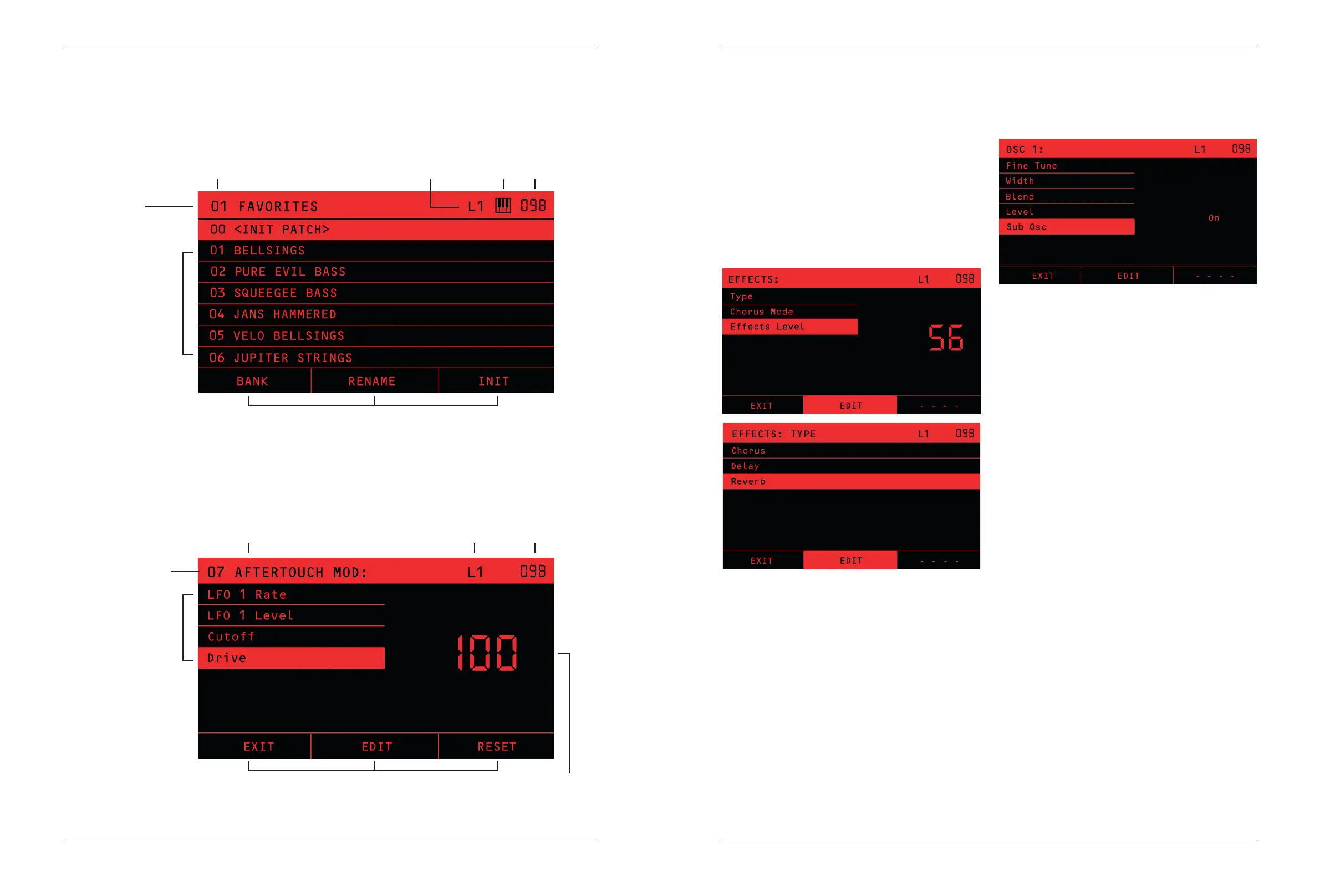
For example, if you want to set up the Eects, a very
small movement of the Eects Knob will reveal all the
settings to congure the Eects. You can then use
the DATA Knob and the Soft-keys to adjust the eects
settings:
As another example, adjusting any of the controls for
OSC 1 will show all the settings for OSC 1 on the display:
When this list is displayed the DATA Knob and Soft-keys
can be used to move around the list and see a numerical
value. EDIT will let you change the setting or amount
with the data knob. Note that a value change with the
Data Knob will not be as high resolution as using the
dedicated Knob for that setting, eg OSC 1 Level Knob
has true hires control, whereas the DATA Knob will just
set 0 to 100 in steps of 1.
The EDIT soft-key has 2 modes of operation -
LATCHED: If you press EDIT momentarily, it will latch the
data knob will adjust the current value up or down, until
you press EDIT again.
QUICK EDIT: Press and hold down the EDIT soft-key
while you turn the data knob to adjust the value without
latching or needing to press EDIT a second time to exit.
Display Layout
LOAD PRESETS Screen
MODULATION Screen example
Title Bar
MOD Source Key
Patch/Bank Number and Name
MOD Source Name
Active Layer
Active Layer
MIDI Signal Tempo
Tempo
Soft Keys 1-3
Soft Keys 1-3
Amount / Level
List of Presets or
other settings
List of active
MOD Destinations


 To Next Page