33
WIRELESS PROGRAMMING
MYQ SETUP – MYQ GATEWAY INSTALLATION (OPTIONAL) CONTINUED
44
INSTALLATION INSTRUCTIONS
A. Before You Begin
You must have – (check which scenario is relevant to this install and setup)
WARNING: Important Safety Instructions:
Do not allow children to play near the gate, or with any gate controls, including remotes, Smartphones that
has the myQ App installed.
Scenario 1 (Already have a myQ device connected)
• A Merlin myQ compatible gate opener (All current Merlin gate
openers are myQ compatible)
• The Protector System (Safety IR Beams) 772ANZ or GPS15
Reflector Safety IR Beams model
Scenario 2 (No myQ device connected)
• A Merlin myQ compatible gate opener (All current Merlin gate
openers are myQ compatible)
• A router, with an active Broadband internet connection and a
spare 10 Mbps Ethernet port
• myQ Gateway accessory 828AU model
• 5 VDC Power Pack (supplied with myQ Gateway)
• Ethernet Cable (supplied with myQ Gateway)
• The Protector System (Safety IR Beams) 772ANZ model or
GPS15 Reflector Safety IR Beams model
B. Installation Process
• Gate Opener:
Install the Merlin Gate Opener to a fully functional gate using the installation instructions included in this manual.
• Protector System (Safety IR Beams) 772ANZ or GPS15 Reflector Safety IR Beams:
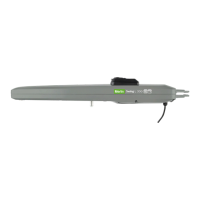
Install the Protector System (Safety IR Beams) 772ANZ supplied with the gate myQ Connectivity Kit or as an individual accessory.
NOTE: The Protector System (Safety IR Beams) 772ANZ must be installed and operational for myQ to operate.
myQ Gateway
Connect the myQ Gateway by following the below steps.
Step 1 – Connect & Create
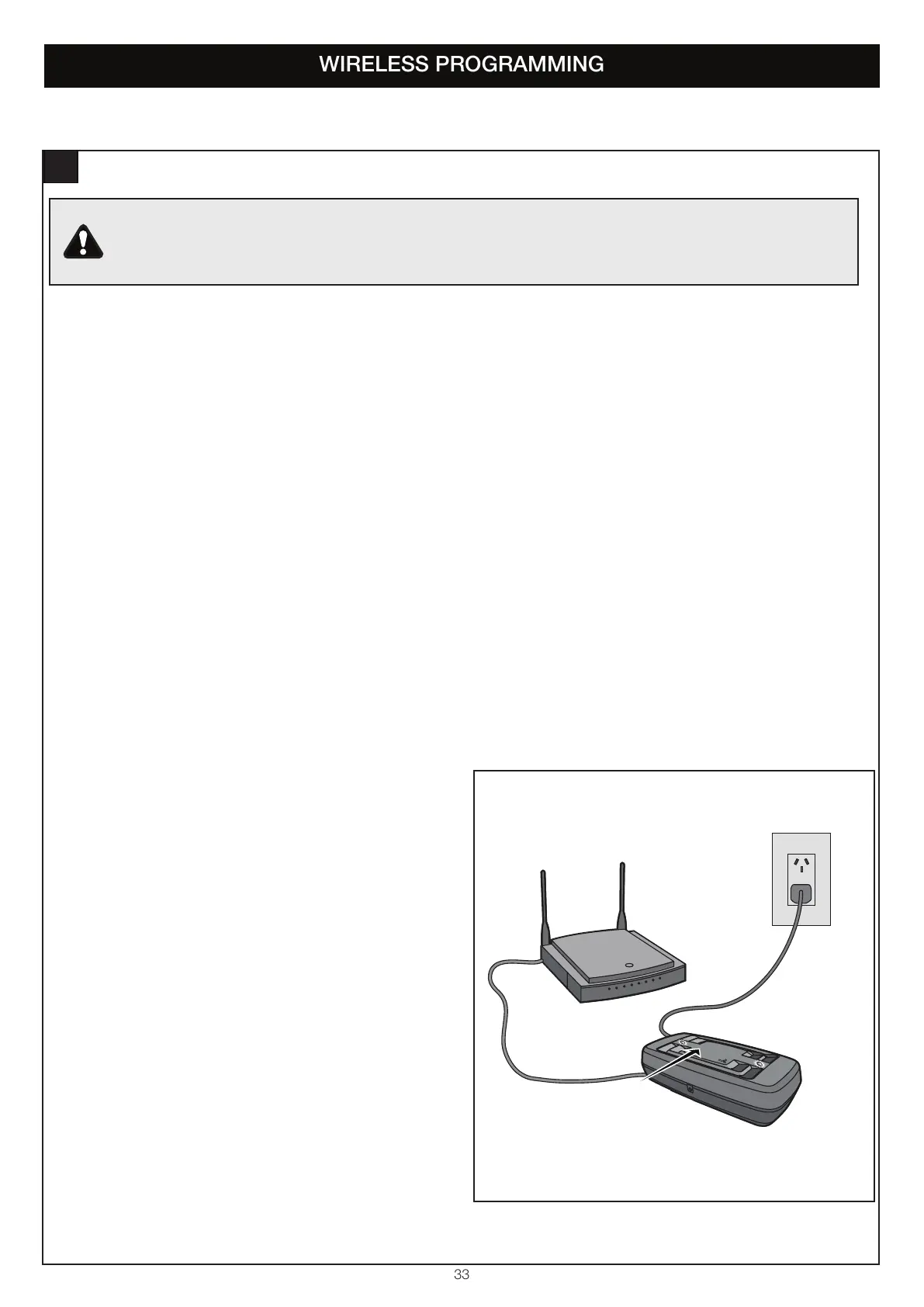
• Connect to the home internet router and power (figure 1)
• Download the free myQ App by visiting the App Store or
Google Play Store
• You must have a valid email address to create a myQ account
Enter your information and click submit, an email will be sent to
you to confirm your valid email address. If you do not get a
confirming email, check your spam email folder or try creating
the account again, being careful to spell the email address
correctly
• When the myQ Gateway powers up, the GREEN LED and BLUE
LED will blink 3 times to indicate a correct power connection and
reset of the myQ Gateway. After power up, the LEDs will indicate
the status of the myQ Gateway.
• If the GREEN LED is off after connecting the myQ Gateway to
your router, check the Ethernet cable connection to your router.
It must be in the LAN port, (normally numbered 1 – 4). If the
GREEN LED is still off, try another port on your router. If you still
cannot get a solid GREEN LED check your internet is ON, refer to
gomerlin.com.au or gomerlin.co.nz. For further support contact Merlin Technical Support at customerservice@chamberlainanz.com.
Power
When the Internet Gateway connects
to the Internet, the green LED will stop
blinking and will remain on.
Router
Internet Gateway
Ethernet cable
figure 1


 To Next Page