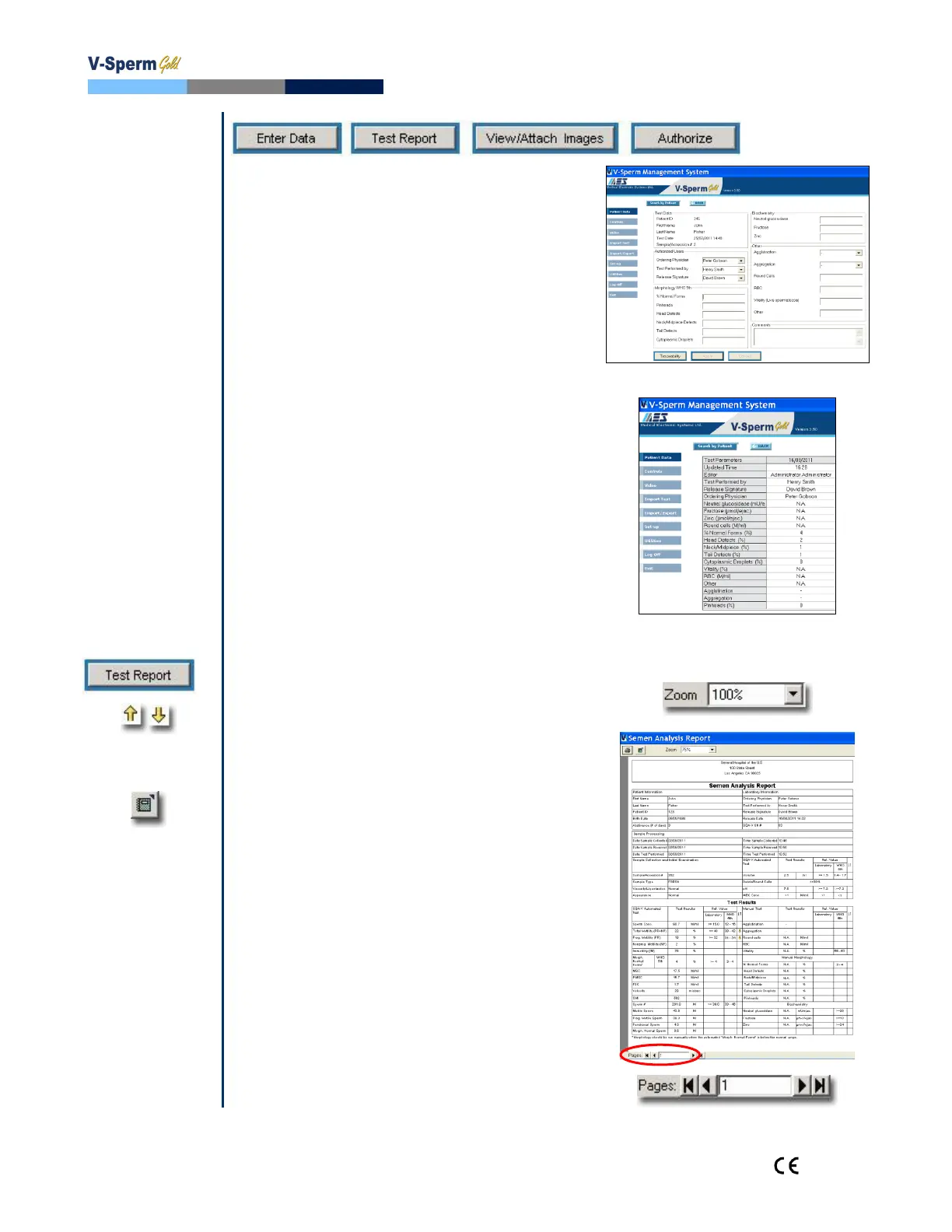
Enter Data: Patient Data>Patient
List>Enter Data
Select a test record before clicking the enter
data button. Please note that there can be
more than one test per patient in the data
base.
Click the Enter Data button to input
manual test results and add comments to
the semen analysis record.
Type-in the desired information – only
editable fields will allow entries.
All manual entries are tracked via a
traceability function.
Click the Traceability button at the
bottom of this screen to run a
Traceability Report.
Test Report Patient Data>Patient
List>Test Report
The test report contains test results imported
from the SQA-V AND manual data that is
entered by the user.
Click the Test Report button to view and
print the two-page semen analysis report
(from the patient data screen).
To move between pages, use the page bar
at the bottom of the screen.
Click the printer icon to print a report.
Use the ZOOM to minimize/maximize the
view of the report.
Click the X in the upper right hand corner
of the screen to exit the report.
A yellow arrow will be displayed if the test
results are out of range.
Click the FILE EXPORT icon to export the
report to a .doc file. Enter the path and
file name; then click SAVE.


 To Next Page