User Guide Version 3.60 I-button
Release: 12_APR_2016 18
SECTION 14: Installation Instructions: USB to RS232 Converter
General Description
The USB to RS232 device provides the connection between the SQA-V and V-Sperm required to import test results
which then can be viewed and analyzed from the V-Sperm PC. In order to properly install the USB to RS232 device,
please follow the instructions below.
PLEASE NOTE: These instructions are for Windows XP users only. In Windows 7 the appropriate driver is
automatically installed.
USB to RS232 Device Driver Installation
1. Close all open programs.
2. Insert the USB to RS232 FTDI Drivers CD into the PC CD-ROM.
3. From the PC click: START > RUN and type in: X:\Win200-XP-Vista\CDM 2.04.06.exe
(X = letter of PC CD-ROM drive)
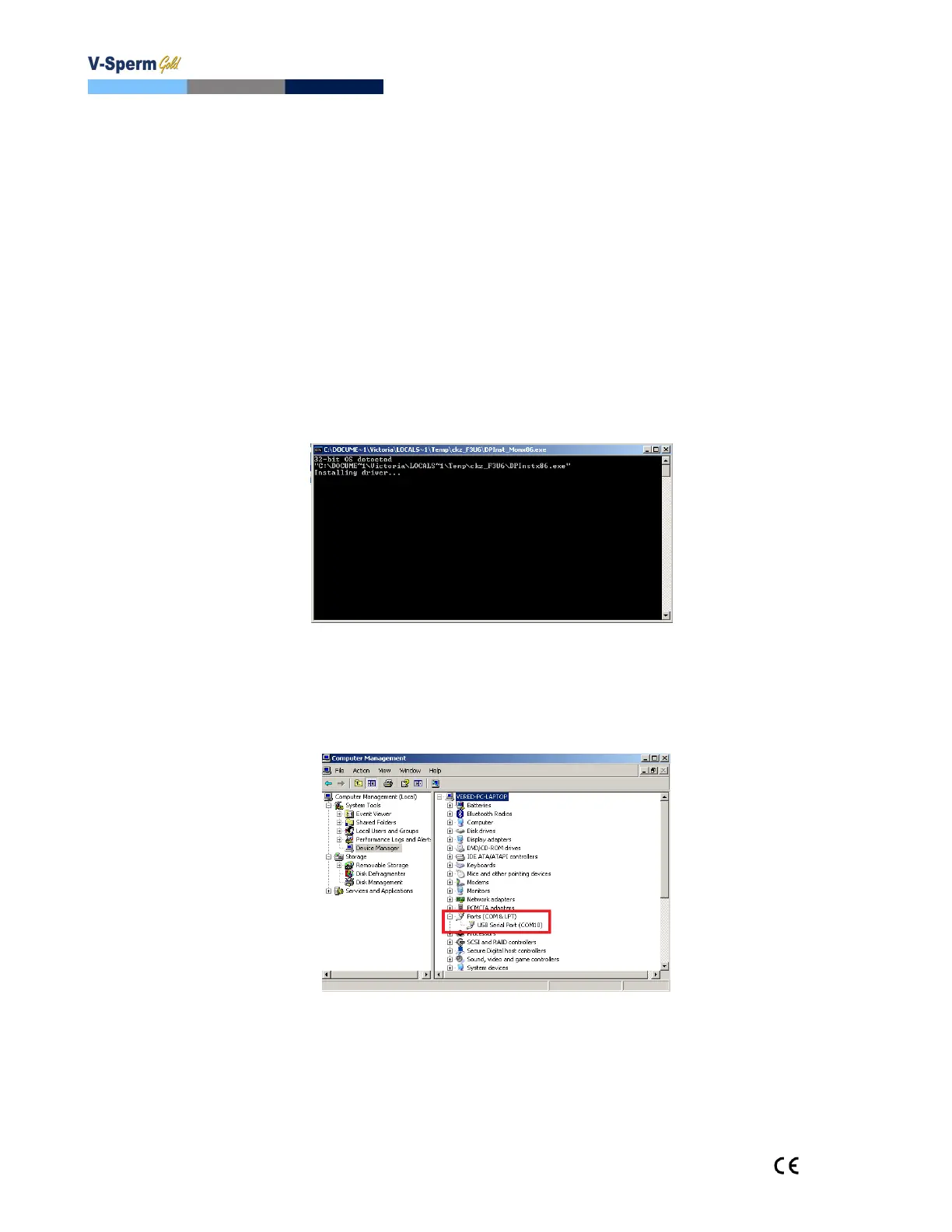
4. Wait a few seconds until the installation process is completed (the DOS window displayed below will
disappear)
5. Plug-in the USB cable of the USB to RS232 device into a USB port on the PC.
Verifying Proper Installation
1. Click on START > RUN
2. Type: devmgmt.msc and click ENTER in order to open the Device Manager.
3. Verify that the driver is installed (check to see the driver in the red boxed area displayed above).


 To Previous Page