View/Attach Images: Patient Data>
Patient List>View/Attach Images
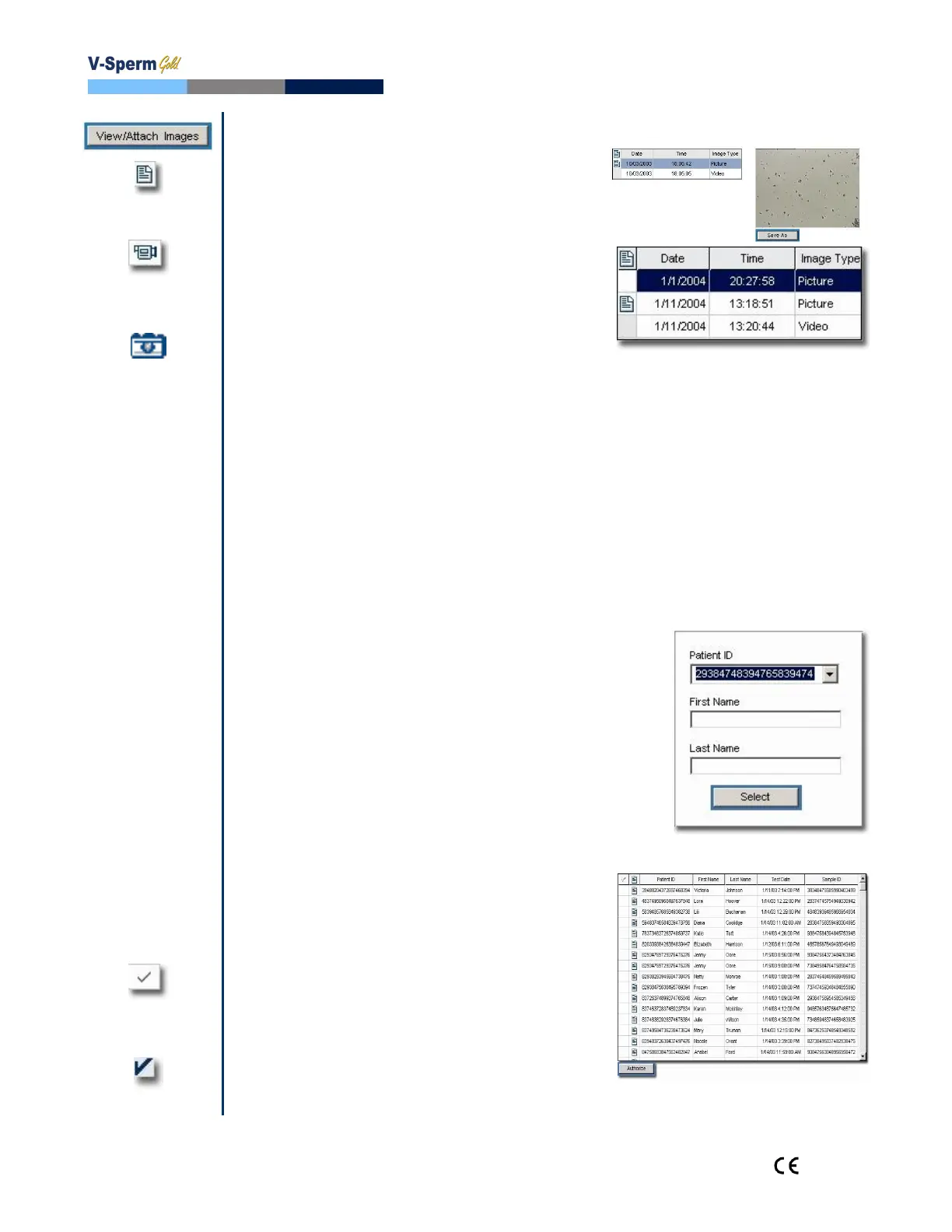
To view an image: From the Patient
Data Screen select a test record with a
video/camera icon displayed in the title
bar.
Click the View/Attach Images button.
An Image Browser will display all the
images attached to the selected patient's
record.
Select an image and it will be displayed in
the preview pane.
Click on the image to enlarge it.
Click the SAVE AS button to save the
picture to an external file on your PC.
To attach an image (not video) to a
semen analysis report, click on the report
icon column in the row of the picture to be
attached.
A report icon will now appear in the
column indicating that the picture is
attached to the semen analysis report.
To delete an image from the report, click
on it and the report icon will disappear
from the corresponding row.
Search by Patient – use this option to locate
records by patient name or ID number.
Enter the first or last name or ID number
of the patient and click SELECT.
The PATIENT DATA SCREEN will appear.
Authorizing Test Results:
Click on the REPORT icon to view a record
before authorizing it.
Single Tests: Click on the √ column to
the left of the record to be authorized.
Click the Authorize button.
The record will be deleted from the
authorization list.
Group Authorization: Refer to the
section: Patient Data: Locating, Selecting
and Authorizing Records.


 To Next Page