User Guide Version 3.60 I-button
Release: 12_APR_2016 11
Changes can be made to Authorized User's passwords at any time by entering a
new one over the old one and clicking apply.
Changes cannot be made to an authorized user's "title" if a test report in the
database contains their name/title.
An authorized user cannot be deleted if a test report in the database contains
their name/title.
Set-up: Report
To set-up the test report, click SET-UP > V-SPERM > REPORT.
Four option tabs will be displayed. Click one of the option tabs:
TEST PARAMETERS
NORMAL RANGES
TESTING FACILITY
LANGUAGE
NOTE: All test
parameters are listed
on the patient's semen
analysis report.
If a test parameter is
not checked, results of
that test will not be
reported on the
patient's semen
analysis report.
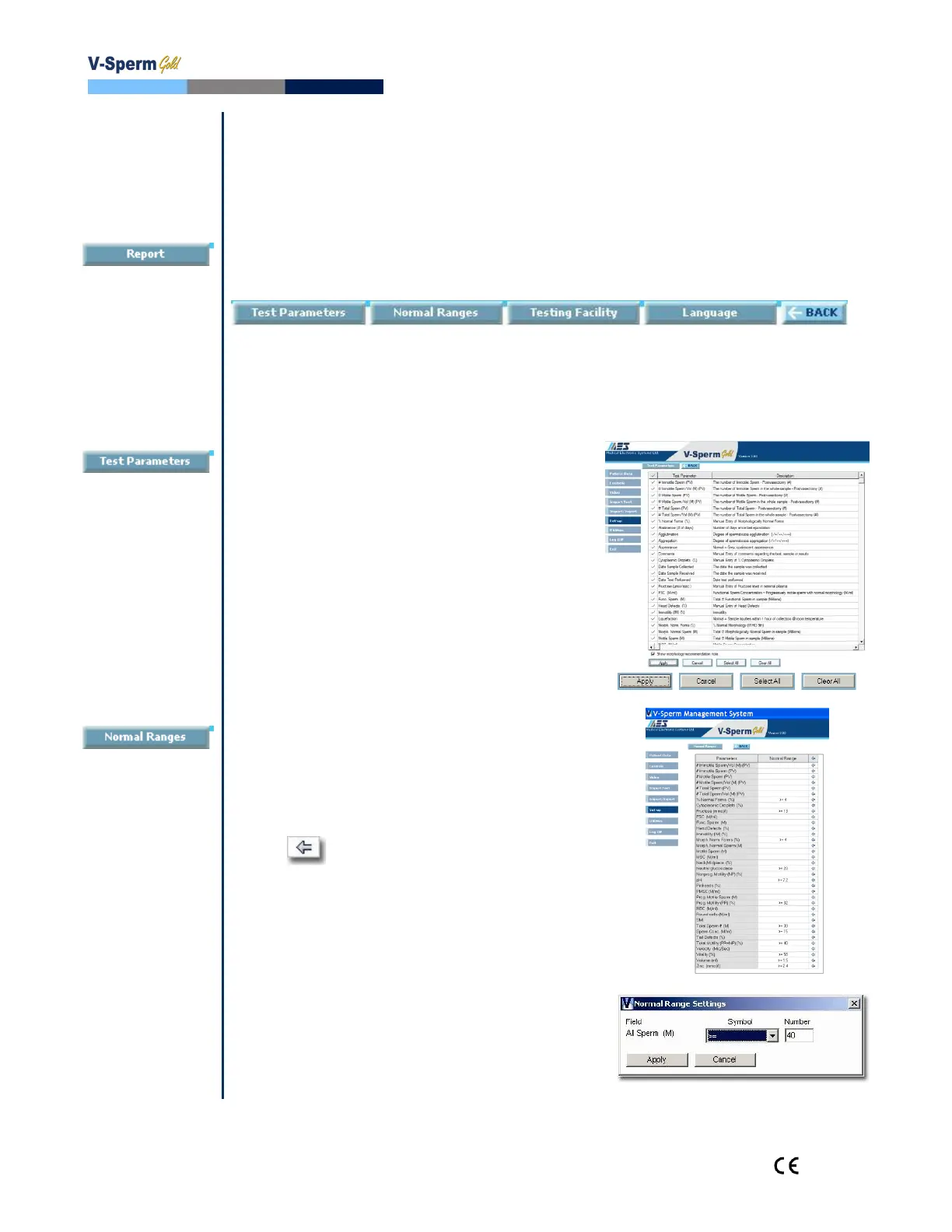
Test Parameters: Set-up>V-
Sperm>Report>Test Parameters
Select the information to be viewed on the
V-Sperm screens and reported on the test
report.
Click the √ column to select the test
report parameters.
Check / Uncheck "Show morphology
recommendation note"
Click Apply to enter.
NOTE: Some test
ranges have been set
by the manufacturer as
a factory default based
on WHO or MES
guidelines (see SQA-V
User Guide).
The user can input
values based on
internal lab protocols.
The test report will
indicate if a test result
is out of the range
established by the
user.
Normal Ranges: Set-up>V-
Sperm>Report>Normal Ranges
To set the normal range for a test result,
click the ARROW pointing to the
parameter to be set.
The Normal Range Settings screen will
appear.
Enter the desired symbol (≥, <, =, etc.).
Enter the desired value.
Click Apply to enter.


 To Next Page