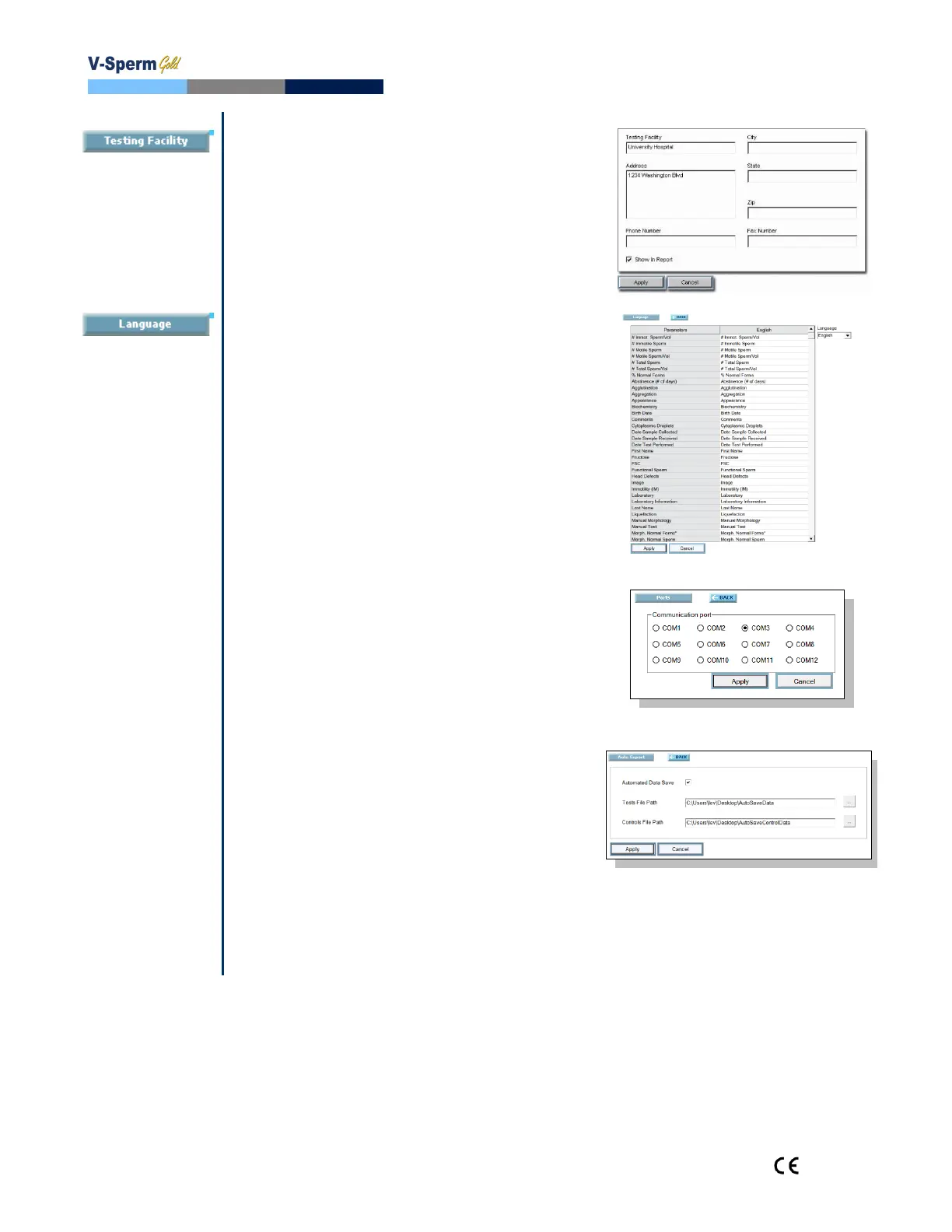
Testing Facility: Set-up>V-
Sperm>Report>Testing Facility
Enter the details of the testing facility that
is to be displayed on the semen analysis
report.
Check the Show in Report box.
Click Apply to save the changes.
Language: Set-up>V-
Sperm>Report>Language
The system default is English.
Select “Other 1” or “Other 2” from the
Language drop-down menu to enter text
in another language.
Click Apply to save the changes.
Set-up: Ports
Select Set-up>V-Sperm>Ports to view
Communication Port options.
Select the correct port for the PC and
press Apply.
Set-up: Auto Export
Select Set-up>V-Sperm>Auto Export
to view the setting options.
Check (√) Automated Data Save, define
the Tests File Path and Controls File
Path and click Apply.
Each patient test and control result will be
saved online automatically to the
corresponding text file.
Two separate files for patient tests and
controls will be created.
Only the last results will be presented.
This feature can be used to send data to
another online source.


 To Next Page