Saving Images and Records
The Part Queue
4
v4.1.3, April 2012 Visionscape FrontRunner™ User’s Manual 4-11
2. Select a folder and click Save.
FrontRunner™ saves the image, with graphics, in the folder you
specified.
Saving All Images with Graphics from the Part Queue
Use the following procedure to save all images, with graphics, from the
Part Queue:
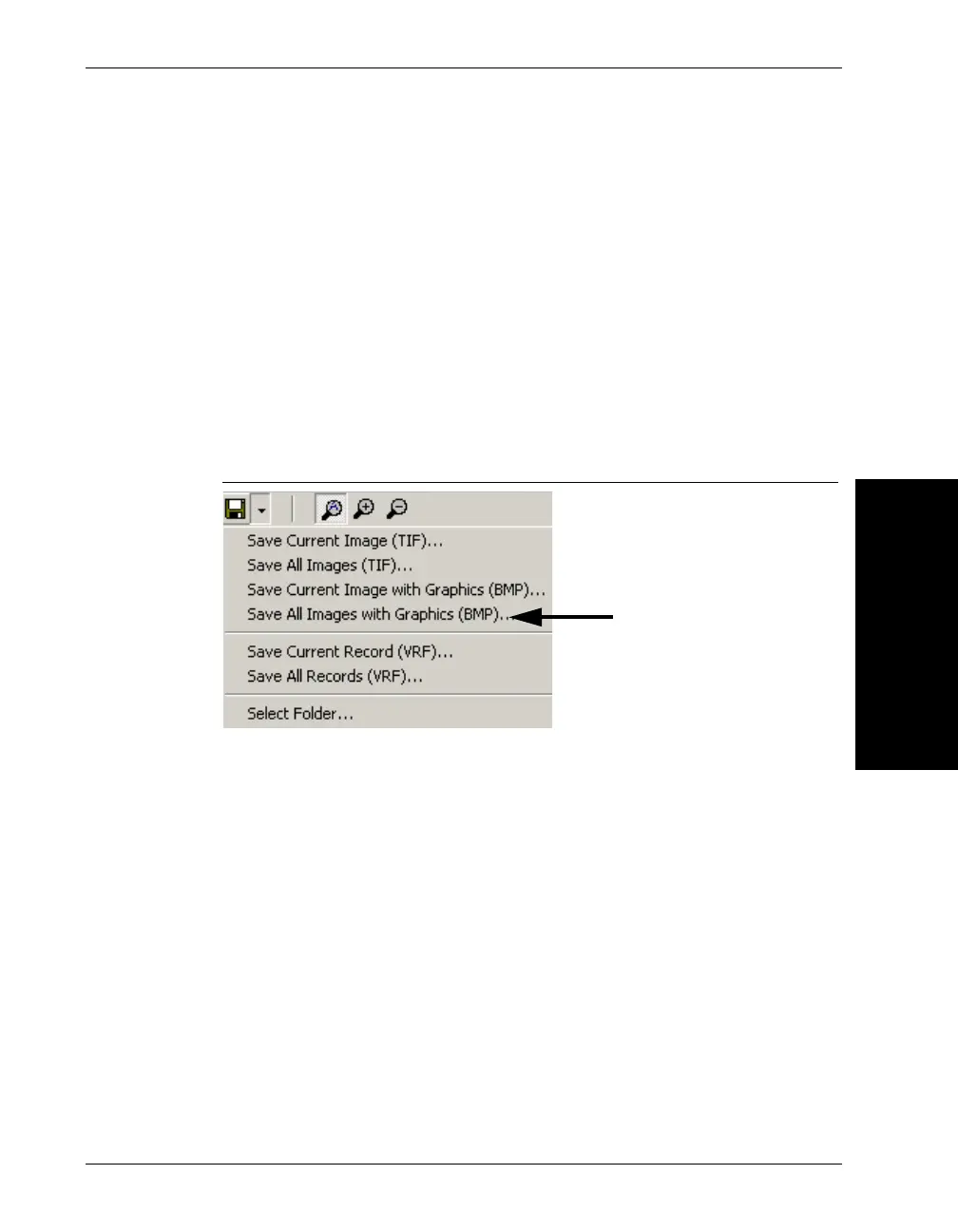
1. From the Save drop down menu, click Save All Images with Graphics
(BMP), as shown in Figure 4–12.
FIGURE 4–12. Save All Images with Graphics
FrontRunner™ displays the Select Folder to Save All Images dialog
box.
2. Select a folder and click OK.
FrontRunner™ saves the images, with graphics, in the folder you
specified.
Saving the Current Record from the Part Queue
Use the following procedure to save the current record from the Part
Queue:
1. From the Save drop down menu, click Save Current Record (VRF),
as shown in Figure 4–13.



 To Next Page