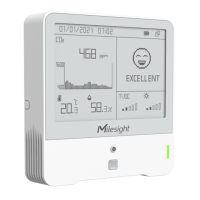
2.3.2 Screen Mode Switch
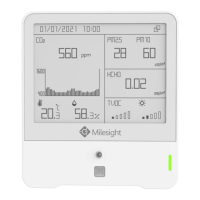
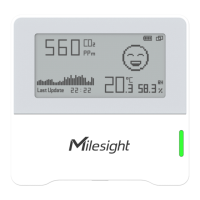
Here are 3 methods to switch between the three modes:
Power button: When button lock is disabled, quick press the power button to switch the
mode.
Mobile App: Go to Milesight ToolBox App menu “Device > Setting > General Settings” to
select screen display mode.
Software: Go to Toolbox menu “Device Settings > Basic > Basic Settings” to select screen
display mode.
2.4 Button and Traffic Light
Press and hold the power button for more
than 3 seconds.
Switch Screen
Display Mode
Quick press the power button once.
Press and hold the reset button for more
than 10 seconds.
Air Quality Level
Indication
Indicate the 3 levels of air quality according
to threshold setting. When one of the
concentrations of air pollutants of CO
2
,
TVOC, PM2.5, PM10 or HCHO/O
3
exceeds
the threshold, the light color will change to
orange or red
Excellent: Blinks/Always
On (Configurable)
Polluted: Blinks/Always
On (Configurable)
Bad: Blinks/Always On
(Configurable)
Note:
If the traffic light is disabled, it will not show air quality level indication.
AM319 supports Traffic Light as Blinking or Always On to indicate Polluted or Bad indoor
ambience, while AM307 and AM308 only support Blinking mode.
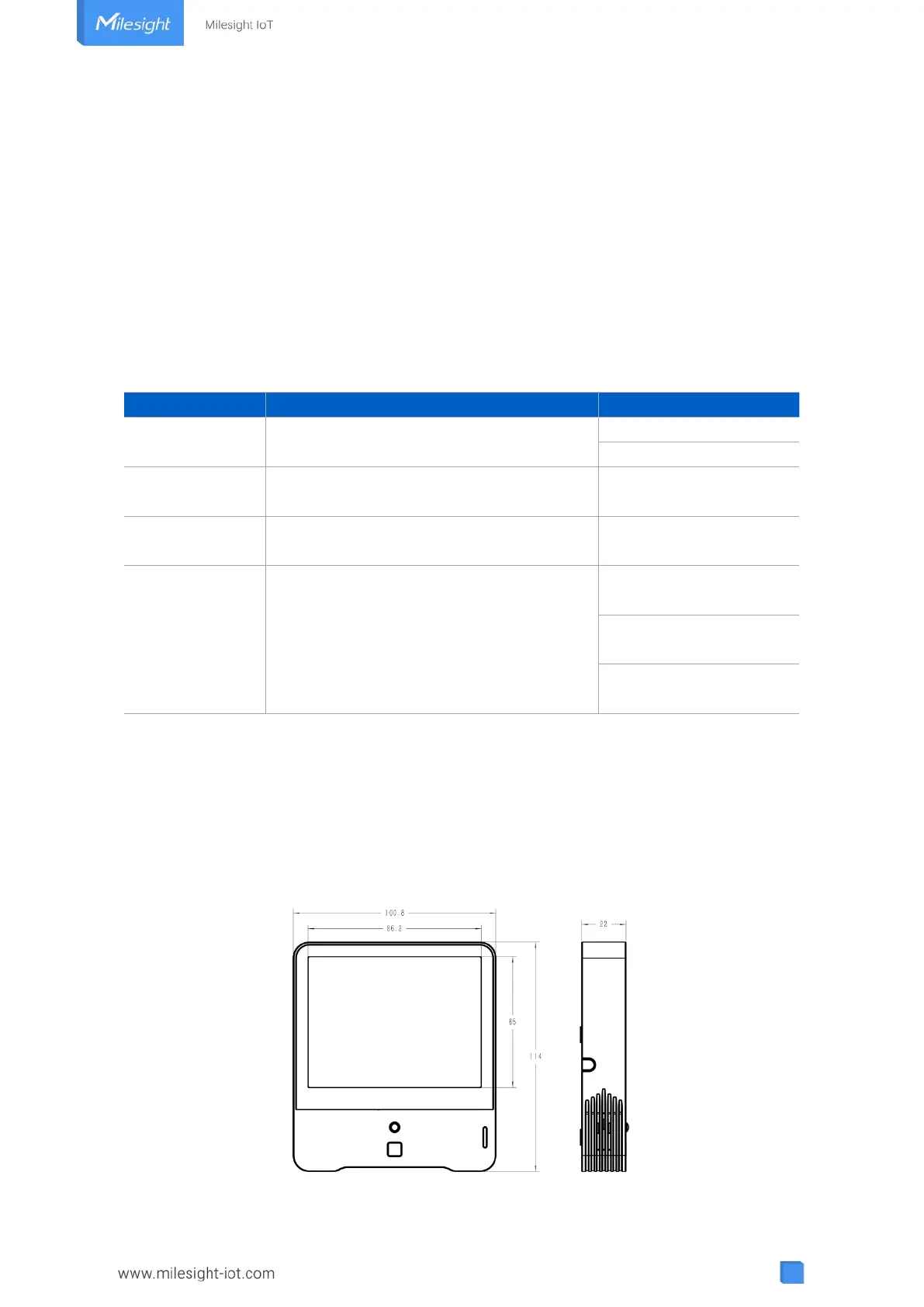
2.5 Dimensions(mm)


 To Next Page