Data Managing Unit (DMU)
10-4
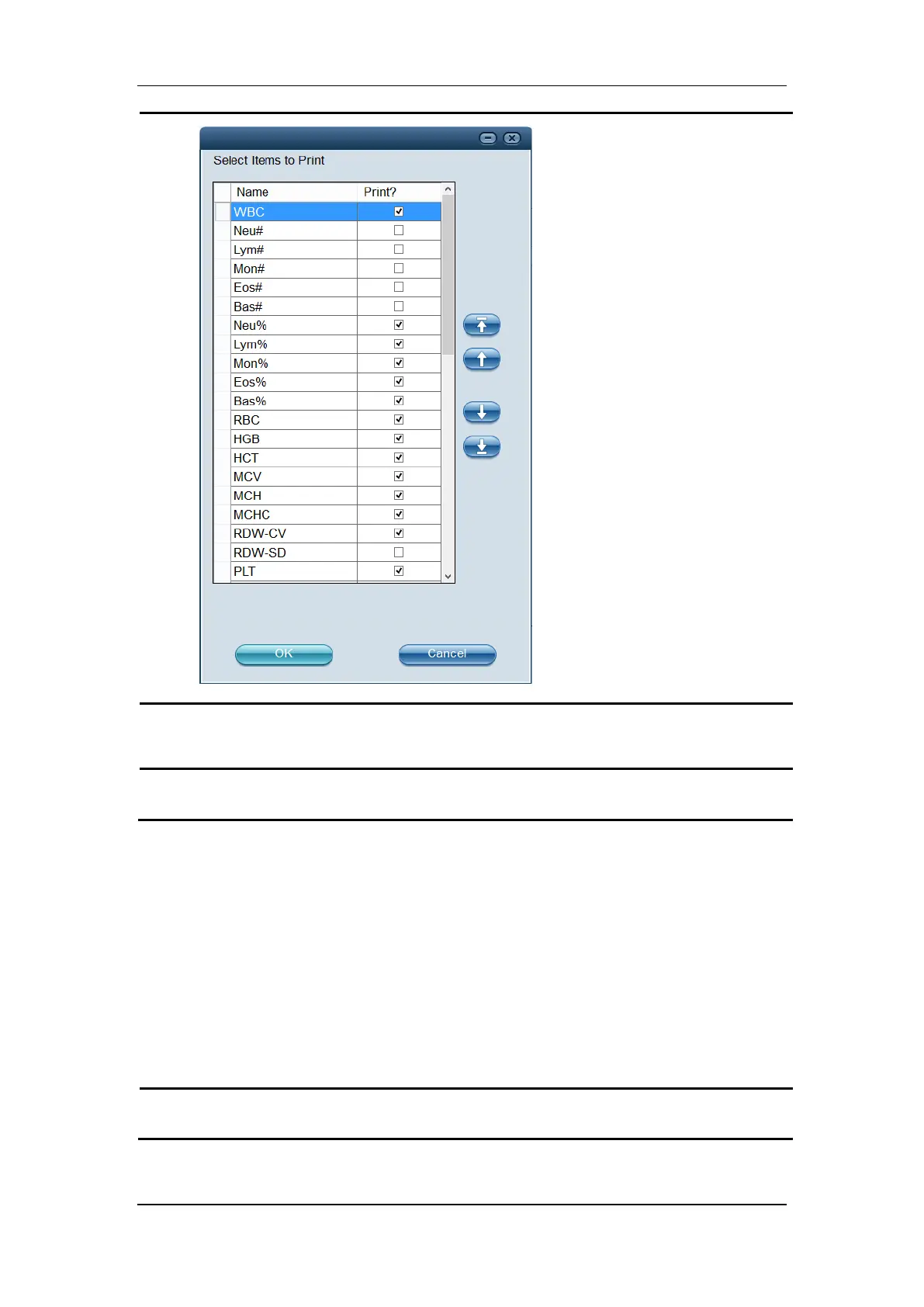
Select the parameters the result of which you want to be included in the reexam
record.
Click “OK” to save and exit.
10.2.2 Reexam Record Printing Status
In the “Review” and “Report” screens of the DMU for auto sample processing line, there is a
“Reexam Record Printing Status” column showing whether the reexam record of the sample
is printed.
10.2.3 Manual Printing the Reexam Record
If the auto print function of the reexam record is not enabled, you can print the record
manually at the “Review” or “Report” screen.
Click “Print Reexam Record”, and the dialog box below pops up.


 To Next Page