row. You will see a horizontal list of available options. You can scroll left or
right to find the desired mode for that step. When you find the desired mode,
you can touch the check mark on the right side of the bar. This will take you to
the parameter settings of that mode. You can adjust the parameters as you
would do in the stand alone mode of operation. Once you are finish you can
touch the “save’ button and this will add this step to the scenario. If you press
the “cancel” button at that time, this step will not be added to the scenario. At
each row you can see the mode of that step and the parameters as well.
You can change the order of the steps by touching the particular row. The row
will be highlighted and you can swipe it up or down to change the order. The
delay cannot be the last step of a scenario. Other than that, there are no
restrictions on the scenario steps. If you want to delete a step you can swipe
the row to the right. A pop up window will appear to ask if you really want to
delete that step. You can touch “No” to keep the step, or just touch “Yes” to
delete it.
In order to start the execution of a scenario, you need to touch the “start”
button at the bottom of the screen. This will also transfer the scenario to the
Miops Smart and save it to the device. You can use the saved scenarios later
without the smartphone app. The Bluetooth connection must exist between the
Miops Smart and the smartphone to transfer the scenario. Otherwise, it will not
be saved to the device. To get detailed information about using the saved
scenarios in the stand alone mode, please refer to the Chapter 8.h of the user
manual.
When the execution of the scenario starts you can follow it both on the device
and smartphone. When a step is complete, a check mark will appear on that
row and the next step will be executed. You can also follow the progress on the
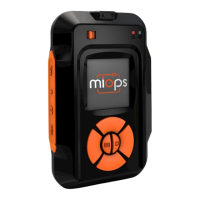
screen of the Miops Smart. Once the scenario is over, Miops Smart will return
the scenario mode screen again. You can stop the execution of the scenario by
touching the “stop” button at the bottom of the screen. Miops Smart must be
connected to the smartphone, to be able to stop the execution remotely.
Otherwise, you can stop it only by pressing any key on the device.
You can define three different scenarios. You can switch between the scenarios
by touching the scenario name. A notch will move to that scenario and you will


 To Next Page