MAC Systems
You can upgrade your MIOPS Smart on a MAC computer with the special
software upgrade tool. You can download the firmware upgrade tool from the
following link: http://miops.com/download/ Download the zip file and extract it
to a folder. Download the latest firmware file as well. Please note that Windows
and MAC systems use the same firmware file, they just have different upgrade
tools.
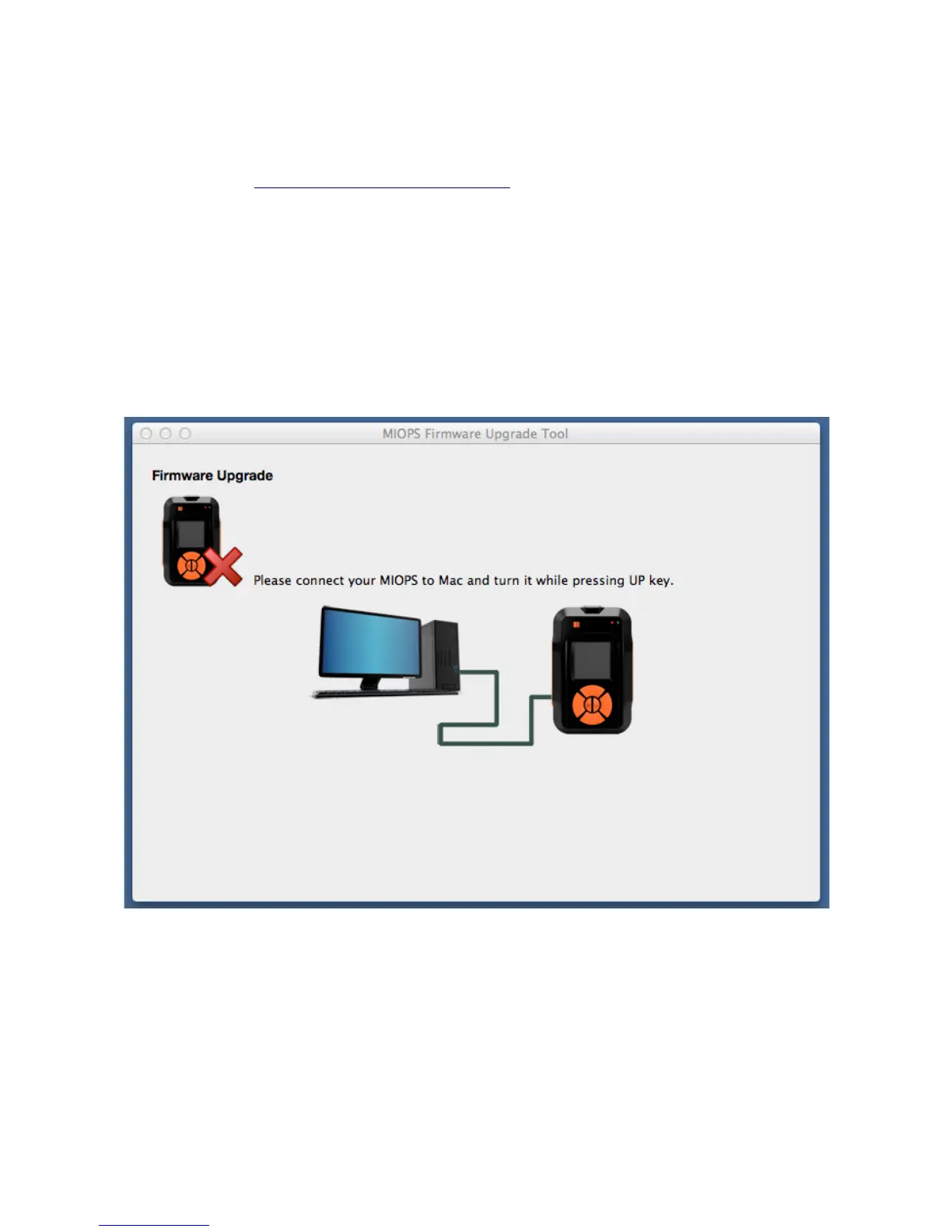
Connect your Miops Smart to the computer with the USB cable, but do not turn
it on at this time. Open the firmware upgrade tool. You will see the initial
screen of the upgrade tool.
Figure 11: MAC Firmware Upgrade Tool
Before you start the firmware upgrade process, you need to put Miops Smart
into the Firmware Upgrade state. Turn the Miops Smart on as you keep
pressing the “Up” scroll button. This will put it into Firmware Upgrade status.
You should see that there is a green check mark on the Miops icon. This means
you have successfully put it into the Firmware Upgrade state. If you cannot do


 To Next Page