this at the first time, you can try again. You don’t need to restart the app. Just
turn it on as you keep pressing the Up scroll button. In this state, the screen of
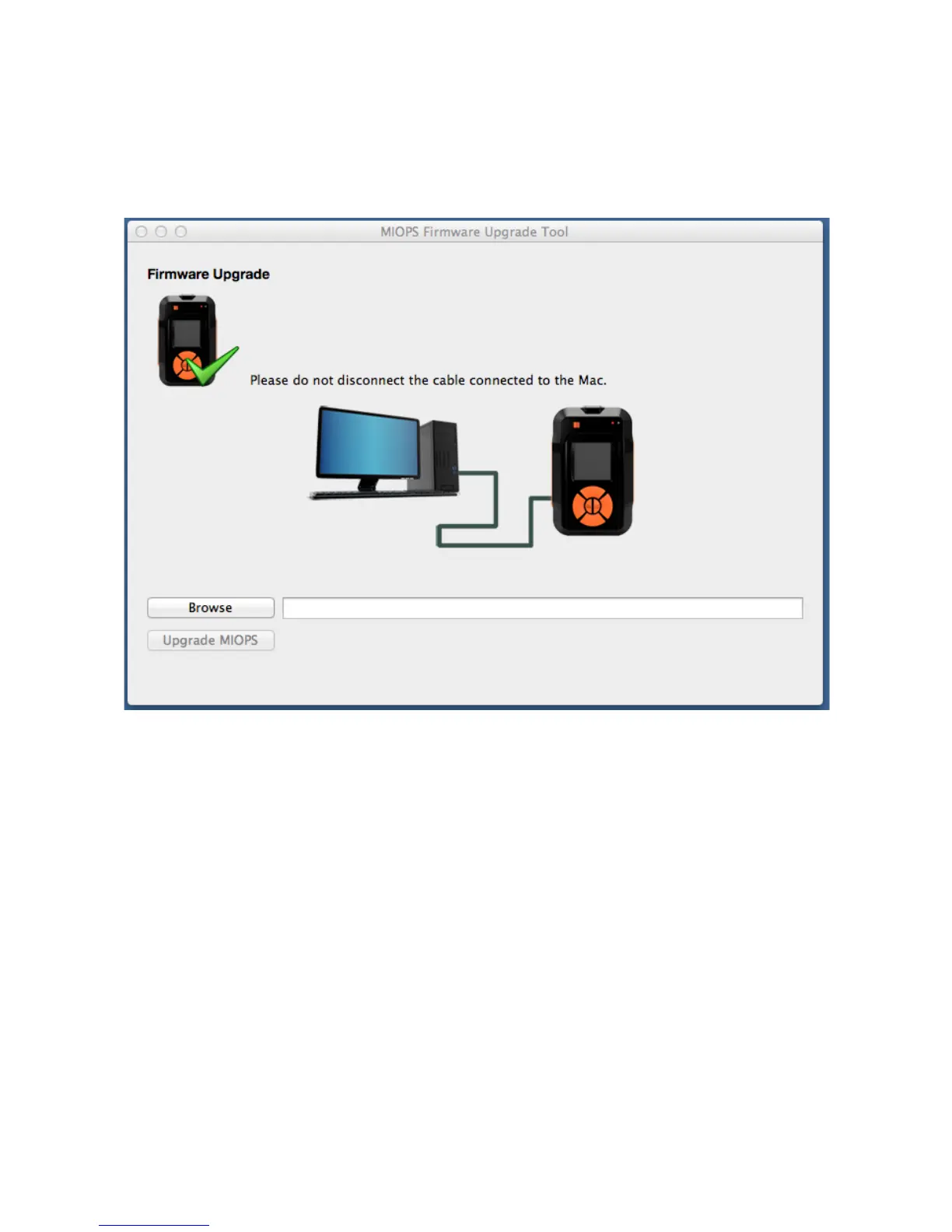
the Miops Smart will be just black. The screen of the app should be as shown
below.
Figure 12: MIOPS in Firmware Upgrade Status
You can continue the upgrade process by pressing the Browse button. You will
need to locate the firmware file. Select the firmware file you have downloaded
from the download page. The path of the file will appear next to the Browse
button. You can then press the “Upgrade MIOPS” button. You will see a
progress bar on the screen and the upgrade should be complete in about 10
seconds. MIOPS Smart will start after this in regular mode with the new
firmware. You can disconnect it from the computer.


 To Next Page