c. Using the Application
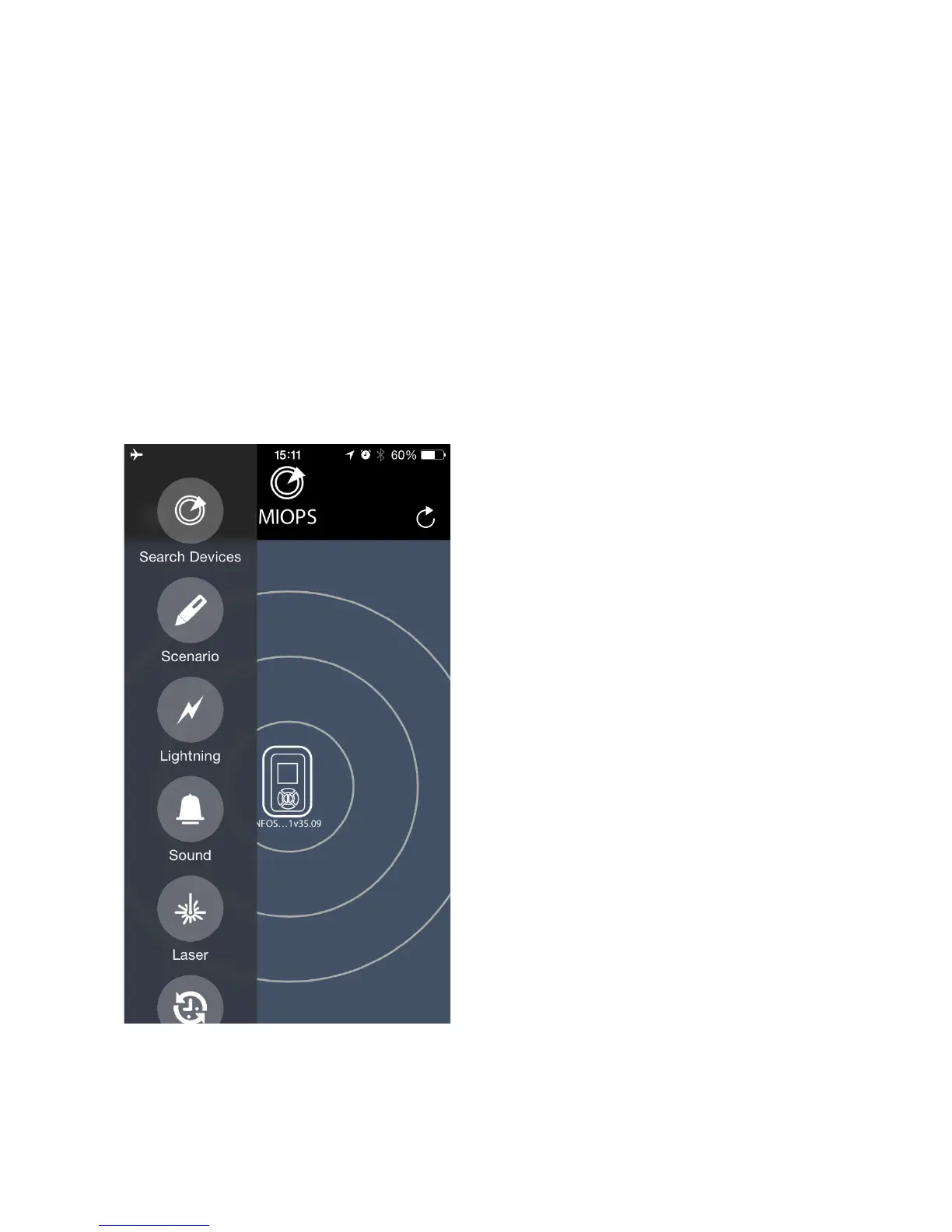
The app has a menu style interface to switch between different modes. The
initial menu will appear on the left hand side of the screen. Different modes
will be listed from top to the bottom. You can select the mode you want to
use by touching the icon. The menu will scroll down to show additional
modes that do not fit into the screen. The menu will disappear once you
select any mode and the app will enter in to the configuration page of that
particular mode. You can switch between different modes anytime. In order
to do that, you just need to touch the menu icon on the top-right hand side
of the screen. When you switch back and forth between different modes,
the settings will not change.
The first button on the menu is
Search Devices button. This
button is used if you haven't
connected to your MIOPS Smart
as you have started the app. You
can use the same button if your
MIOPS Smart has disconnected
for some reason. The range, in
which a MIOPS unit can be
discovered, depends on different
factors. If your device is not
discovered by the app, get closer
to the MIOPS Smart. If there is
too much interference in the
environment, it may take longer
to connect. If you have multiple
MIOPS Smart units in the area,
you will see all of them on the
screen. You can connect to a
single MIOPS Smart at a time.
The Bluetooth connection is only needed until you have configured your
MIOPS Smart. Once you have successfully configured your MIOPS Smart,


 To Next Page