UC360 Administration Guide
Changing the Camera Name and Location in ONVIF
Giving cameras a distinguished name and location will help you identify Discovered Cameras
in Camera Setting (see “Camera Settings” on page 33
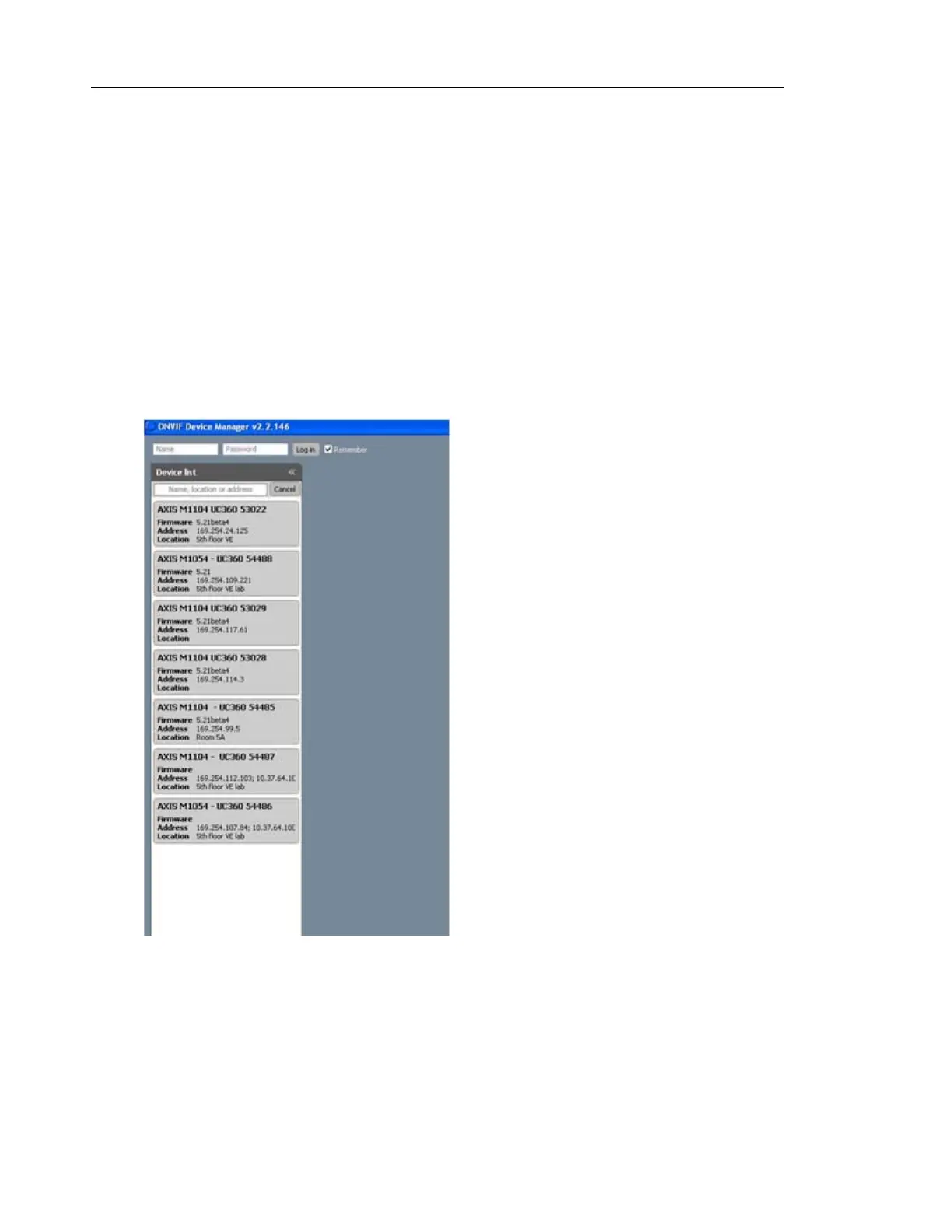
1. Open the ONVIF Device Manager.
The ONVIF compliant devices/cameras are detected automatically and are shown in the
list in the left pane.
2. If your device is not found, verify that your computer and network camera are in the same
subnet. Click Refresh..
3. Log in with the ONVIF user name and password. Use the user name and password you
set up in the camera.
4. Click Log in.


 To Next Page