58
Change the Size and Location of a Shape or Text
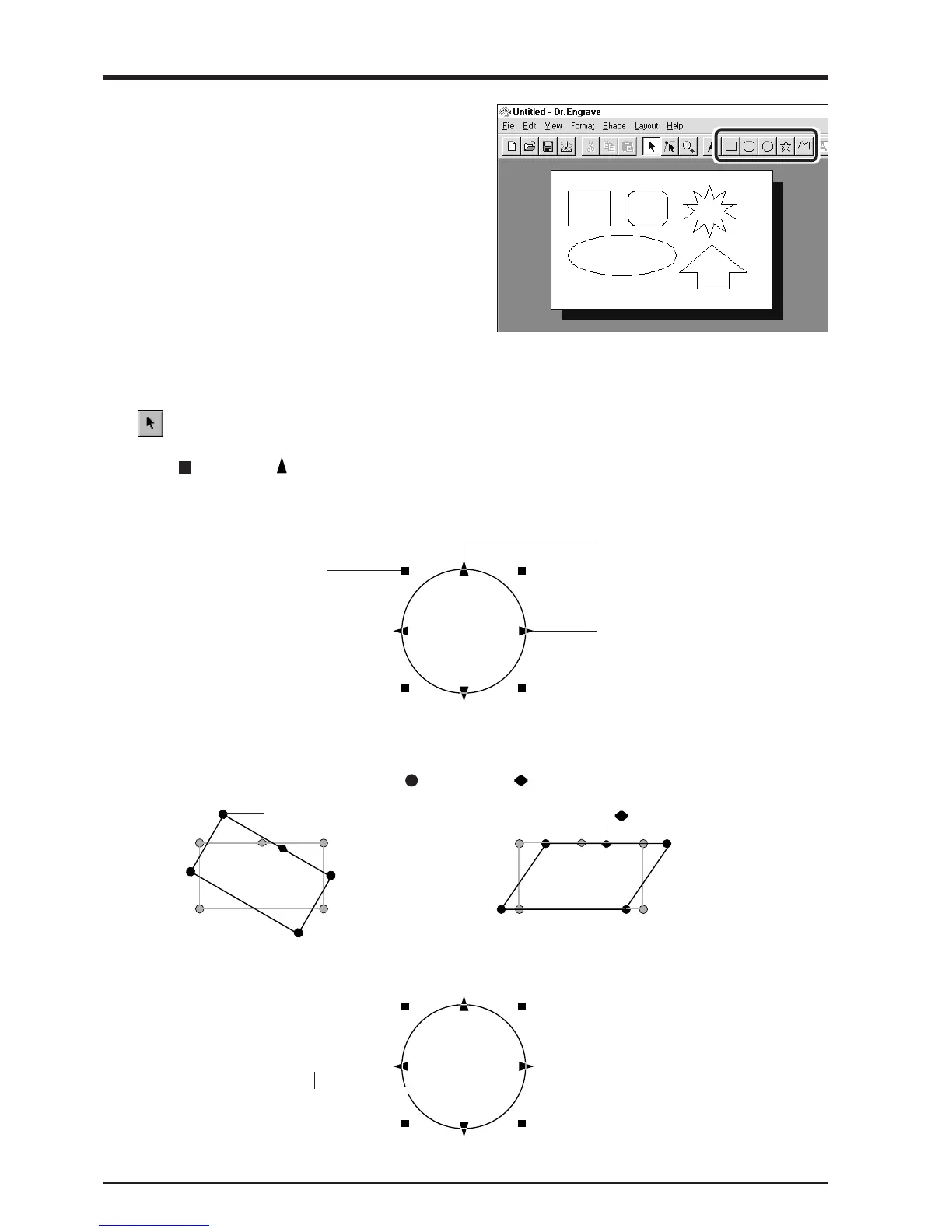
Click , then click the shape or text.
Solid square ( ) and triangle ( ) pointers appear around the shape or text. To change the size, drag the pointers.
Draw a Shape
Click on the shape-drawing controls to draw the shapes.
<Changing the Size>
You can freely change the size of the
object by dragging. To retain the
object’s vertical/horizontal aspect
when you change its size, hold down
the [Shift] key while dragging.
<Rotating and Slanting>
Clicking again makes the pointers change to circles ( ) and diamonds ( ).
<Moving the Location>
Drag to change the vertical size.
Drag to change the horizontal size.
Drag to rotate the shape.
Drag the “ ” to slant the shape.
To change the location, drag between
the pointers.



 To Next Page