43
Saving Scanned Data
If you want to export the data as a file in DXF or VRML format, please refer to the help screens for Dr. PICZA.
1
Click and choose [Save].
The [Save As] dialog box appears.
2
Choose the desired location for saving the file,
enter a file name, and click [SAVE].
The extension ".pix" is appended to the file name.
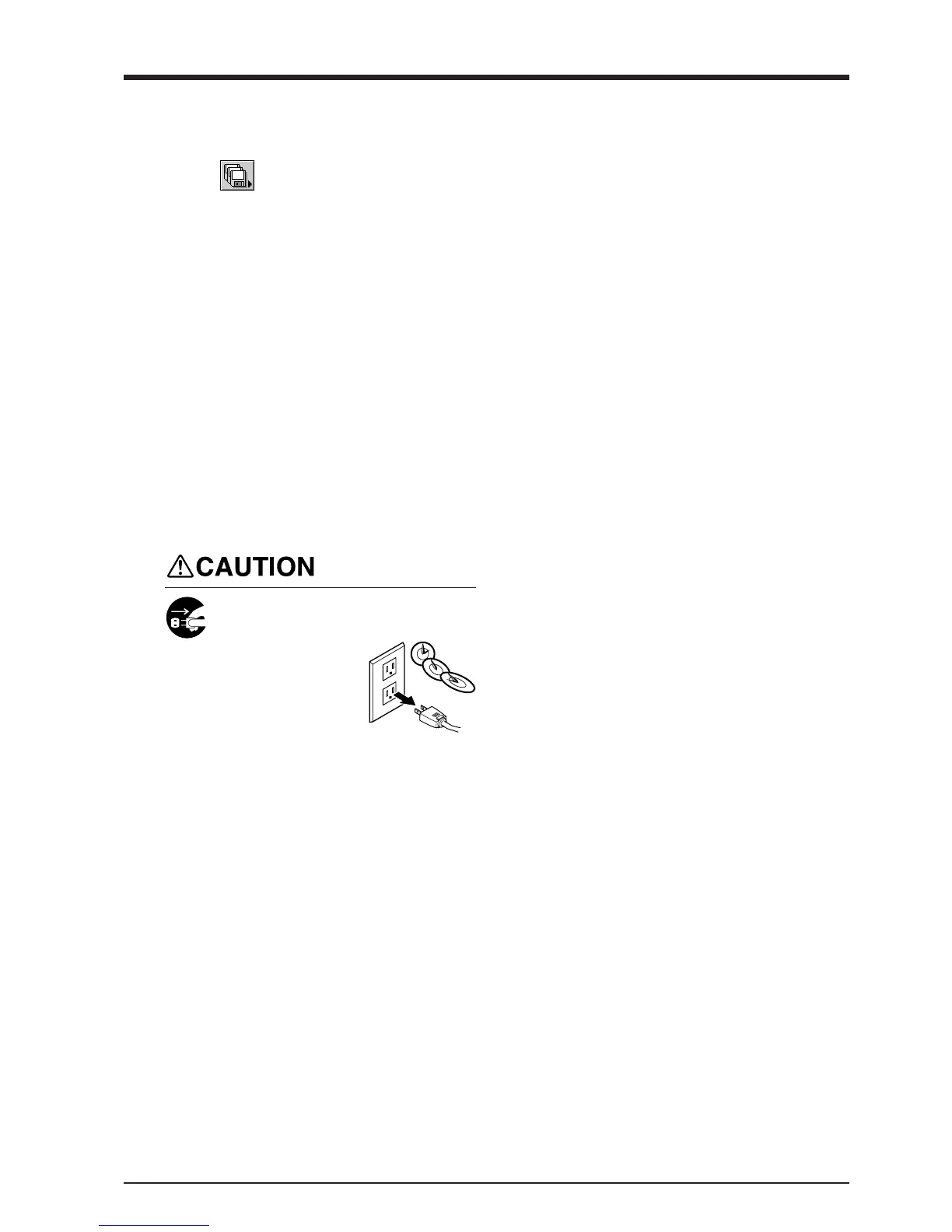
When not in use for several hours,
unplug the power-cord plug from the
electrical outlet.
Failure to do so may
result in danger of
shock, electrocution,
or fire due to
deterioration of the
electrical insulation.
When not in use
- Remove any clay from table, and store the clay so that it will not dry out.
- Unplug the power-cord plug from the electrical outlet.
1
Press the STANDBY key to switch off the power.
2
Remove the scan object from the table.
Edit the Scanned Data
The shape of an object can be edited. It is possible to vary the height, adjust the slant, or perform concave/convex inversion (height
inversion) for a desired surface.
You can use the toolbar button or select [Edit] on the menu bar.
Please refer to the help screens for Dr. PICZA for detailed explanations of the various functions that are available.
Be sure to save the scanned data before starting to edit.
When you're done editing, be sure to save your file.
When Scanning Is Finished



 To Next Page