18
How to Use Help
If you have trouble using the program or driver, see the help screens. Help contains information such as descriptions of software opera-
tion, explanations of commands, and tips for using the software more effectively.
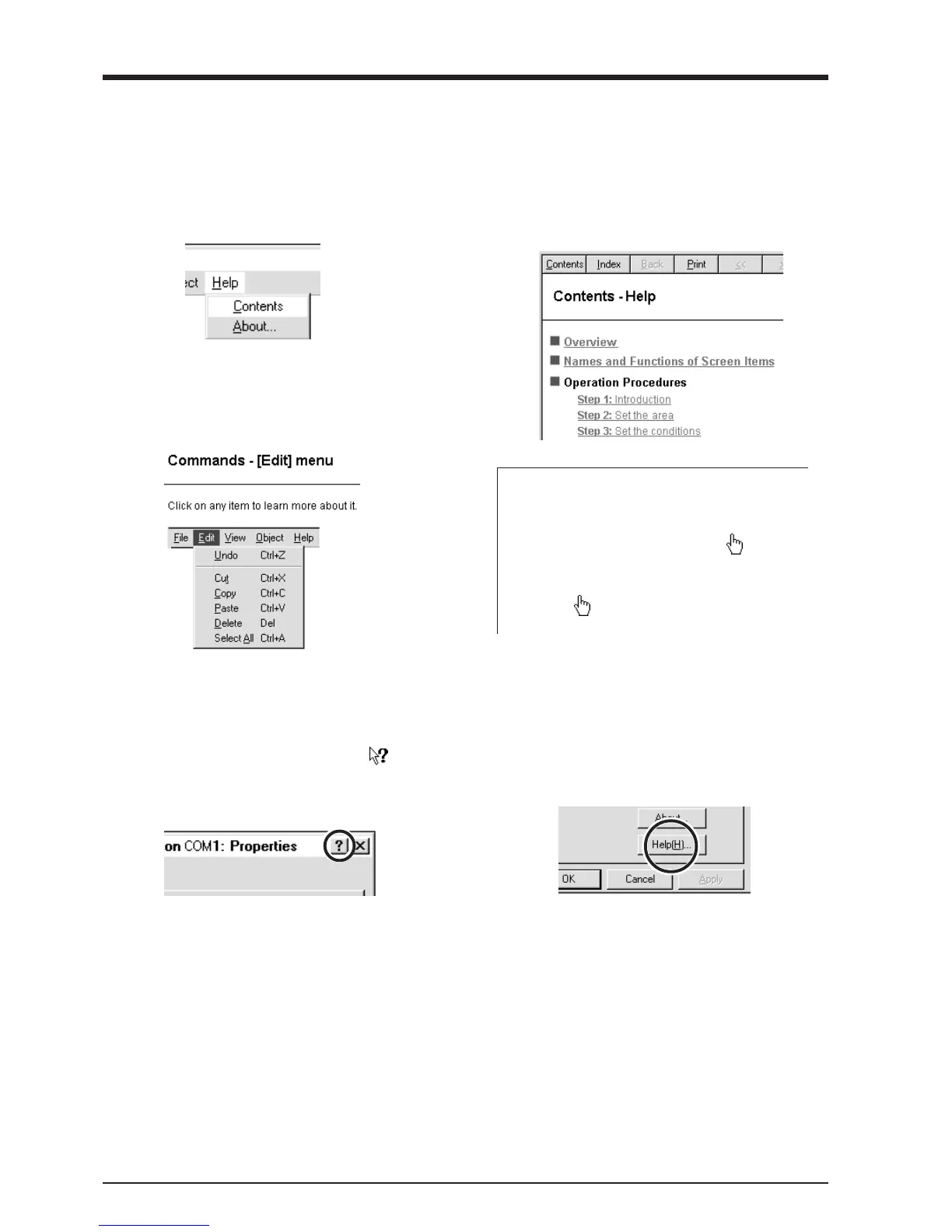
When there's a [?] button on screen
Clicking [?] in the upper-right corner of the window makes
the mouse pointer change to a question mark (
). You
can then move the pointer over any item you wish to learn
more about, then click on the item to display an explana-
tion of it.
When there's a [Help] button on
screen
Clicking [Help] lets you view help for the window or
software.
1
From the [Help] menu, click [Contents].
2
Clicking on text that is green and underlined (by a
solid or dotted line) displays an explanation.
3
Clicking on an image area that contains an
explanation displays the explanation.
Tip:
- When the pointer moves over green underlined
text, it changes to a pointing hand (
).
- When the pointer moves over a location where an
explanation is included, it changes to a pointing
hand (
).



 To Next Page