Page 28
ENABLING BLUETOOTH / PAIRING YOUR PHONE
Enabling Bluetooth
In order to pair your phone to your trolley, you will need to ensure that Bluetooth is enabled on the trolley:
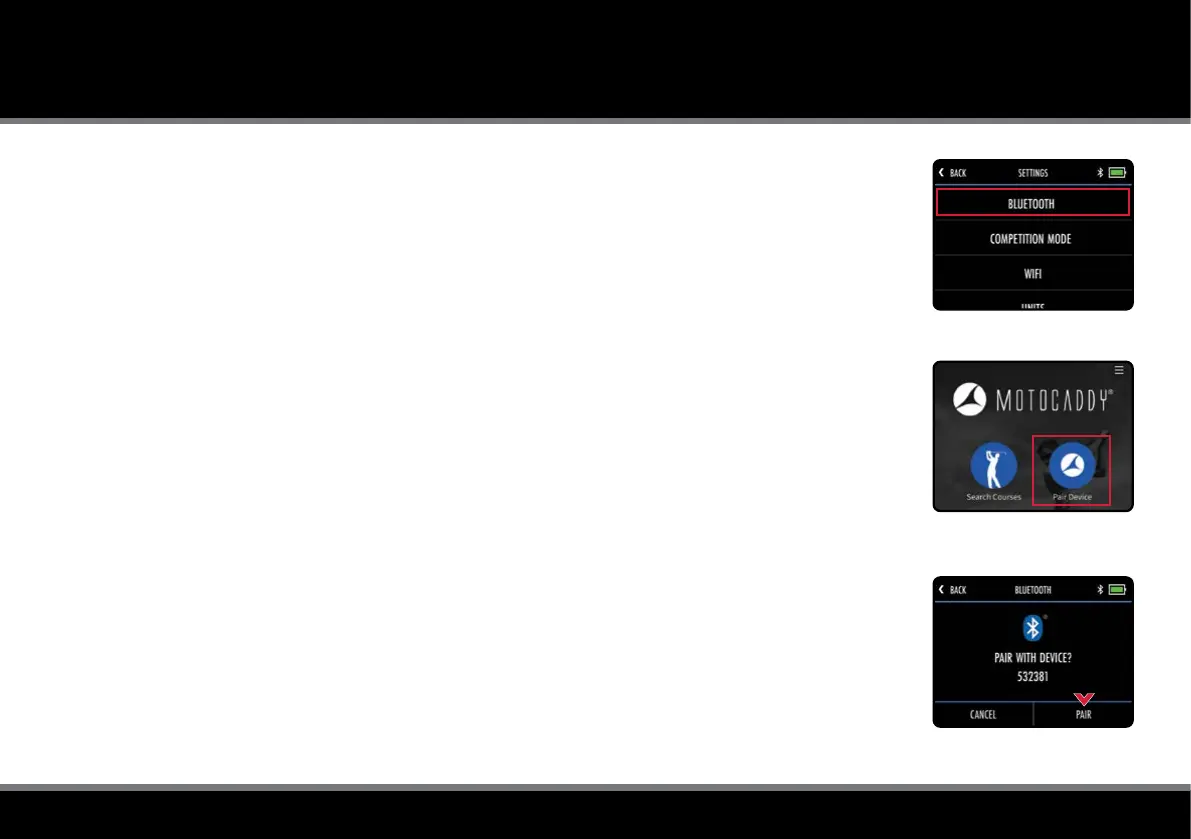
1. From the Home screen select “Settings” and then “Bluetooth” (g. 1)
2. If Bluetooth is off, select “Yes” to turn it on
When Bluetooth is enabled you will see the Bluetooth logo on the display next to the battery meter.
Pairing your Phone
To pair with a compatible smartphone, ensure Bluetooth is enabled on both devices (see above) and then:
1. Open the Motocaddy app on your phone and select "Pair Device" button (g. 2)
2. Select the correct trolley model from the list and select “Next”
3. Further instructions will be displayed. When ready, select “Pair Device”
4. Once the trolley and phone have found each other, both devices will display a six digit code (g. 3).
If these codes match, select "Pair" on both devices
5. Both the trolley and phone will conrm that pairing has been successful
6. Select “My Device” on the phone for further settings and "Close" on the trolley screen to continue
The Motocaddy app can be closed once pairing is complete or used as an additional GPS device.
Once pairing is complete, it is not necessary to open the Motocaddy app to display notications on the
trolley screen, however the app can be used to control notication settings or unpair your phone.
During initial startup, the Bluetooth on your trolley will take around 60 seconds to initialise and will
automatically reconnect to your phone when in range. Bluetooth can be disabled if required.
Fig 1 - Home Settings Menu
Fig 2 - Motocaddy App
Fig 3 - Trolley Pairing Code



 To Next Page