Page 30
CONNECTING TO WIFI / FIRMWARE UPDATES
The M-TECH GPS is able to easily update both rmware and courses via WIFI powered Over-the-Air updates.
Connecting to a WIFI Network
Before attempting an Over-the-Air (OTA) update, the trolley will need to be connected to a WIFI network.
1. From the Home screen select “Settings” and then "WIFI"
2. Select "WIFI Disabled", select “On” and then select "Close"
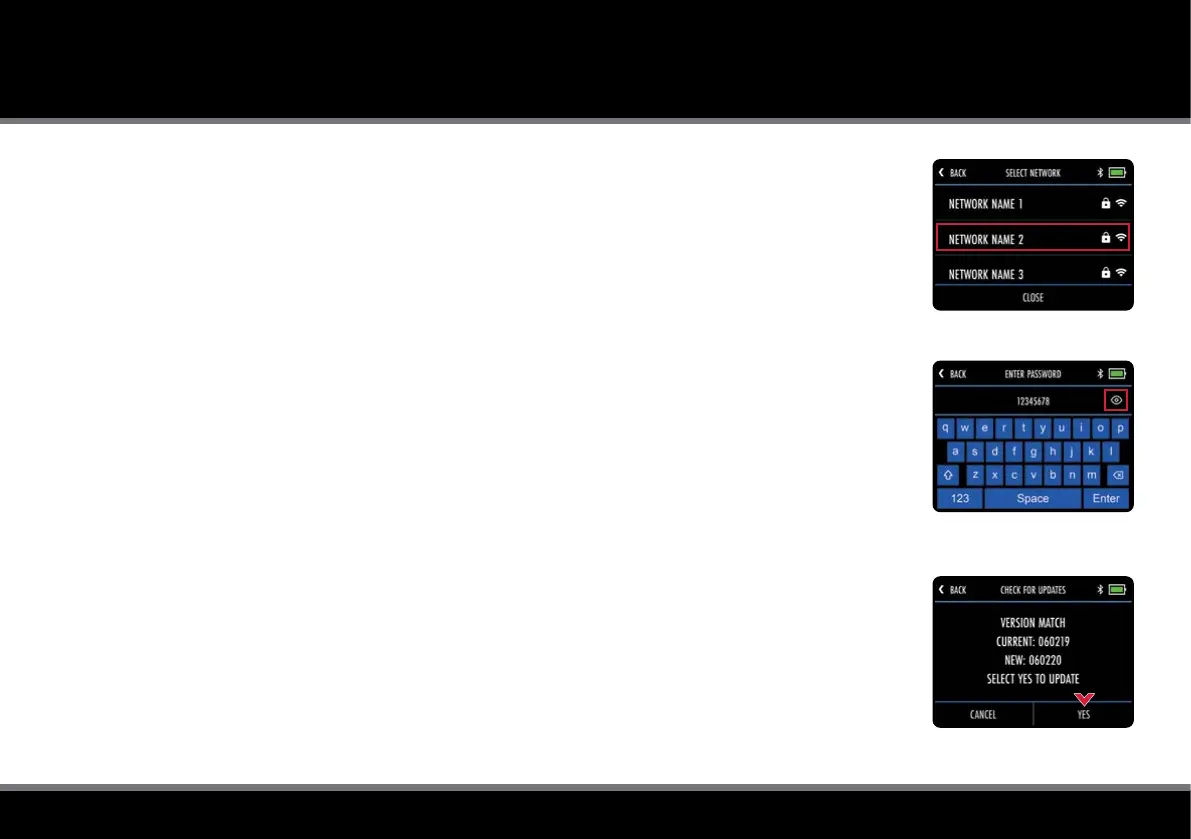
3. Tap “Select Network” and choose the required network from the list (g. 1)
4. Enter the WIFI password (tap the eye icon to view password) and select “Enter” (g. 2)
5. Once connected select "Close" to exit
Firmware Updates (OTA)
To check current software version and install updates:
1. From the Home screen select “Settings” and then "Check for Updates"
2. You will be asked whether you want to check for updates. Select “Yes”
3. The trolley will search and indicate whether a newer rmware version is available
4. If there is newer rmware, you will see an option to select “Yes” or “Cancel” (g. 3)
5. Select “Yes” to continue and install the update, or "Cancel" to return to the settings menu
6. During installation, the trolley will restart and show the Home screen when completed
We strongly recommend checking for rmware updates before using the trolley for the rst time.
The OTA process can take up to 5 minutes to complete. During installation, the trolley may automatically
reboot multiple times and the screen will go blank. When the Home screen is displayed, the OTA is complete.
It may be necessary to unpair your mobile device and re-pair after performing an OTA - see page 28.
Fig 1 - WIFI Network List
Fig 2 - WIFI Password Entry
Fig 3 - Check for Updates



 To Next Page