Page 31
COURSE UPDATES
Course Updates (OTA)
The M-TECH GPS is pre-loaded with over 40,000 worldwide courses. To check for an updated course map,
the trolley will need to be connected to a WIFI network (or have an active Performance Plan subscription):
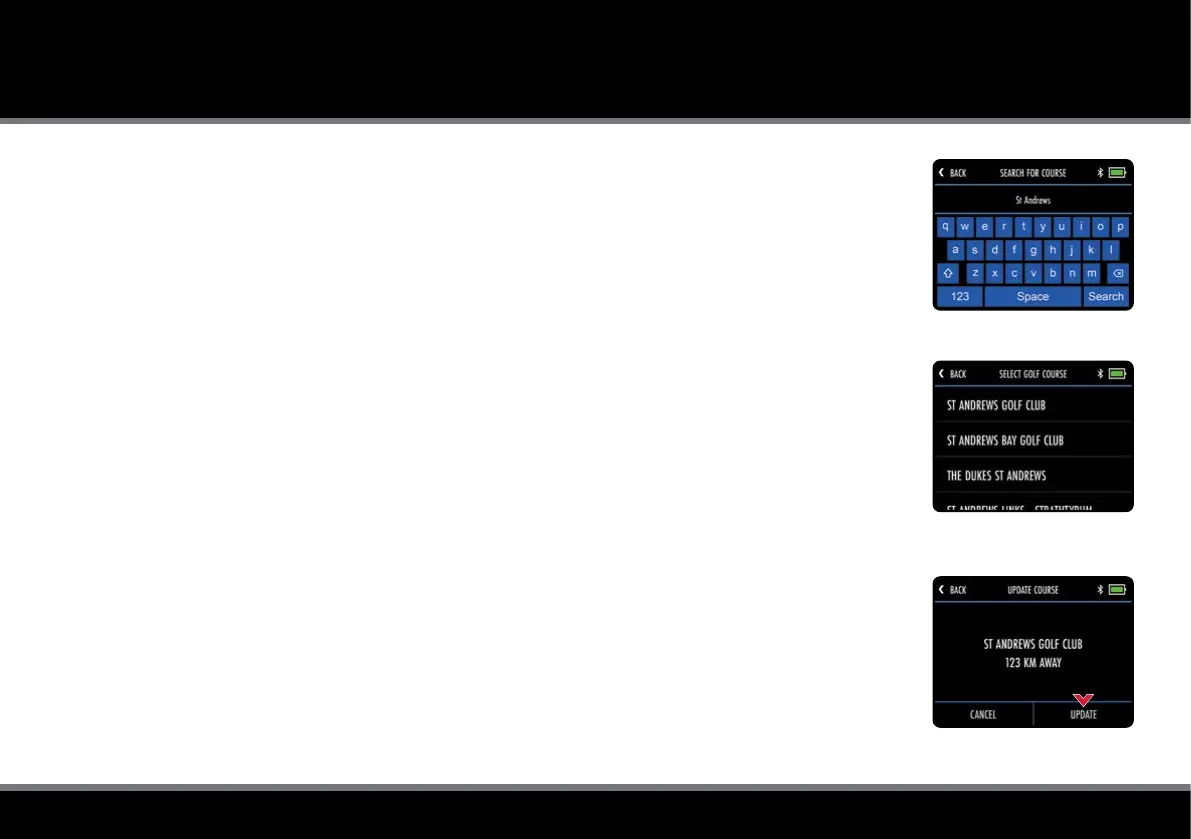
1. From the Home screen select “Settings” and then "Update Course"
2. Enter the name of the course (you do not need to enter the full name) and select "Search" (g. 1)
3. The trolley will then display a list of courses which meet the search criteria (g. 2)
4. Select the course that you want to update from the search results
5. You will be shown additional course information to help conrm that you have selected the
correct course (if required, tap "Back" to select an alternative course)
6. Select “Update” to initiate the update (g. 3)
7. The course will then be updated and “Updating Course” will be displayed
8. Once complete, the trolley will conrm that the course has been successfully updated
9. Select "Close" to exit
Please submit requests for mapping updates or new course mapping using the 'Report Mapping Issue'
option within the Motocaddy app support menu.
Fig 1 - Course Search
Fig 2 - Course Selection
Fig 3 - Update Conrmation



 To Next Page