Page 17
BATTERY METER / USB CHARGING
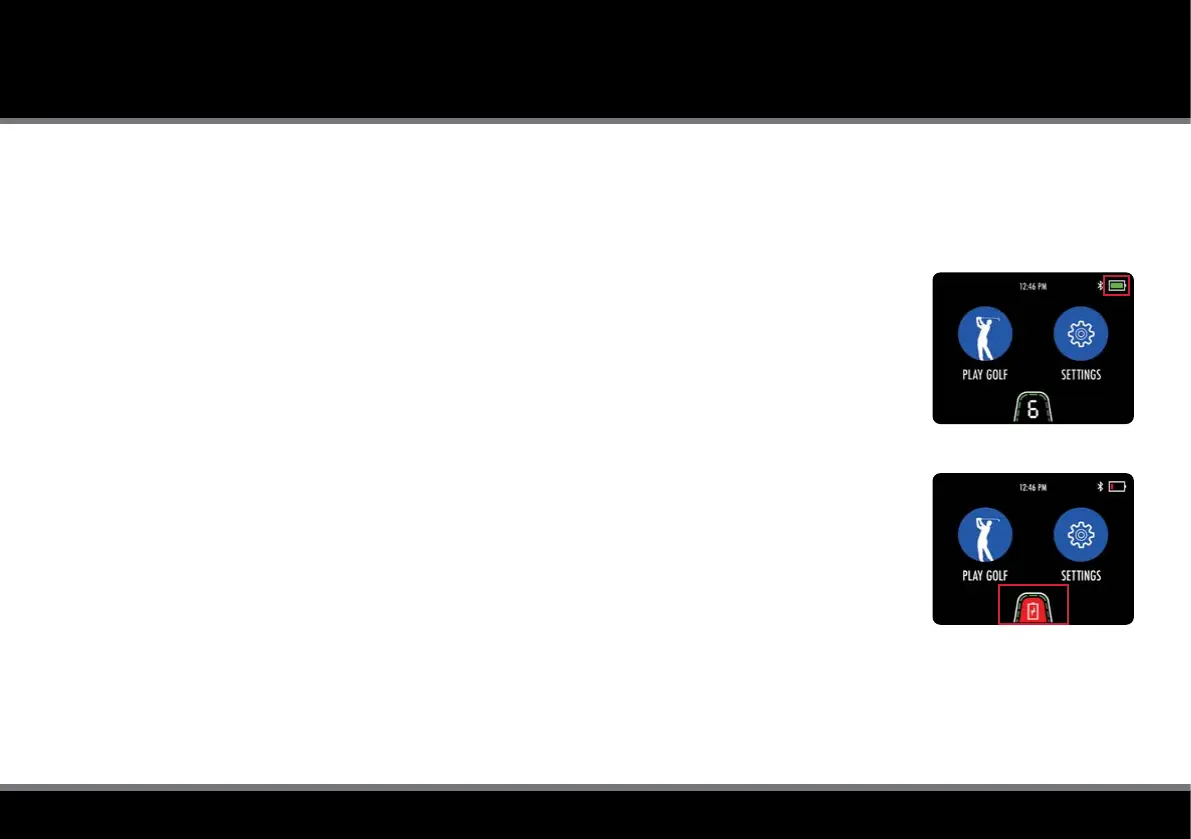
Fig 1 - Battery Meter
Fig 2 - 'Low Battery' Warning
Battery Meter
The M-TECH GPS includes an on-screen battery meter in the top right corner (g. 1) which provides
an indication of remaining battery capacity.
The battery bar is green when fully-charged. The bar will gradually reduce while turning amber and
then red as battery capacity decreases.
If battery capacity gets low, a red 'low battery' warning icon will appear in the speed indicator (g. 2).
Press the 'On/Off' button to continue using the trolley. It is recommended to disable Bluetooth,
stop USB charging and limit GPS usage until the battery has been charged.
USB Charging
The trolley features a USB charging port designed to charge USB powered devices during your round.
Simply remove the covering cap and plug a USB cable into the charging port located on the underside of
the handle. The device will continue charging while the cable is attached and the battery is connected.
The rate of charge will be slower than a mains AC charger and similar to plugging the device into a PC.
The USB charger takes power from the main trolley battery and continuous charging will reduce the
battery capacity between charges. The trolley is designed to disable the USB charging port when
the trolley battery capacity reaches a preset level.



 To Next Page