Page 25
SCORE TRACKING
Score Tracking
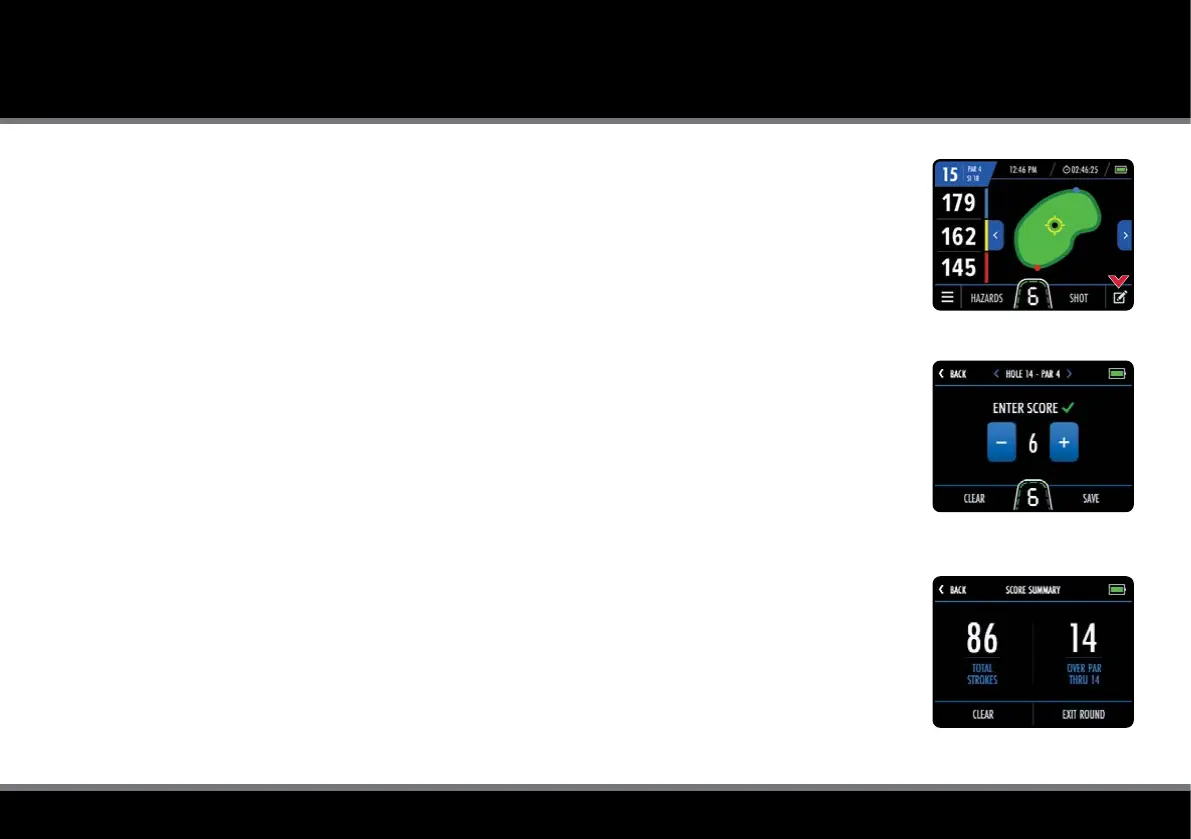
The M-TECH GPS can be used to keep track of your score and access a score summary at any point
during the round. To enter a score, select the scorecard logo (g. 1) at the bottom right corner of GPS Mode.
This will show the current hole information with the option to enter a score (g. 2). Tap "+" and "–" to
change the score and then select "Save" to save the score and return to GPS Mode. You can also
select the blue left and right arrows at the top of the screen (g. 2) to scroll through the different holes
and update each score.
When the green check mark is visible next to the "Enter Score" text, the score for this hole has been
successfully saved. If the incorrect score has been saved, you can easily override this by updating the
score and selecting "Save". Selecting "Clear" on the Score Entry screen will only reset the score on the
hole selected.
You can access a score summary at any point during the round by selecting “Score Summary” from
the GPS Mode settings menu. The Score Summary will show 'Total Strokes' taken and 'Score' related to
Par (g. 3). To return to GPS Mode, select “Back”, to reset your round score select "Clear", or if you have
completed your round of golf select “Exit Round”.
Please be aware that scores are not stored or accessible once a round has ended unless you have
an active Performance Plan subscription.
Fig 1 - GPS Mode
Fig 2 - Score Entry
Fig 3 - Score Summary



 To Next Page