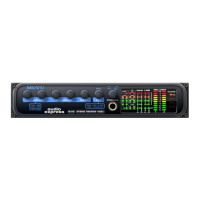
4PRE FRONT PANEL OPERATION
36
MIXING WITH THE FRONT PANEL
CONTROLS
The 4pre can operate as a mixer, and you can use
the knobs on the front panel to control the mix.
The mixer combines the signals of all inputs and
sends the mixed signal to an output pair, such as
the main outs. You can control the relative volume
of the inputs, as well as the overall volume of the
mix signal on output.
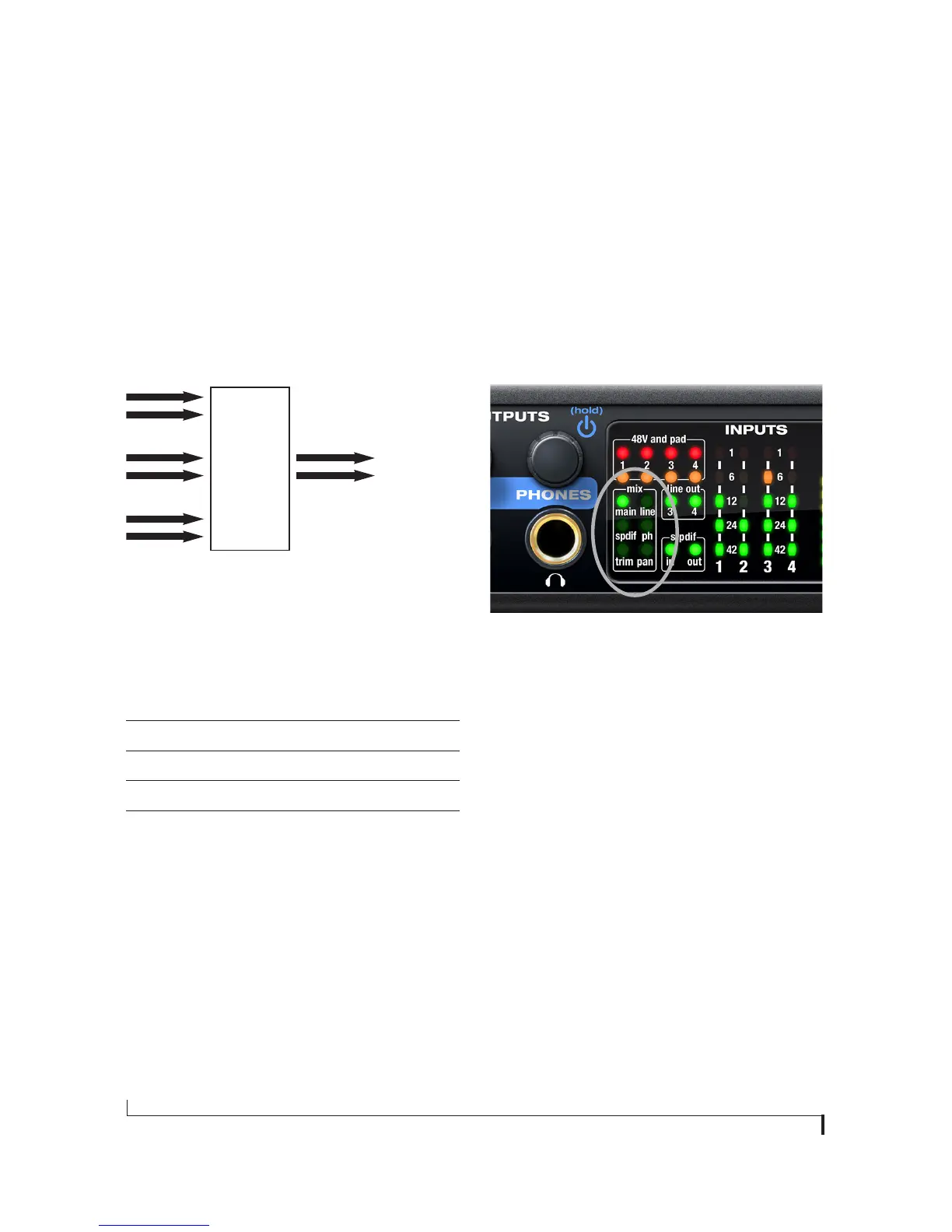
Figure 6-2: The 4pre mixer takes all the input signals and combines
them to an output. You control the volume of each input separately
to produce a good mix.
Four separate mixes
The 4pre provides a separate mix for each of its
four output pairs, as follows:
This means that for each 4pre output pair, the
volume of each input can be completely different
than it is for other output pairs. This allows you to
create different mixes and send them to separate
destinations. For example, you could send one mix
to a PA system, and send a separate, different mix
to stage monitors. Yet a third mix could be created
for the headphones, and a fourth mix could be sent
to the digital outputs to a recording device of some
kind (or to an effects processor).
Choosing a mix to control
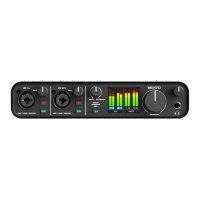
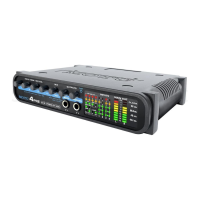
The 4pre front panel controls only one mix at a
time. To choose which mix you are controlling,
push the MIX/VOL knob (Figure 6-1) repeatedly.
The current mix LEDs (Figure 6-3) indicate the
currently selected mix: main, line, spdif, or ph
(phones). The factory default setting is trim
(explained later), so make sure one of these four
mix LEDs is illuminated before making mix level
adjustments.
Figure 6-3: The Mix LEDs indicate which mix you are controlling with
the front panel.
Controlling the volume of inputs
Use the Input controls (Figure 6-1) to control the
volume of the 4pre’s four analog inputs. Push to
mute or unmute the input.
☛ If you need to also mix the digital S/PDIF
input alongside the four analog inputs, use the
included CueMix FX software to control the S/DIF
input levels. See chapter 9, “CueMix FX” (page 51).
Controlling the volume of the mix
Use the Mix volume knob (Figure 6-1) to control
the overall output volume of the mix. Mix level is
independent of the output level for the main outs
(or other physical output jack to which the mix is
assigned).
Mix Front panel LED Physical output
Mix 1 main Main Out 1-2
Mix 2 line Analog 1-2
Mix 3 spdif S/PDIF 1-2
Mix 4 ph Phones 1-2
4pre mixer
Input signals Output signal


 To Next Page