CONFIGURING HOST AUDIO SOFTWARE
40
If you are slaving the 4pre and your host software to
SMPTE time code, follow the directions in
“Syncing to SMPTE time code” on page 78.
☛ In order to use the 4pre’s direct SMPTE sync
(and sample-accurate sync) feature, the host audio
software must support the ASIO 2 or 3 sample-
accurate positioning protocol. Cubase and Nuendo
support this protocol; for other software, check
with its documentation.
Samples Per Buffer
The Samples Per Buffer setting can be used to
reduce the delay — or monitoring latency — that
you hear when live audio is patched through your
4pre hardware and host audio software. For
example, you might have MIDI instruments,
samplers, microphones, and so on connected to
the analog inputs of the 4pre. If so, you will often be
mixing their live input with audio material
recorded in your audio software. See chapter 8,
“Reducing Monitoring Latency” (page 45) for
complete details.
Phones Assign
This 4pre setting lets you choose what you’ll hear
from the PHONES jack. For example, if you choose
Main Out 1-2, the headphones will duplicate the
main outs. Or you can choose any other output
pair. If you choose Phones 1-2, this setting makes
the headphone jack serve as its own independent
output pair. As a result, you’ll see Phones 1-2 as an
additional audio destination in your host’s audio
output menus. When operating at high sample
rates, the phones must mirror one of the other
output pairs.
☛ The headphone jack labeled MAIN is hard-
wired to mirror the main outs; it cannot be
reassigned to another output pair.
CHOOSING THE MOTU AUDIO DRIVER
Once you’ve made the preparations described so
far in this chapter, you’re ready to run your audio
software and enable the MOTU Audio driver.
Check the audio system or audio hardware
configuration window in your software. There will
be a menu there that lets you choose among
various drivers that may be in your system. Choose
the desired MOTU Audio driver from this menu.
Several driver options are available. For a
summary, see “MOTU Audio drivers” on page 18.
Pro Tools
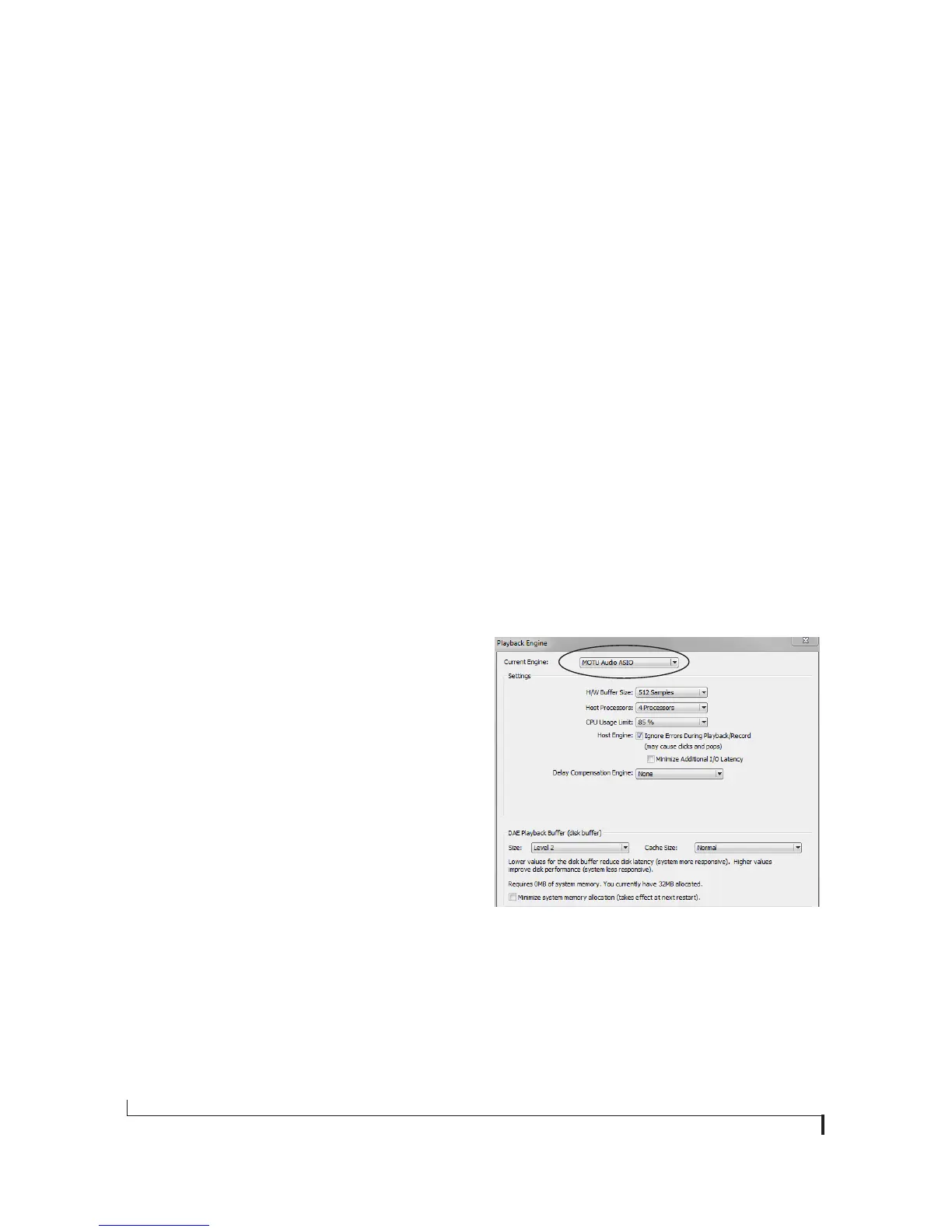
In Avid Pro Tools, go to the Setup menu and
choose Playback Engine as shown in Figure 7-2.
Choose the MOTU Audio ASIO from the Current
Engine menu. For information about the H/W
Buffer Size setting, see “Adjusting the audio I/O
buffer” on page 47.
☛ Pro Tools 9 or later is required for operation
with the 4pre.
Figure 7-2: Enabling the MOTU Audio ASIO driver in Pro Tools


 To Next Page