CONFIGURING HOST AUDIO SOFTWARE
41
Cubase and Nuendo
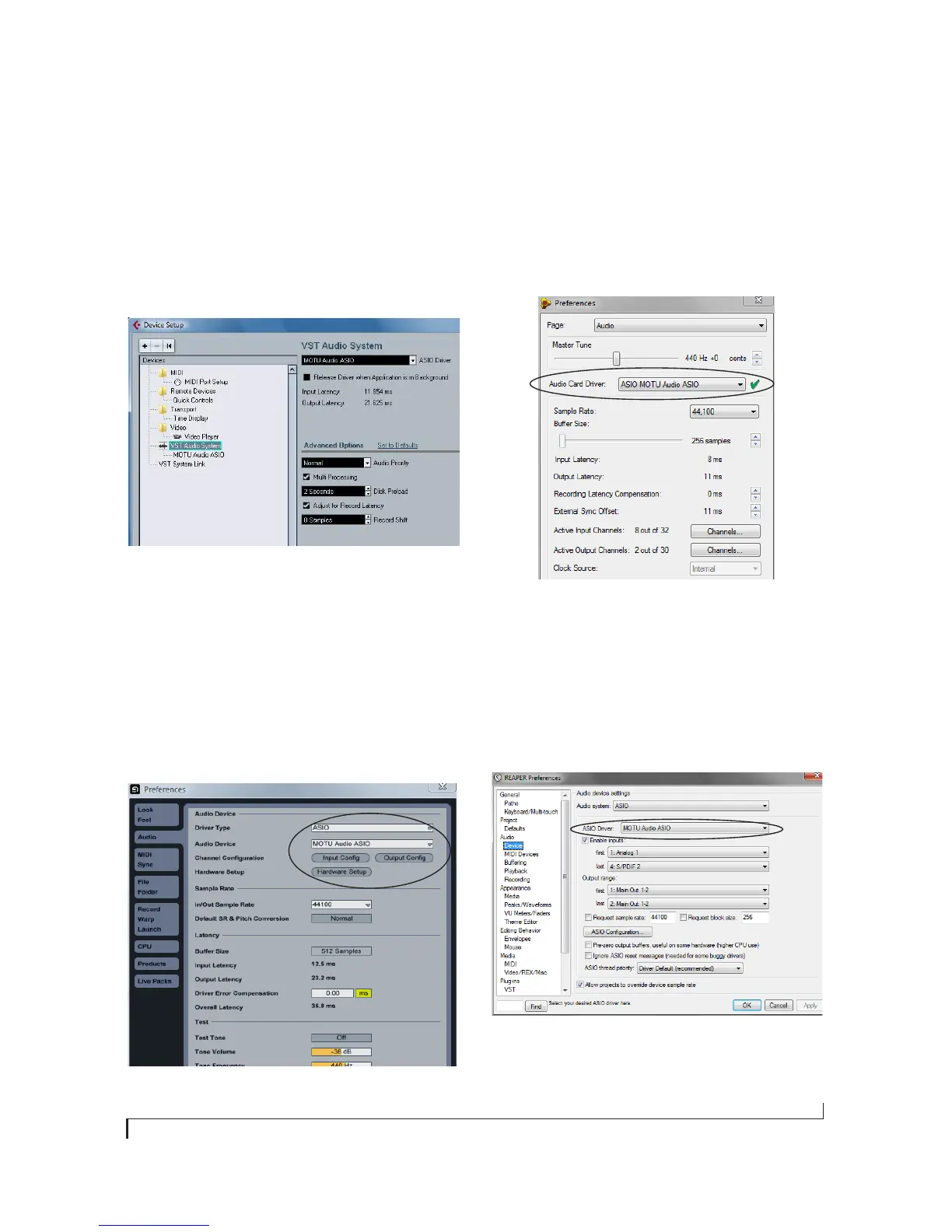
In Cubase or Nuendo, go to the Device Setup
window. Click the VST Audio System item in the
Devices list and choose MOTU Audio ASIO from
the ASIO Driver menu as shown below in
Figure 7-3. Activate the inputs and outputs within
Cubase or Nuendo as usual.
Figure 7-3: Enabling the MOTU Audio ASIO driver in Cubase
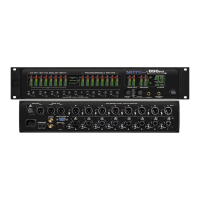
Live
In Ableton Live, access the preferences window and
click the Audio tab. Choose ASIO from the Driver
Ty p e menu. Choose the MOTU Audio ASIO from
the Input Audio Device and Output Audio Device
menus as shown below in Figure 7-4. To enable or
disable input or output channels, click the Input
Config or Output Config buttons.
Figure 7-4: Enabling the MOTU Audio ASIO driver in Live
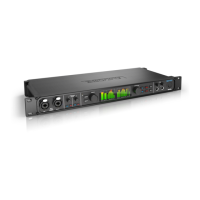
Reason and Record
In Propellerhead Reason or Record, go to the
Preferences window, choose Audio preferences
from the menu and choose MOTU Audio ASIO
from the Audio Card Driver menu as shown below
in Figure 7-5.
Figure 7-5: Enabling the MOTU Audio ASIO driver in Reason
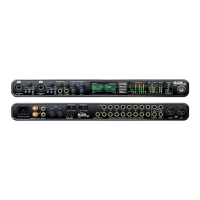
Reaper
In Cockos Reaper, access the Preferences and click
Devices under the Audio preferences. Choose ASIO
for the audio system and choose MOTU Audio
ASIO from the ASIO driver menu as shown below
in Figure 7-6.
Figure 7-6: Enabling the MOTU Audio ASIO driver in Reaper


 To Next Page