APPENDIX D: FREEMIDI AND OMS
152
FREEMIDI
For existing FreeMIDI users
If you’re adding a new MOTU interface to a USB-equipped
Mac that already has FreeMIDI installed, be sure to run the
MOTU USB MIDI software installer as described at the
beginning of this chapter to update FreeMIDI. Then
simply run FreeMIDI Setup. Your new MOTU USB
interface will automatically appear in your current
FreeMIDI configuration. If it doesn’t, make sure it’s turned
on and check cables.
For new FreeMIDI users
If you haven’t previously installed and used FreeMIDI on
your Macintosh, follow this simple procedure:
1 Make sure that your MOTU interface is connected and
powered up.
2 Locate the FreeMIDI Setup program on you hard drive.
During installation, it is placed in the FreeMIDI
Applications folder on the top level of your hard drive.
3 Double-click the FreeMIDI Setup application icon to
launch the program.
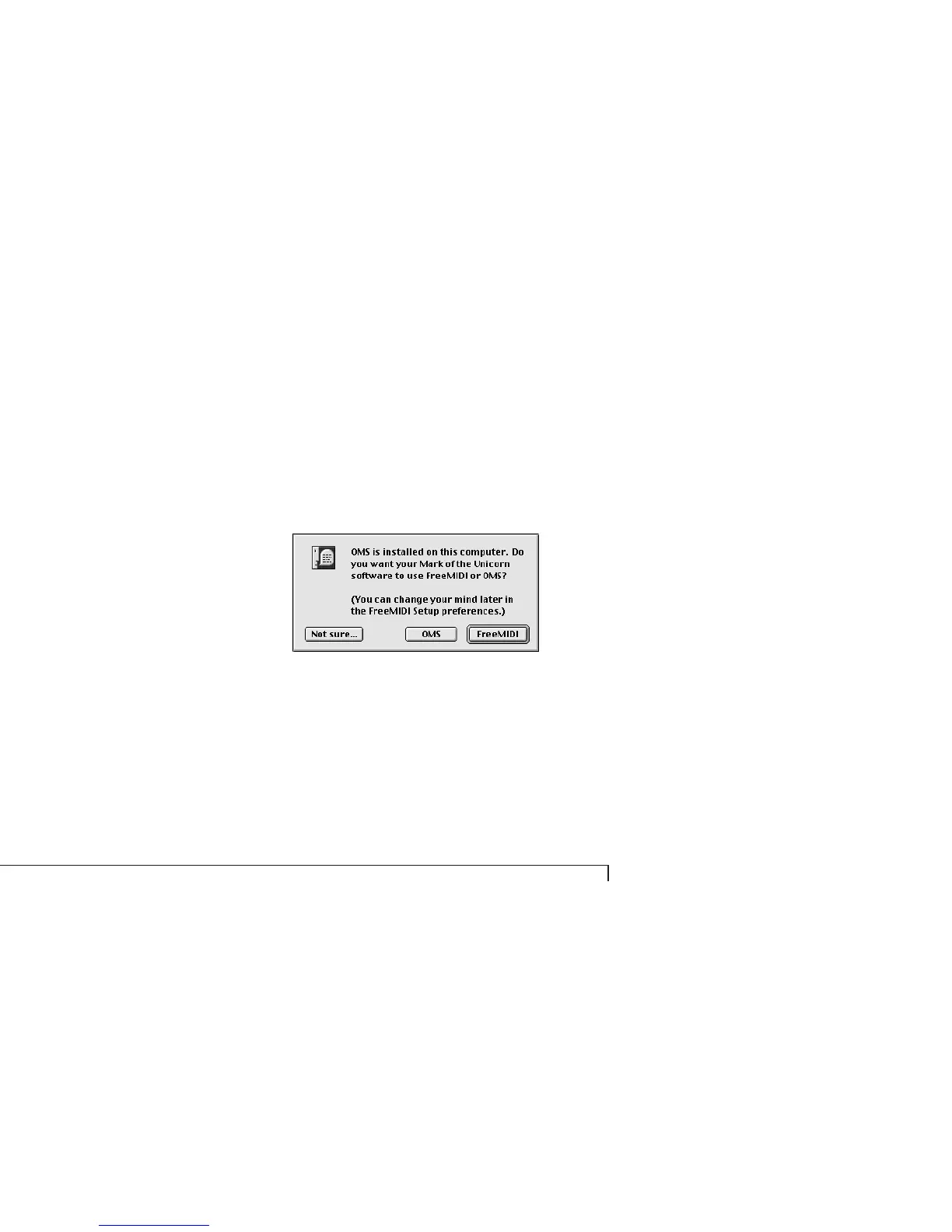
4 If this is the very first time you’ve run a FreeMIDI
program on this computer, and you happen to have OMS
installed in the computer, you’ll see the dialog below.
5 Since this is the procedure for using FreeMIDI, click the
FreeMIDI button.
After the initial splash screen, the Wel com e to FreeM IDI
dialog box appears as shown below.



 To Next Page