INSTALLING THE MOTU USB MIDI SOFTWARE
18
Launching Audio MIDI Setup
1
Make sure your MOTU MIDI interface is connected
and turned on.
2
Launch the Audio MIDI Setup utility.
This can usually be found in /Applications/Utilities. If it
has been moved, just search for
Audio MIDI Setup
.
3
Confirm that the MIDI interface is present in the
MIDI
Devices
tab of Audio MIDI Setup.
If the interfaces does not appear, or if it is grayed out, check
your cable connections and click
Rescan MIDI
.
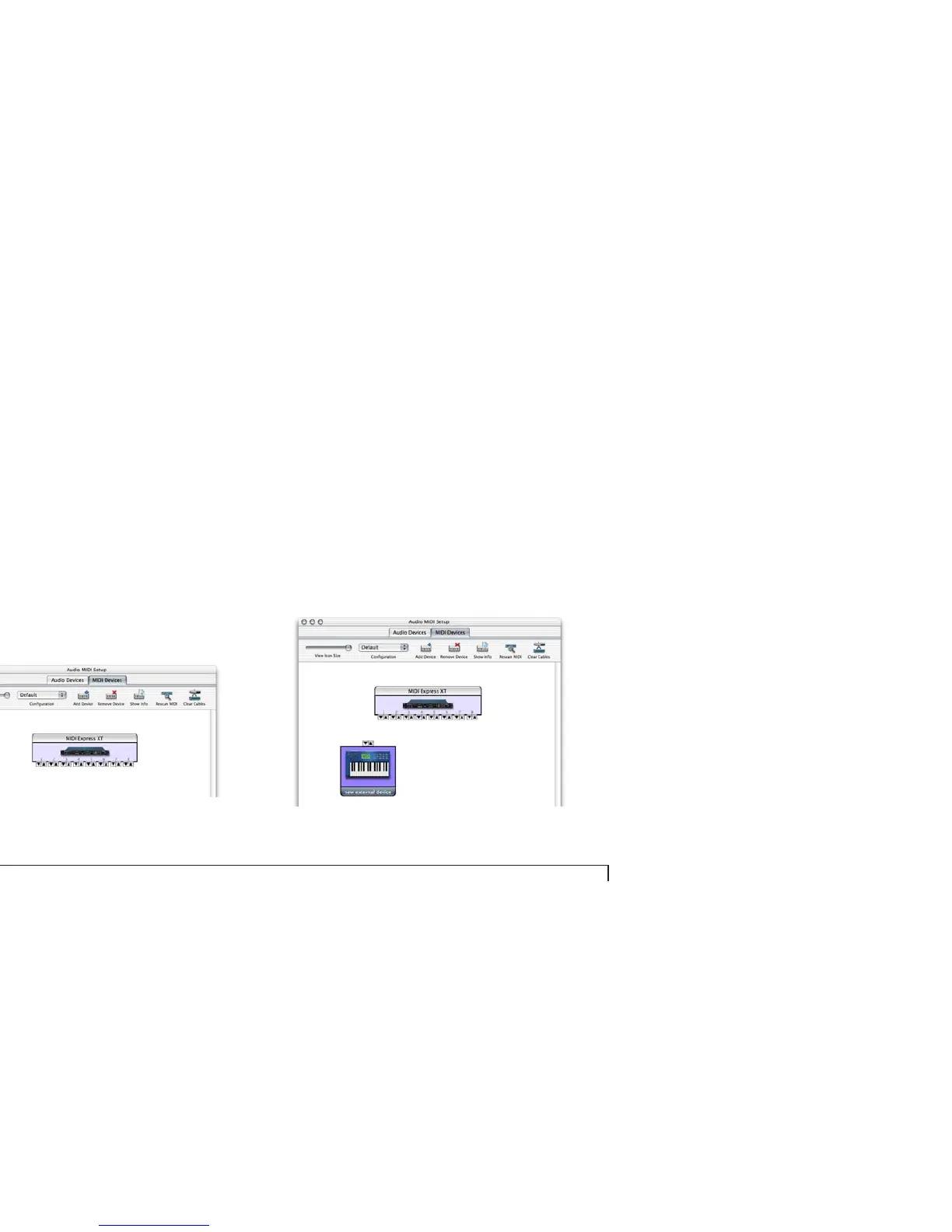
Figure 3-1: In this example, a MOTU MIDI Express XT interface as it appears in
the MIDI tab of Audio MIDI Setup.
Creating a MIDI configuration
Once your MOTU USB MIDI interface appears in Audio
MIDI Setup, you are ready to add devices, indicate how
they are connected, and identify properties they may have
for particular purposes. This information is shared with
all CoreMIDI compatible applications.
Adding devices in Audio MIDI Setup
To add a device in Audio MIDI Setup:
1
Click
Add Device
.
Figure 3-2: Adding a MIDI device.



 To Next Page